API keys
An API key lets your website, app, or server work with the project without signing in to the interface: send events, read profiles, and manage segments, journeys, and campaigns. You create and revoke keys in Settings → API keys.
The section is visible to Owner, Administrator, and Manager. Only Owner and Administrator can create and revoke keys.
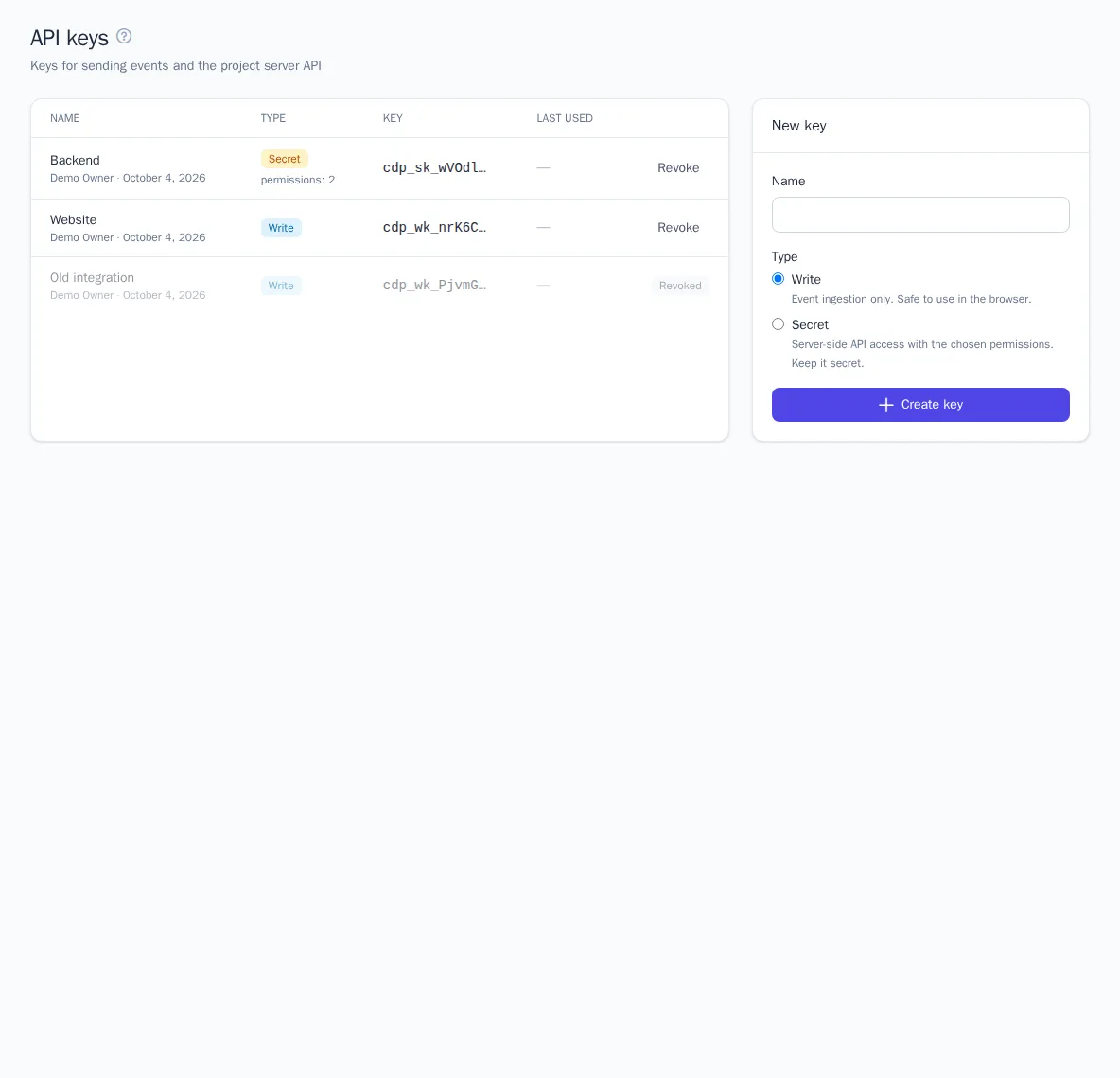
Key types
| Write | Secret | |
|---|---|---|
| Starts with | cdp_wk_ |
cdp_sk_ |
| What it allows | sending events only | sending events and taking actions in the project with the selected permissions |
| Where to use it | website code, mobile app, server | your server only |
| Safe to expose | yes, it's visible in your website's page code | no, keep it secret |
| Rate limit | 6,000 per minute | 1,200 per minute (default) |
A write key is public by nature: it sits in the code of every page on your website. It can only send events, so a leak doesn't expose any data. To stop other websites from sending events on your behalf, you can list the domains the key is accepted from in the Website section. See Connecting your website.
A secret key gives server-side access to project data. Never put it in page code, mobile apps, or public repositories.
Create a key
- Open API keys.
- In the New key card, enter a Name that tells you later where the key is used, for example "Website" or "Online store server".
- Choose the Type: Write or Secret.
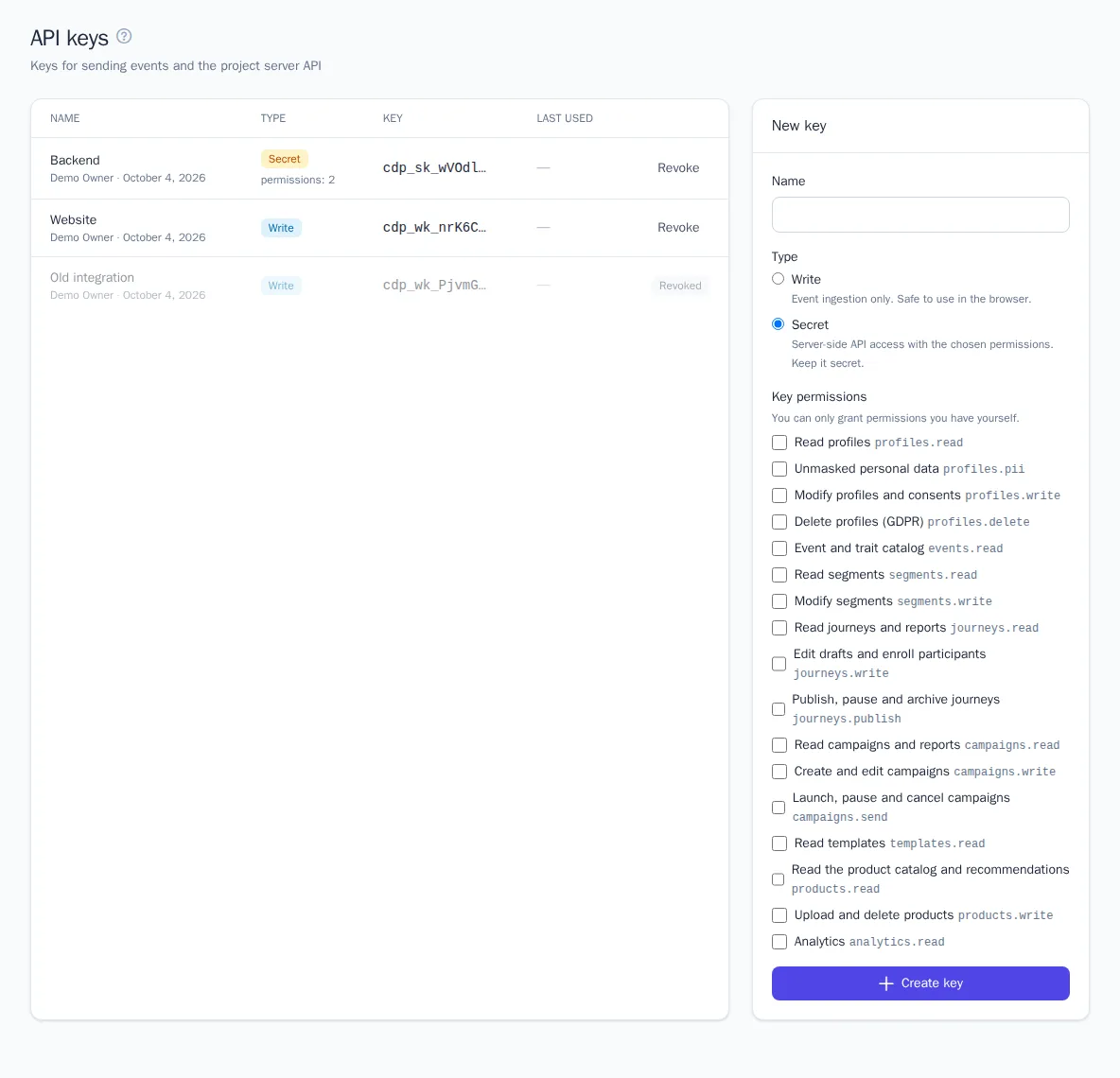
- For a secret key, select the Key permissions: only what the integration actually needs.
- Click Create key.
Right after you create the key, the full key appears at the top of the page. Click Copy and save it, for example in a password manager or in your server's environment variables. A secret key is shown only once: we store only its fingerprint, so the key can't be recovered. If you lose it, create a new one and revoke the old one.
It's easier to create a website write key directly in the Website section: there it's inserted into the installation code right away and is available at any time. See Connecting your website.
The key table shows the name, who created it and when, the type, the beginning of the key (for example, cdp_sk_a1b2…), the number of permissions, and when it was last used.
Secret key permissions
You can only grant a key permissions that you have yourself. Permissions apply to the whole project; you can't limit a key to specific journeys or segments.
| Permission | What it gives access to |
|---|---|
| Read profiles | a profile by identifier and its events |
| Unmasked personal data | email, phone, and other personal data in plain form; without this permission they're masked |
| Modify profiles and consents | messaging consents, Telegram linking |
| Delete profiles (GDPR) | deleting a profile at the customer's request |
| Event and trait catalog | the list of events and profile properties |
| Read / modify segments | viewing, creating, editing, deleting, and recalculating segments |
| Read journeys and reports; edit drafts and enroll participants; publish, pause and archive journeys | working with journeys |
| Read campaigns and reports; create and edit campaigns; launch, pause and cancel campaigns | working with campaigns |
| Read the product catalog and recommendations; upload and delete products | products and recommendations |
| Analytics | reports |
Example: a key that syncs VIP customers from a CRM only needs the Read segments and Modify segments permissions.
All actions taken with a secret key are recorded in the project audit log under the key's name. See Project settings, plan, and audit.
Revoke a key
- Find the key in the table and click Revoke.
- Confirm the action.
Requests with this key stop working immediately (they get a 401 response). A revoked key stays in the list marked Revoked so you can see its history. It can't be restored; create a new one if needed.
Revoke a key right away if it may have been exposed, if an employee who had access to it has left, or if the integration is no longer used.
Good to know
- Limits. If you exceed the rate limit or your plan's monthly event quota, the API responds with
429. Spread out your requests and retry after a pause. - Rotating a key safely. Create a new key, update it on your server, make sure requests are going through (the Last used field), and only then revoke the old one.
- One key per integration. This way the audit log shows who did what, and if a key leaks, you only need to revoke one.
- To learn how to send events and call the API from your server, see Server integration.