Messaging rules
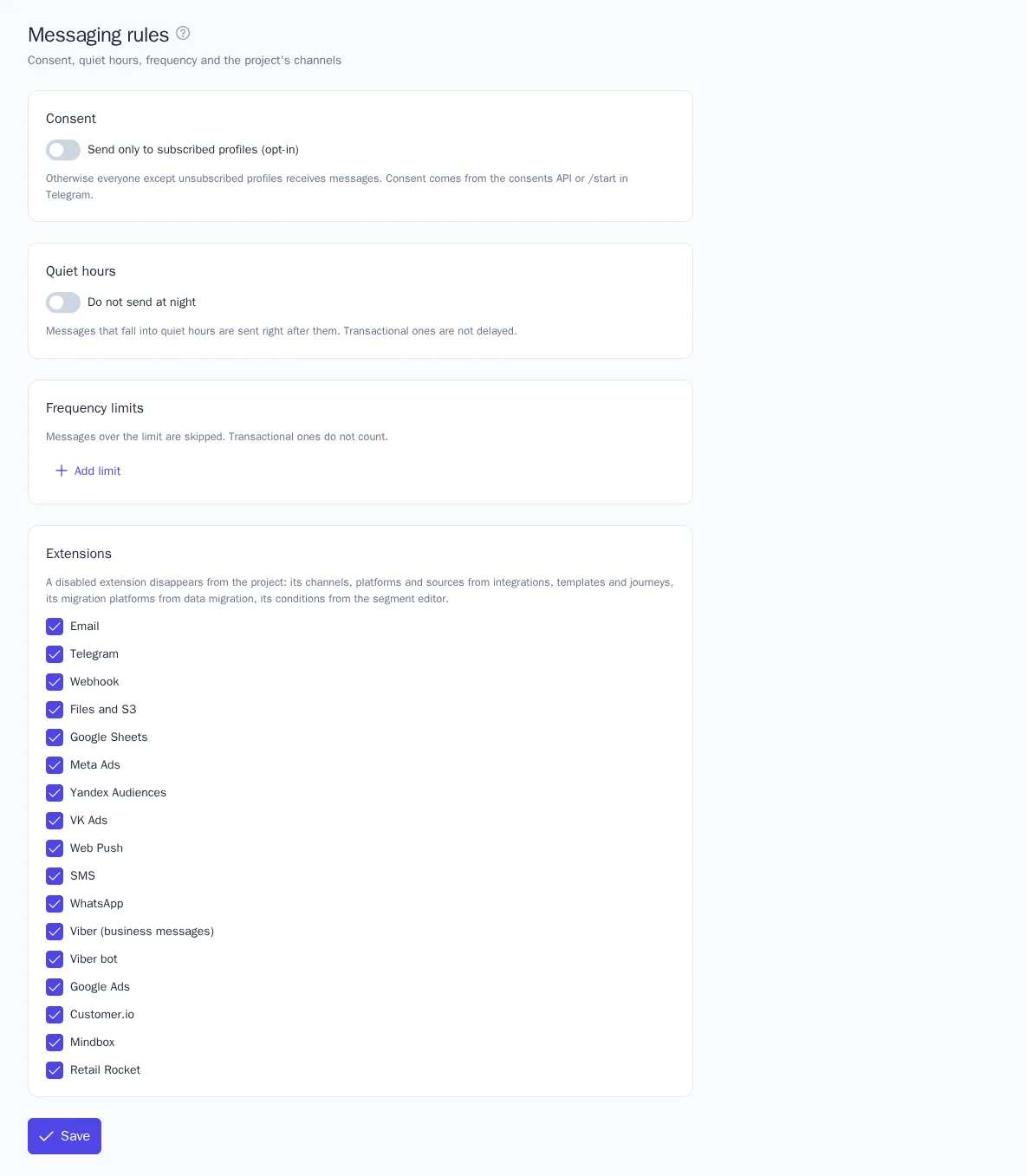
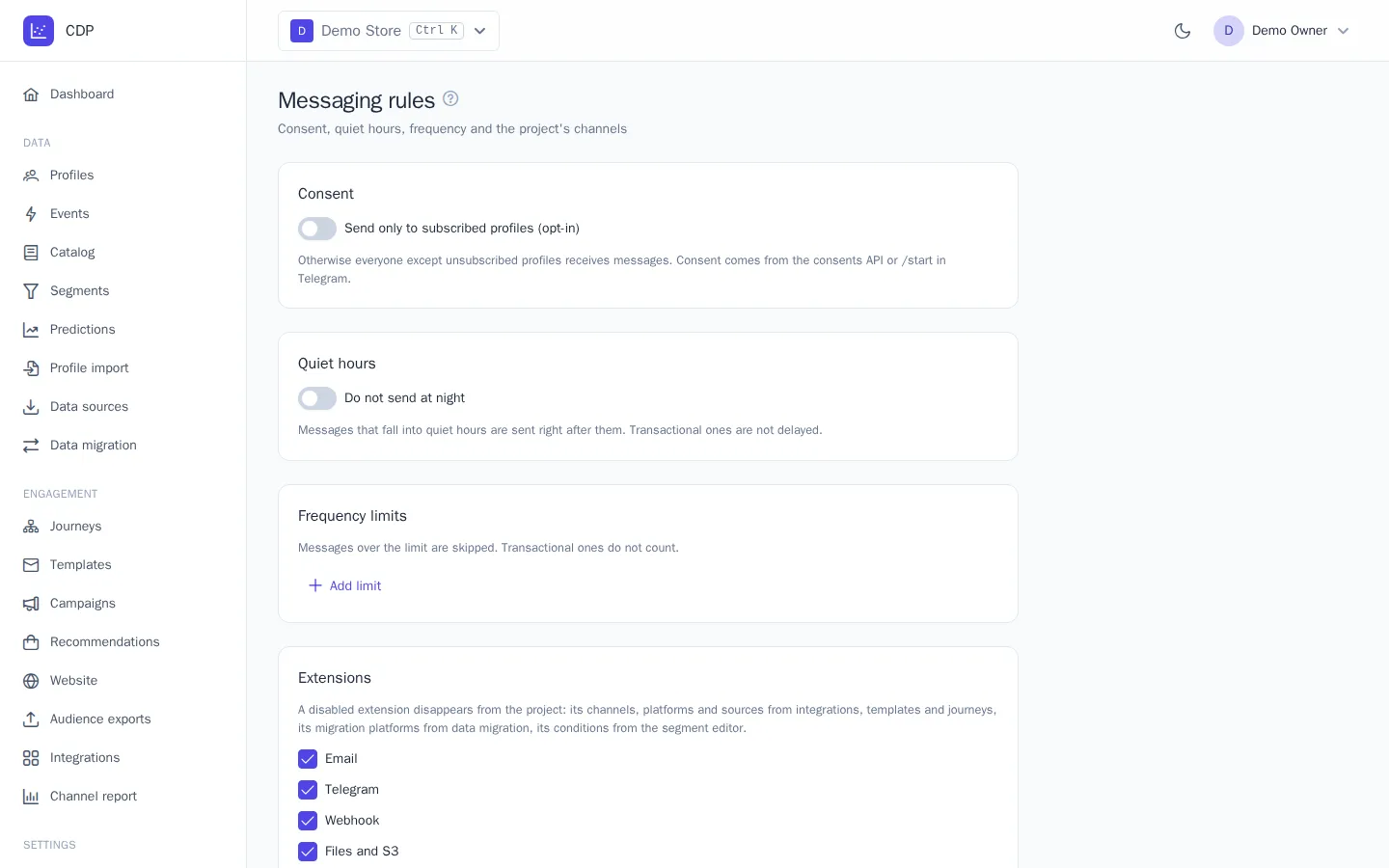
Messaging rules protect your customers from unwanted messages and protect you from complaints and unsubscribes. Here you define who you can message without an explicit subscription, when messages must not be sent, and how many messages one person can receive. The rules apply to all channels, journeys, and campaigns in the project.
Open the page from the menu: Settings → Messaging rules. Owner and Administrator can change the rules.
Subscription
By default, all customers receive messages except those who have unsubscribed. If you turn on Send only to subscribed profiles (opt-in), marketing messages only go to profiles with an explicit subscription to the channel. Turn this mode on if your policies or the law require confirmed consent.
A profile gets a subscription when:
- your website or server sends it through the consent API, for example from a subscription form or a customer account. See Server integration;
- the customer taps Start in the Telegram bot, subscribes to the Viber bot, or allows browser notifications;
- subscriptions are carried over when moving from another platform.
An unsubscribe happens automatically when the customer:
- clicks the unsubscribe link in an email or clicks Unsubscribe in their email client;
- sends /stop to the Telegram bot, blocks it, or writes "stop" in WhatsApp;
- unsubscribes from the Viber bot.
In addition, an address or number is unsubscribed if an email bounces with a permanent error or the provider reports that the number doesn't exist.
A profile's current subscriptions and unsubscribes, with their source and date, are shown in the Subscriptions block on the profile card. See Profiles.
Subscription topics
A customer can unsubscribe from a single topic instead of the whole channel: for example, stop getting news but keep getting personal offers.
- Open a message template in Templates.
- Set the Subscription topic, for example
marketingornews. - Add an unsubscribe link to the email: in the email builder, this is the Footer block with an Unsubscribe link; in your own HTML, it's the
{{ unsubscribe_url }}variable.
The unsubscribe link only unsubscribes from that message's topic; other topics keep arriving. An unsubscribe through the API without a topic applies to the whole channel.
Transactional messages
The Transactional message checkbox in a template is for order confirmations, password resets, and delivery notifications. These messages are sent without checking subscription, frequency limits, or quiet hours. Don't mark promotional emails this way: it violates recipients' rights and damages your sender reputation.
Quiet hours
- Turn on Do not send at night.
- Set the from and to times in HH:MM format, for example from 22:00 to 08:00.
- Click Save.
Times are in the project's time zone, which is shown next to the fields and can be changed in the project settings. A message that was due during quiet hours isn't lost: it gets the Scheduled status and is sent as soon as the window ends. Transactional messages go out without delay.
Frequency limits
A limit sets how many messages one customer can receive in a period.
- Click Add limit.
- Fill in the row: At most 3 messages per 24 h.
- Choose a channel or all channels together.
- Click Save.
An example rule set for an online store:
| Rule | Why |
|---|---|
| at most 1 message per 24 h, SMS | SMS is expensive and annoys people more often than email |
| at most 3 messages per 24 h, Email | abandoned cart, recommendations, and a campaign won't all arrive at once |
| at most 10 messages per 168 h, all channels together | an overall weekly cap |
Good to know:
- The window is rolling: messages from the last N hours before the send are counted.
- A message over the limit is skipped, not delayed. In the profile's message history and in reports, it appears with the Skipped status and the frequency limit reason.
- Transactional messages and test sends don't count toward the limit.
- You can set up to 10 rules, with a window from 1 to 720 hours.
Extensions
The Extensions block lists the capabilities connected in the project: channels (Email, SMS, Telegram, WhatsApp, and others), ad platforms, data sources, and moving from other platforms. Clear the checkbox for an extension you don't need, and it disappears from the project's integrations, templates, and journeys. This keeps things simpler for a team that, for example, doesn't use Viber.
Why a message wasn't sent
If a customer didn't get a message, find it in the message history on their profile card and check the reason:
| Reason | What to check |
|---|---|
| not subscribed | the profile is unsubscribed from the channel or topic, or opt-in is on and there's no subscription |
| frequency limit | the customer already received the maximum number of messages for the period |
| no recipient address | the profile has no email, phone, or chat for the channel |
For more about reports, see Analytics and reports.