Integrations and channels
An integration connects OneTrace.pro to an external service: a mail server, an SMS gateway, a messenger bot, an ad platform, or file storage. Journeys and campaigns work through connected channels, audience exports through destinations, and regular data imports through sources.
Open the section from the menu: Engagement → Integrations.
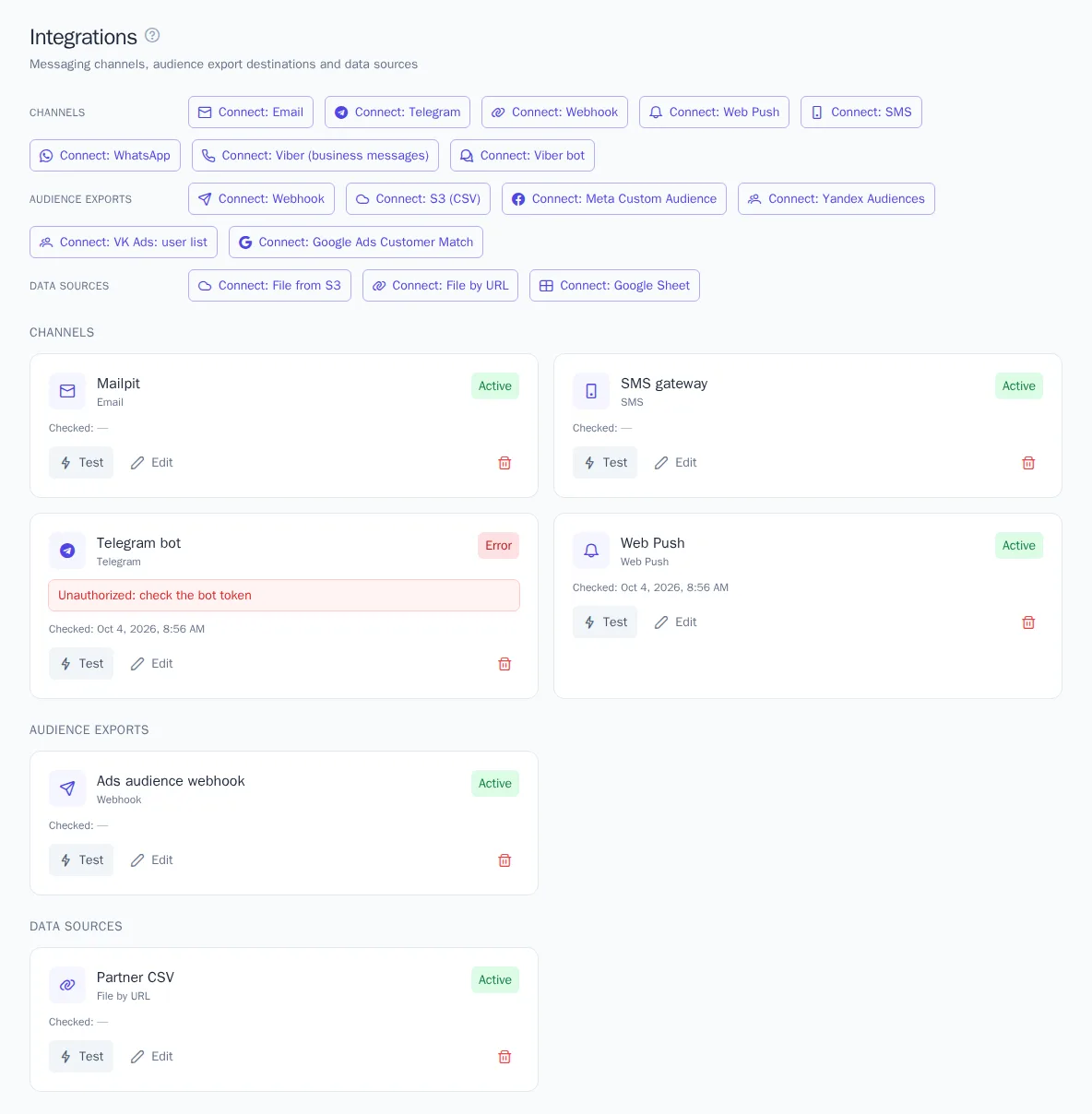
What you can connect
The Connect: … buttons are grouped by type.
Channels send messages:
| Channel | How it works |
|---|---|
| Platform mail service: sending from your domain set up in Sending domains, with DKIM signing, bounces, complaints, and the suppression list handled automatically; or Own SMTP server: address, port, encryption, username and password. In both cases, you set the sender address and name and can turn on open and click tracking. For your own SMTP server, you can set a bounce domain and mailbox so that undeliverable emails unsubscribe the address automatically | |
| SMS | a provider of your choice: SMS.ru, SMSC.ru, Twilio, or your gateway's own HTTP API. Delivery statuses arrive at the URL shown in the integration |
| Telegram | a bot created with BotFather: a token is all you need, and the bot sets up its incoming message URL itself |
| Viber (business messages) | messages by phone number through an aggregator: SMSC.ru, Infobip, or your own HTTP API |
| Viber bot | a Viber bot using the token from the partner account, with a welcome message for new subscribers |
| WhatsApp Business Cloud API: phone number ID, account ID, token, and Meta app secret | |
| Web Push | browser notifications; keys are created automatically and the website code collects subscriptions. See Connecting your website |
| Webhook | a request to your server with the message data, for example for your own notification system |
Audience exports: Webhook, S3 (CSV), Meta Custom Audience, Yandex Audiences, VK Ads, and Google Ads Customer Match.
Data sources: file by URL, file from S3, and Google Sheet.
You can connect several integrations of the same type: for example, two SMTP servers for marketing and transactional emails. In templates, journeys, and campaigns, you choose which integration to send through.
Connect an integration
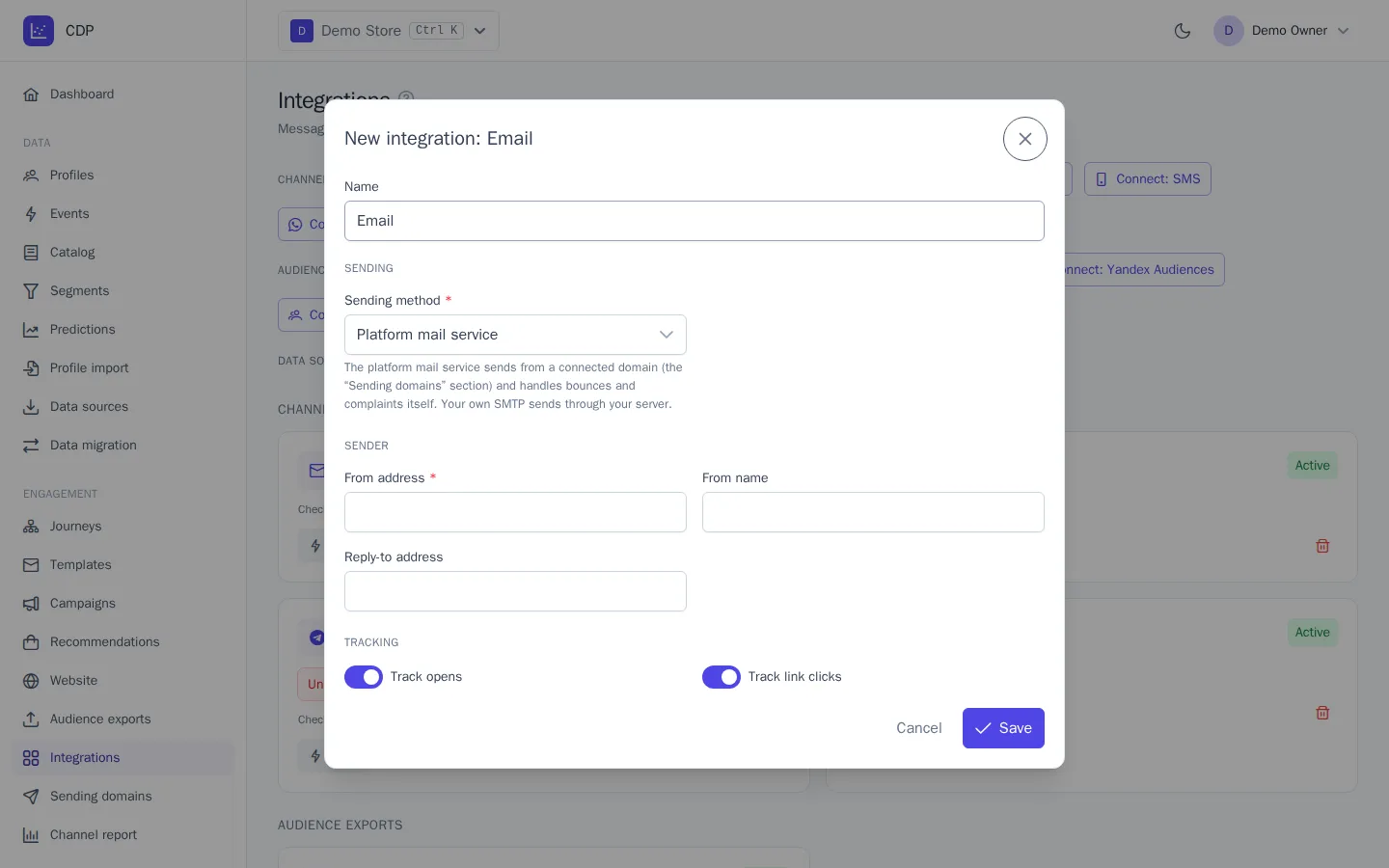
- Click the button for the service you need, for example Connect: Email.
- Enter a Name. You'll see it in templates, journeys, and exports, for example "Marketing email".
- Fill in the settings. Hints under the fields explain where to find the token or key in the service's account.
- Click Save.
- On the integration card, click Test.
For some services, extra fields appear in the settings after you save: for example, Webhook URL and Verify token for WhatsApp, or Delivery status URL for SMS. Copy them into the service's account, or delivery statuses and incoming messages won't arrive.
Telegram, Viber bot, and WhatsApp receive incoming messages at your OneTrace.pro installation's address, which must be reachable from the internet over HTTPS.
Testing and statuses
The Test button connects to the service and shows the result: Connection works with details (the bot name, the SMS provider balance, the accessible bucket) or The test failed with the error text. The time of the last test is shown on the card.
| Status | What it means |
|---|---|
| Active | the connection is fine |
| Error | the last test or setup failed; the error text is on the card. Fix the settings and test again |
| Disabled | the integration was turned off with the Enabled switch in its settings; no messages are sent through it |
Testing SMS through your own HTTP API only checks that the gateway address is reachable: a real SMS costs money, so test sending with a test message from a template.
Editing and deleting
- Edit opens the settings. Passwords, tokens, and keys aren't shown after you save: leave such a field empty to keep the existing value.
- To pause sending temporarily, turn off the Enabled switch. The settings are kept.
- Delete integration: messages are no longer sent through it, and exports and sources that use this connection stop with an error.
Who can manage integrations
| Action | Roles |
|---|---|
| View integrations | Owner, Administrator, Manager |
| Connect, edit, test, and delete | Owner, Administrator |
A member's role can be limited to specific integrations. See Members and roles. Such a member sees only their integrations in this section and can manage only those, if the role allows it. They can't connect a new integration, because that requires a project-wide permission. In the template and journey editors, they still choose from all integrations connected in the project.
Good to know
- Channels don't check subscriptions and frequency themselves: these rules are shared by all channels and are set on the Messaging rules page.
- On the same page, you can turn off an extension you don't need, such as WhatsApp. A disabled extension disappears from the project's integrations, templates, and journeys.
- In WhatsApp, the first message and bulk sends are only possible with Meta-approved templates; free-form text is allowed within 24 hours after the customer's message.
- With the platform mail service, you add the DKIM, SPF, and bounce records once when you connect the domain. See Sending domains. For your own SMTP server, SPF, DKIM, and DMARC are set up on the server side and on your domain.