Audience exports
An export regularly sends a segment's members to an external system: an ad platform, S3 storage, or your server via a webhook. For example, you can keep a "VIP customers" segment up to date in Yandex Audiences so they don't see discount ads, and use "Abandoned cart" for retargeting in VK Ads.
Open the section from the menu: Engagement → Audience exports.
Where you can export
| Platform | What it receives |
|---|---|
| Meta Custom Audience | emails and phone numbers, hashed (SHA-256) |
| Yandex Audiences | emails and phone numbers, hashed (SHA-256) |
| VK Ads: user list | emails or phone numbers, one type per list |
| Google Ads Customer Match | emails and phone numbers, hashed (SHA-256) |
| S3 (CSV) | a CSV file in your bucket with the selected identifiers and traits |
| Webhook | JSON with profiles that joined and left, sent to your server |
First, connect the platform on the Integrations page in the Audience exports group: enter the tokens and ad account ID and click Test. Until you have connections, the exports page shows a hint with an Open integrations link.
Why access to personal data is required
An export sends customers' emails, phone numbers, and other identifiers outside OneTrace.pro. That's why all project members can view exports and their run history, but only members who have both the permission to edit segments and the permission to see unmasked personal data can create, change, run, and delete them. Among the system roles, that's Owner, Administrator, and Manager. For details, see Members and roles.
Create an export
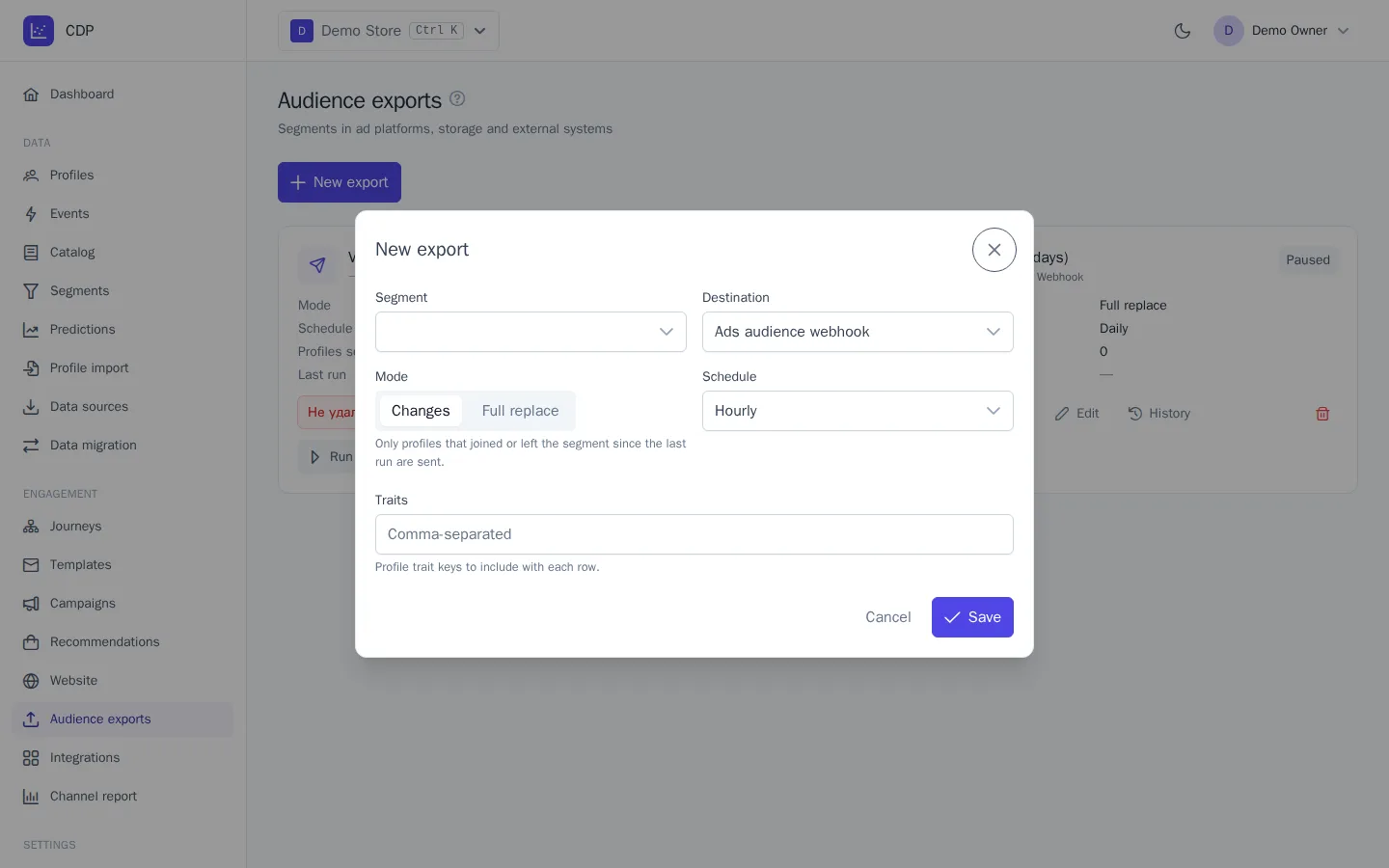
- Click New export.
- In the Segment field, choose a segment. Its size is shown next to the name.
- In the Destination field, choose a connected platform.
- Choose the Mode:
- Changes: each run sends only the profiles that joined or left the segment since the last run;
- Full replace: each run sends the whole segment, and the platform replaces the audience entirely. Not available for all platforms.
- Choose a Schedule: from every 15 minutes to once a day.
- Fill in the platform settings, if any: the audience or list name, the VK Ads list type, and traits for the webhook and S3. For Meta and Google Ads, you can enter the ID of an existing audience; if the field is empty, an audience is created in the ad account on the first export.
- Click Save. The first export starts within a minute.
You can't change the platform of an existing export; create a new one instead. If you change the mode, the next run sends the segment again.
Which profiles are exported
- Ad platforms only receive profiles with an email or phone number. Before sending, addresses and numbers are normalized and hashed, as the platforms require: the ad system never sees the contacts themselves but can match them to its users. Profiles without the required contacts are skipped.
- VK Ads stores one contact type per list. To export both emails and phone numbers, create two exports.
- S3 and webhook receive all segment members: the profile ID, plus the identifiers and traits you listed in the export settings. Choose only what the recipient actually needs.
Export card
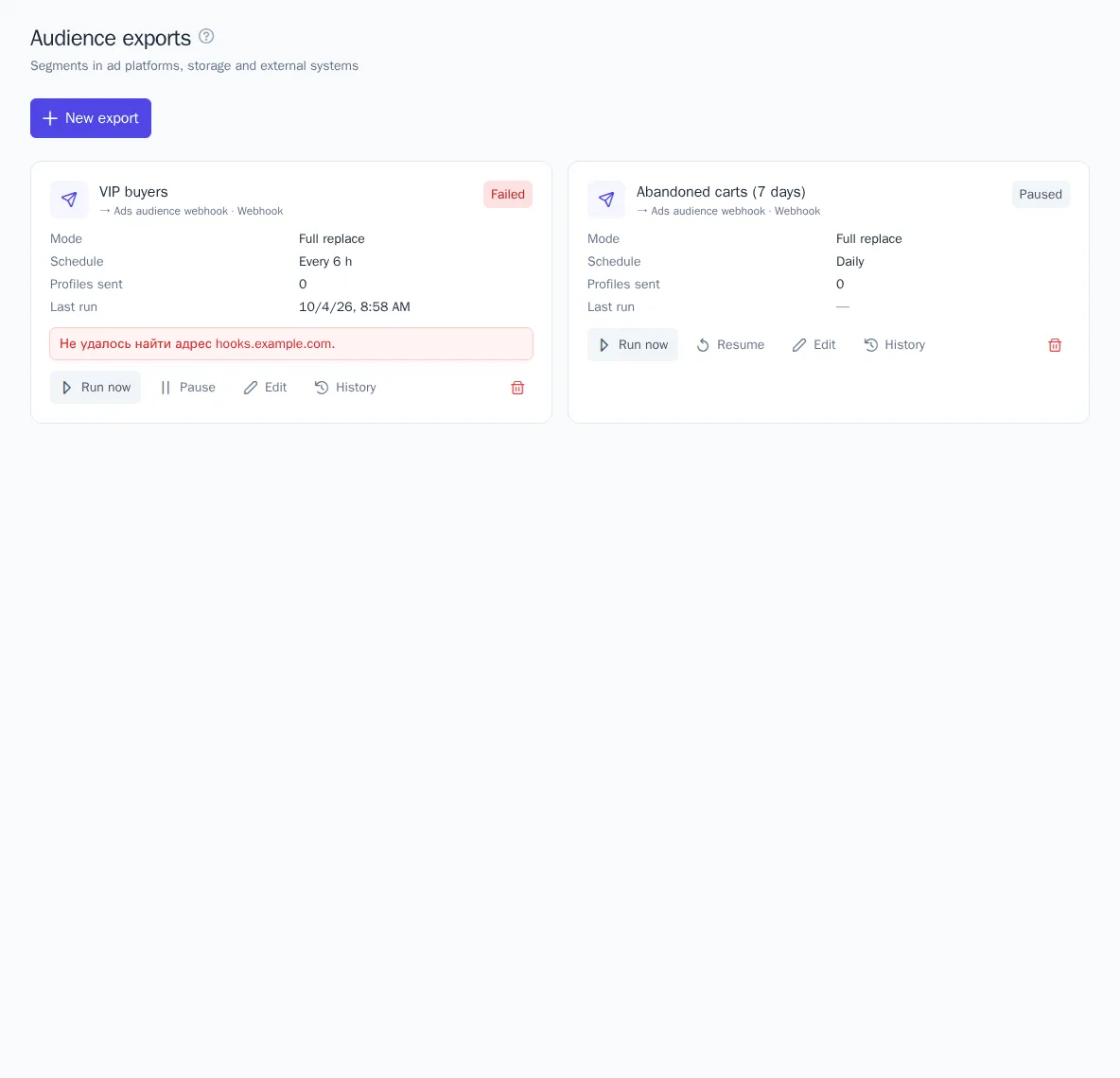
The card shows the segment and platform, status, mode, schedule, Profiles sent, Last run, and Platform ID (the ID of the audience or list created in the ad account). Below that is the result of the last run: how many profiles were added and removed.
Export statuses:
| Status | What it means |
|---|---|
| Active | runs on schedule |
| Paused | stopped with the Pause button; Resume puts it back to work |
| Failed | the platform rejected the data or the token has expired; the error text is shown on the card |
A failed export doesn't run on schedule: usually you need to refresh the token or permissions in the ad account first. Fix the connection in Integrations and click Run now. The export retries temporary platform issues (overload, rate limits) on its own.
Run history
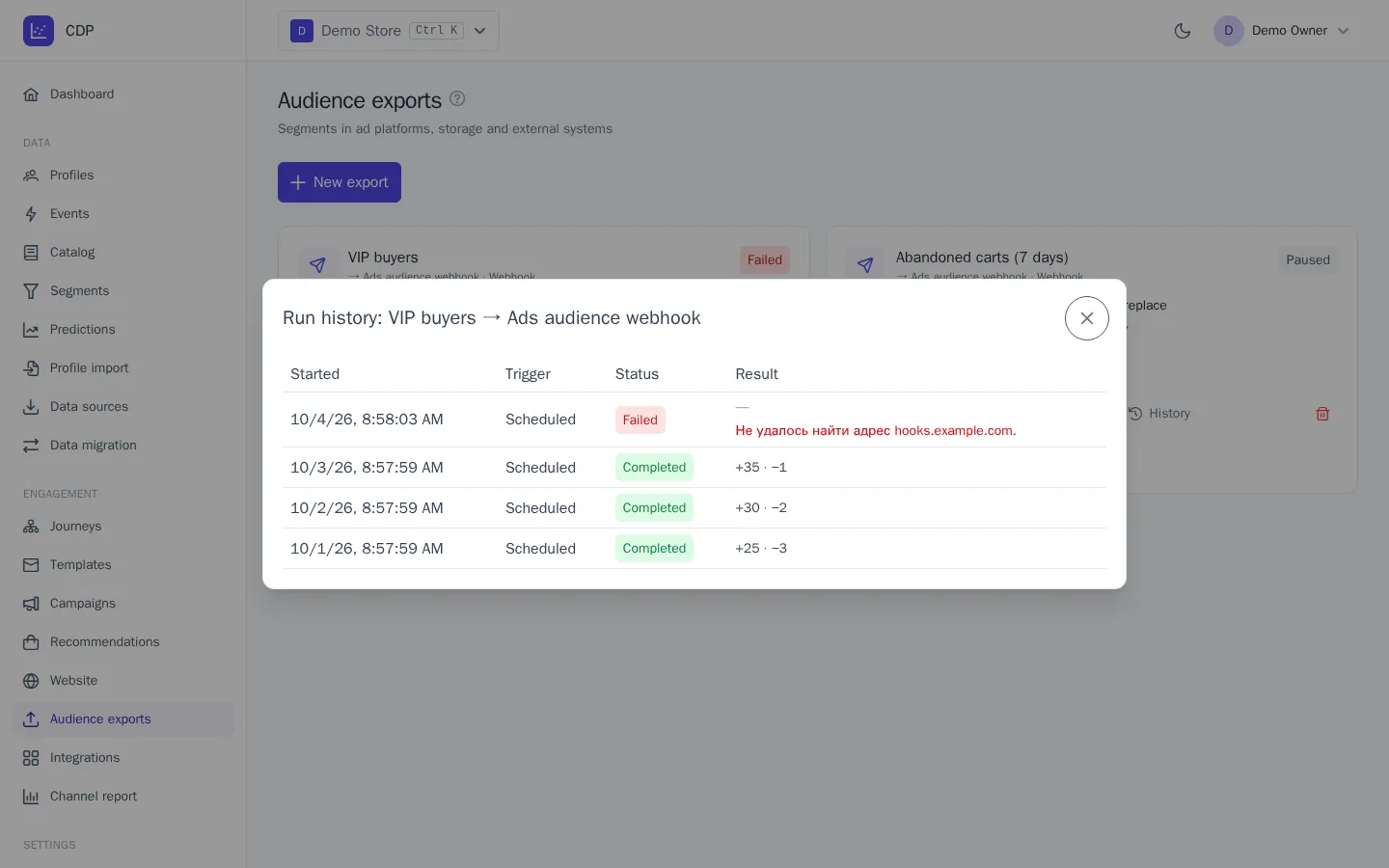
The History button opens the list of runs: start time, how it was triggered (Scheduled or Manual), status, and result.
| Run status | What it means |
|---|---|
| Completed | changes were sent |
| Unchanged | the segment didn't change, nothing was sent to the platform |
| Deferred | there are fewer changes than the platform's minimum; they accumulate until the next run |
| Failed | the run failed; the reason is in the result column |
Good to know
- Minimum size. Yandex Audiences creates a segment from 100 contacts; VK Ads creates a list from 2,000 contacts and accepts changes from 25. Until the segment is large enough, runs get the Deferred status.
- Deleting an export doesn't delete the audience on the platform: it stays in the ad account but is no longer updated.
- A deleted segment or connection stops the export with an error; the export itself stays in the list.
- A profile deleted at the customer's request (GDPR) can no longer be identified on the platform. It stays in the ad account's audience until you recreate the audience or run a full replace.
- For Google Ads, consent from EEA users to data sharing and ad personalization is set in the export settings.