Sending domains
The OneTrace.pro mail service sends emails from your domain: it signs them with DKIM, handles bounces and spam complaints, keeps an address suppression list, and makes sure your mailings don't damage your reputation. You don't need your own SMTP server for this: just connect a domain and add a few records at your DNS provider.
The Sending domains section is in the project menu next to integrations. Members with access to integrations can view it; members who can manage integrations can connect and disconnect domains.
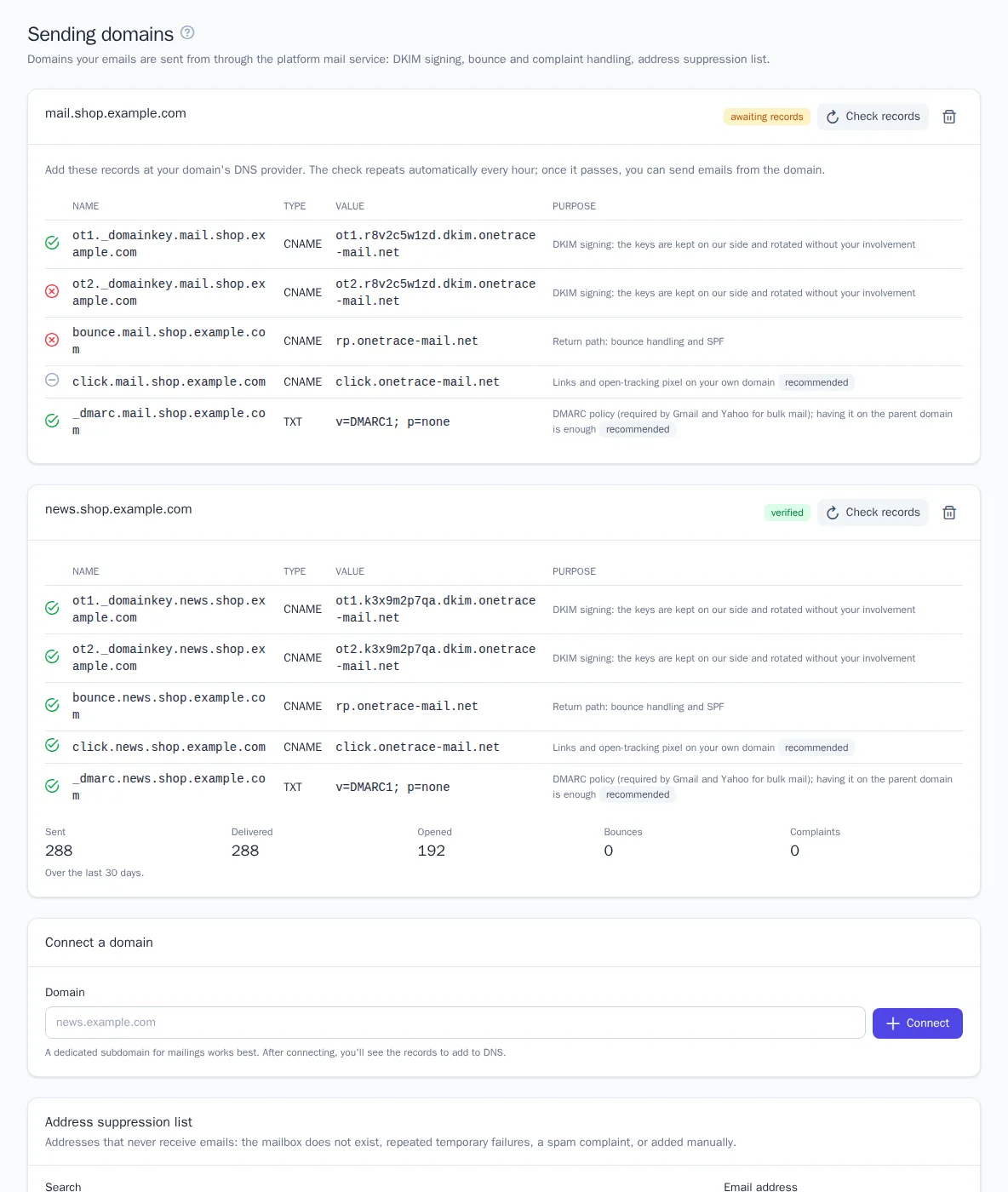
Connect a domain
-
Open Sending domains.
-
In the Connect a domain block, enter the domain and click Connect. A dedicated subdomain for mailings, such as
news.example.com, works best: complaints about your mailings then won't affect mail on your main domain. -
A table of records appears. Add them at your domain's DNS provider:
Record Type Purpose ot1._domainkey.<domain>,ot2._domainkey.<domain>CNAME DKIM signing: the keys are kept on our side and rotated without your involvement bounce.<domain>CNAME return path: SPF and bounces of undelivered emails go through it click.<domain>CNAME recommended: links and the open-tracking pixel on your own domain _dmarc.<domain>TXT recommended: a DMARC policy, if your main domain doesn't have one -
Click Check records. Until the records appear, the check repeats automatically every hour. As soon as the required records are found, the domain gets the verified status.
DNS changes can take up to a few hours to propagate. A green mark next to a record means it was found; a red one means a required record isn't visible yet.
Send from the domain
In Integrations, connect Email and choose the Platform mail service sending method. In the From address field, enter an address on a verified domain, such as [email protected]. If the domain isn't verified yet, the integration card shows a warning, and emails from that address won't be sent.
With the mail service, your emails get:
- your domain's DKIM signature and an SPF check through
bounce.<domain>, so DMARC passes for your domain; - one-click unsubscribe headers (
List-Unsubscribe), which Gmail and Yahoo require for bulk mail; - links and the open-tracking pixel on
click.<domain>, if you've added that record.
Bounces, complaints, and the suppression list
The mail service processes responses from mailbox providers on its own:
- mailbox does not exist: the email gets the Bounced status, the address is added to the suppression list, and the profile is unsubscribed from email;
- temporary failure (a full mailbox and the like): after several failures in a row, the address is added to the suppression list; a successful delivery resets the counter;
- spam complaint: the profile is unsubscribed from mailings and the address is added to the suppression list, but transactional emails (orders, password resets) are still sent to it;
- rejection due to reputation or content: the email isn't delivered, but the address isn't at fault and isn't added to the suppression list.
No emails are sent to addresses on the suppression list, not even test emails. The list is shown at the bottom of the page: find an address with the search and click Remove if the mailbox works again. You can also add an address manually, for example at the recipient's request.
The suppression list also works with your own SMTP server if the integration has a bounce mailbox configured.
Statistics and automatic pause
For a verified domain, you can see the sent, delivered, and opened emails, bounces, and complaints over the last 30 days.
If a campaign receives too many complaints or bounces, it's paused automatically, and members with permission to launch campaigns get an email. Check the audience (people who haven't opened emails in a long time, addresses from third-party lists) and the email content, then resume the campaign on its page.
Good to know
- Don't delete the records after verification: the platform checks them every hour. If required records disappear, the domain shows a warning; after 72 hours, verification is revoked, emails from the domain stop being sent, and members with permission to manage integrations get an email.
- A domain can be connected to only one project. To move it, disconnect the domain in the old project.
- The number of emails sent through the mail service may be limited by your plan. You can see your usage on the Plan and usage page.
- Warm-up. For the first 14 days after verification, the domain has a daily limit: from 200 emails on day one up to 200,000 by the end of the second week. Emails over the limit are not lost — they go out the next day; the warm-up day and limit are shown on the domain. In the first days, it's best to send to your most active recipients.