Profiles
A profile is a single customer with all their identifiers, traits, events, messages, and subscriptions. OneTrace.pro builds the profile from every source: your website, mobile app, server, imports, and migrations, and it automatically merges data from the same person coming from different devices.
The section is in the menu under Data → Profiles. All project roles can view profiles.
Profile list
By default, the list is sorted by most recent activity. The table shows the profile name and number, email, User ID, last activity time, and when the profile first appeared. You can sort by the last two columns.
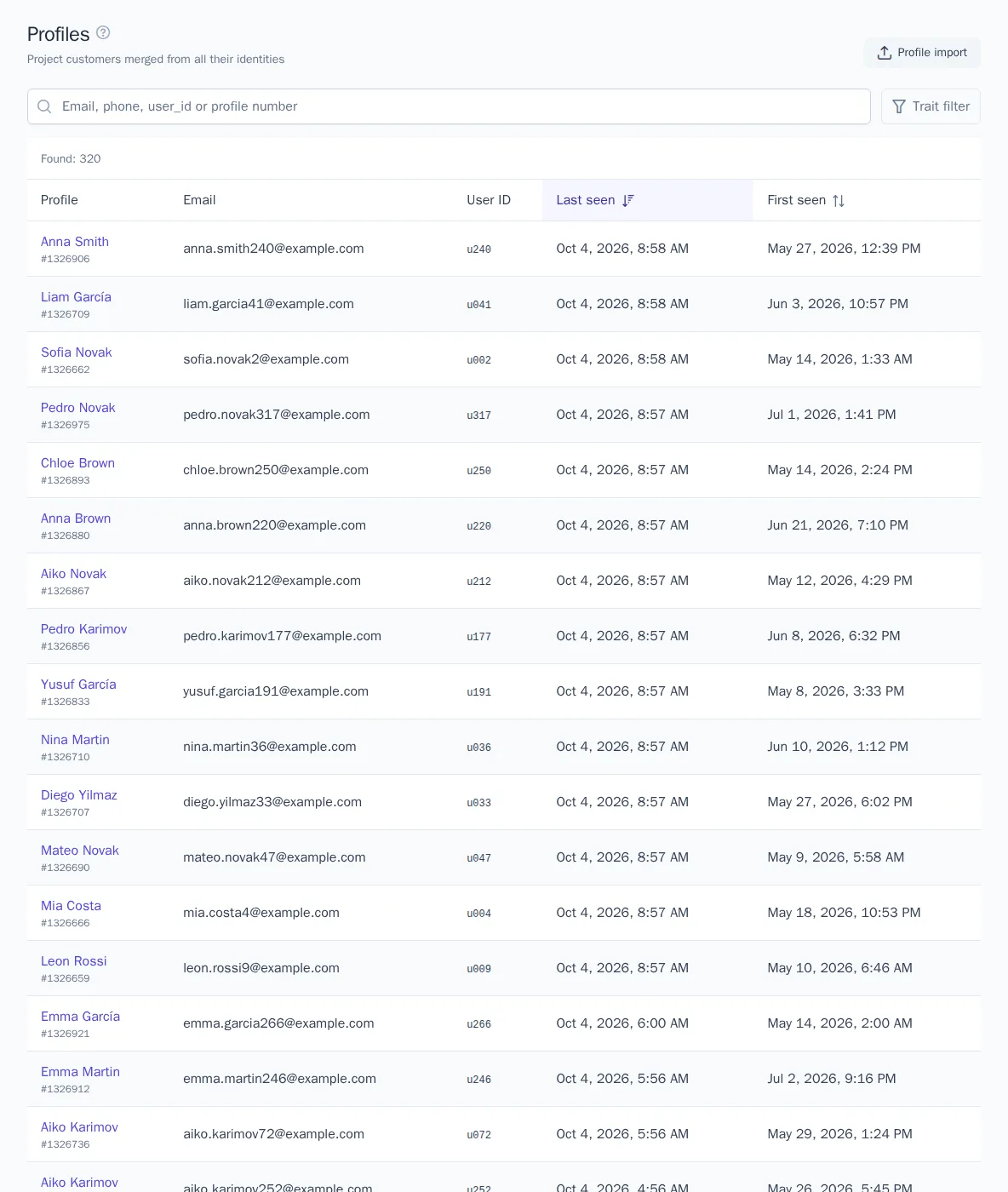
To find the customers you need:
- In the search bar, type the beginning of an email, phone number, User ID, or Anonymous ID, or a profile number. Results update as you type.
- To filter profiles by data, click Trait filter, then choose a trait, an operator (equals, contains, greater than, is set, and so on), and a value.
- Click Apply. You can add up to 10 filters; a profile must match all of them.
The number of profiles found is shown above the table. If more than 10,000 match, the counter shows Found more than 10,000. For an exact count and regular work with such an audience, create a segment.
The Profile import button in the page header takes you to uploading profiles from CSV.
Profile card
Open a profile from the list. The header shows the name, profile number, when it first appeared, and its last activity. If other profiles were merged into it, you'll see a Merged profiles: N label next to it.
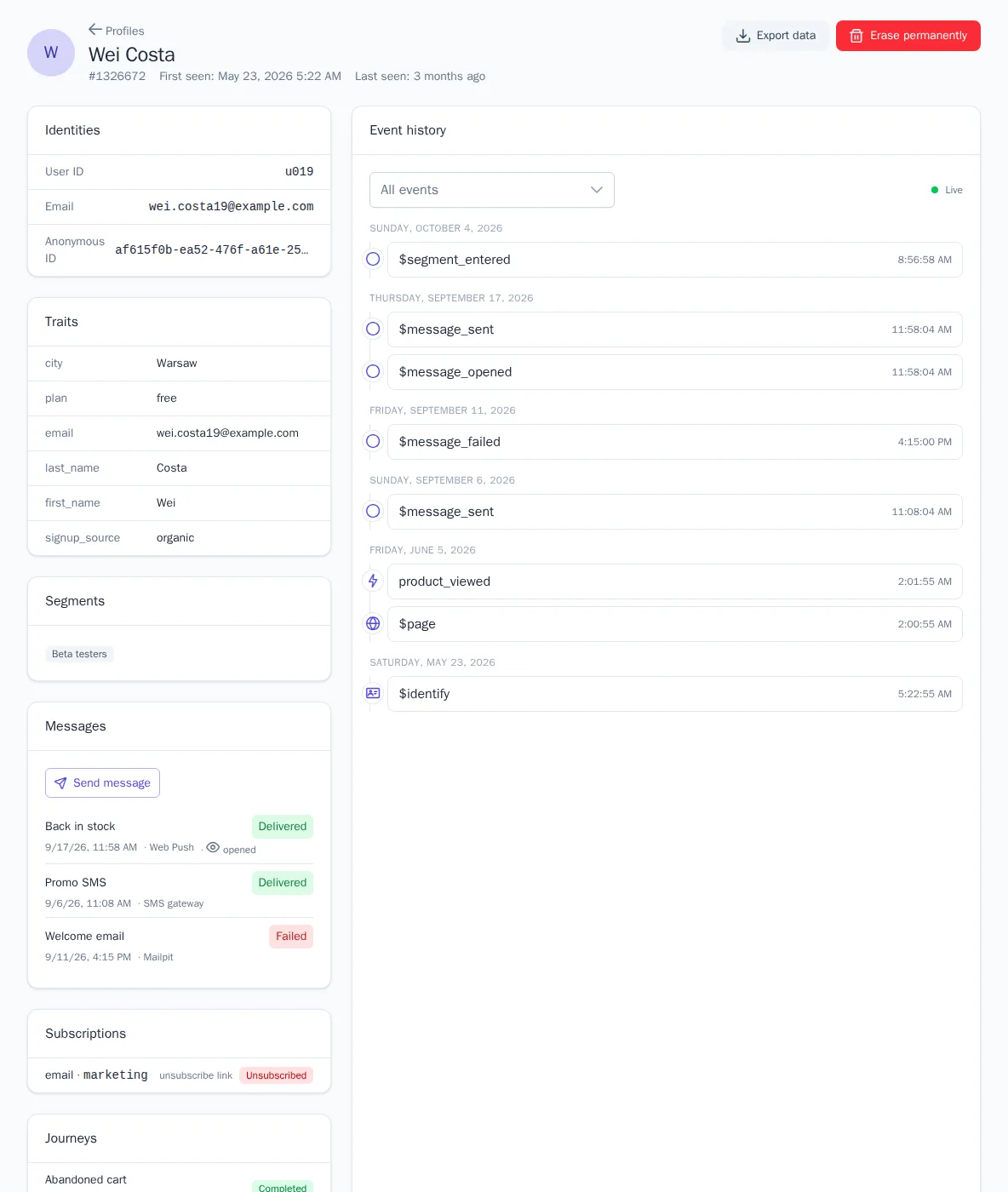
| Block | What's in it |
|---|---|
| Identities | User ID, email, phone, Anonymous ID, Telegram, Viber, Web Push: everything OneTrace.pro uses to recognize the customer |
| Traits | customer attributes such as name, city, and plan, plus predictions such as churn risk, RFM, and others |
| Segments | segments the customer is in right now; the link opens the segment page |
| Messages | messages sent to the customer with delivery status and open and click marks |
| Subscriptions | consents by channel and topic: Subscribed or Unsubscribed status and the source (API, unsubscribe link, manual, migration) |
| Journeys | the most recent journeys the customer took part in, and their status |
| Event history | all of the customer's events, by day |
Event history
The history shows all of the customer's actions: page views, website and server events, and system events such as entering and leaving segments, message sends, deliveries, and opens, and subscribes and unsubscribes. Click an event to expand its Properties and Context (page, device, UTM tags).
- The All events list at the top filters the history to a single event and shows how many times it occurred.
- While the card is open, new events appear at the top automatically, as the Live label indicates. This is handy for checking an integration: take an action on your website and see whether the event arrived.
- The Load more button at the bottom loads earlier events.
Send a message manually
The Manager, Administrator, and Owner roles have a Send message button in the Messages block: choose a template and a channel. Before sending, the customer's subscription, frequency limits, and the project's quiet hours are checked. If the customer has unsubscribed, the message is skipped.
How profiles are merged
The same person often reaches OneTrace.pro under different identifiers: an anonymous website visitor, then a subscriber with an email, then a customer who signs in to their account. As soon as two identifiers appear in the same event (for example, a visitor with an Anonymous ID enters their email in a form), their profiles are merged into one.
Merge rules:
- Identifiers differ in reliability: User ID is stronger than email, email is stronger than phone, phone is stronger than messengers, and Anonymous ID is the weakest.
- Two profiles with different User IDs are never merged, so the data of two people who signed in on the same computer doesn't get mixed.
- When profiles merge, the oldest profile is kept and receives all the identifiers. If a trait exists in both profiles, the value from the profile with more recent activity wins.
- Event history, segment membership, and journey participation are combined. The card shows a Merged profiles: N label.
Merging can't be undone. For it to work correctly, send a User ID only for signed-in users, and don't use shared values like 0 or guest.
Personal data
Email, phone, and traits marked as PII in the Catalog section (the Profile traits tab) are visible unmasked only to members with the Unmasked personal data permission. By default, these are Manager, Administrator, and Owner. The User role sees such values as i***@g***.com, and IP addresses and personal traits are hidden from it in the event history.
Masking applies everywhere: in the profile list and card, and in segment members and previews. You set permissions for custom roles in Members and roles.
Export and erasure (GDPR)
When a customer asks to see or delete their data, use the buttons in the card header. They're available to the Administrator and Owner roles.
- Export data downloads a JSON file with all of the profile's traits, identifiers, and events. The export contains unmasked data.
- Erase permanently, after confirmation, deletes the profile, all profiles merged into it, its identifiers, segment membership, and journey participation. Events are removed from analytics in the background, usually within a few minutes.
Both operations are recorded in the project audit log (without personal data). Erasure can't be undone. If the customer visits your website again, a new profile is created for them.