Profile and security
You have one OneTrace.pro account for all projects: the same email and password work in every project you've been invited to. On the Profile and Security pages, you can change your personal details, password, and language, turn on two-factor authentication, and end sessions on other devices.
Both pages open from the menu under your name in the top-right corner.
Profile
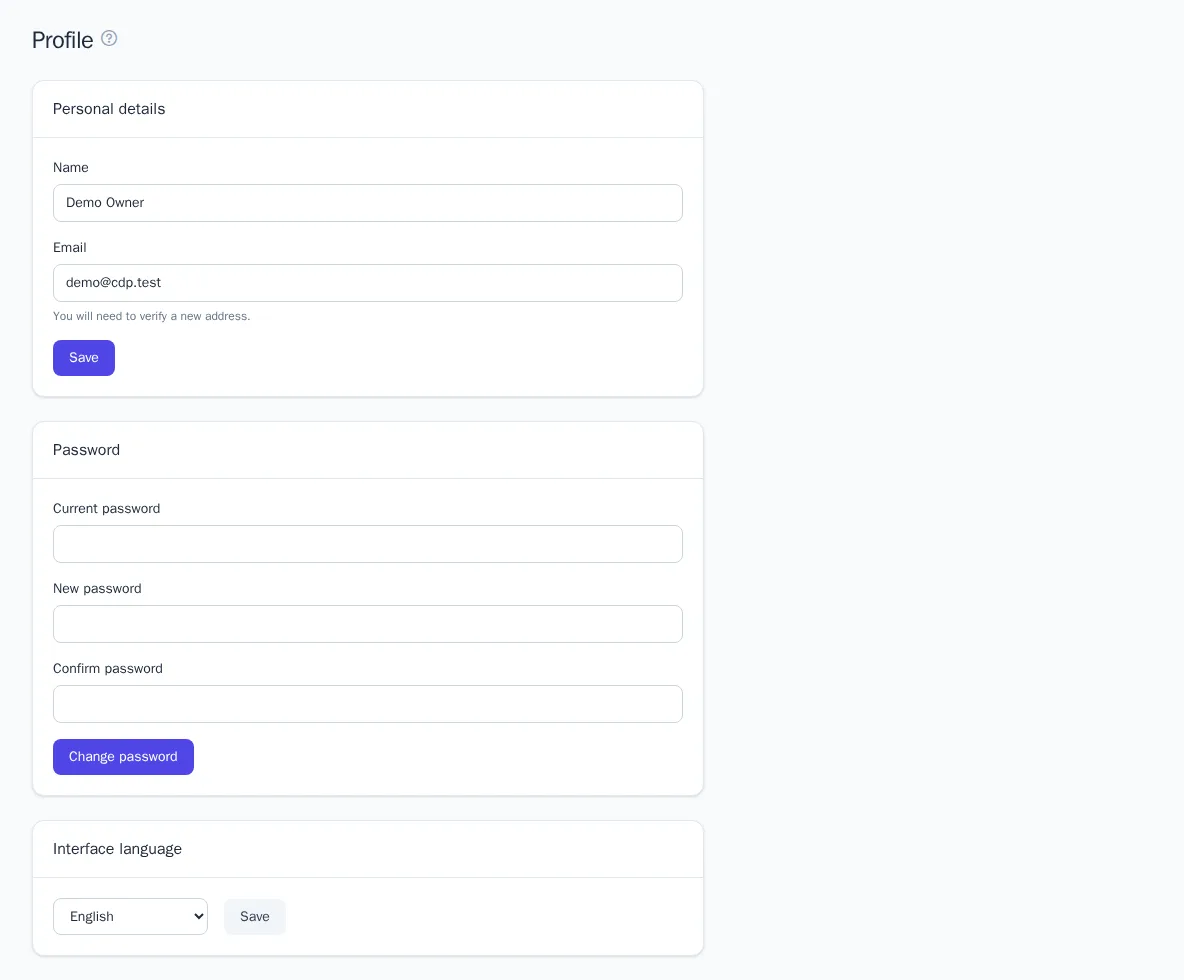
Personal details
- Open Profile.
- In the Personal details block, change Name or Email.
- Click Save.
Your colleagues see your name in the member list and in the project audit log. After you change your email, confirm the new address using the link in the message we send you.
Password
- In the Password block, enter your Current password.
- Enter a New password and repeat it in the Confirm password field.
- Click Change password.
If you don't remember your current password, sign out and use the Forgot password? link on the sign-in page.
Interface language
Choose a language in the Interface language block and click Save. The language is stored in your account and applies on any device.
Security
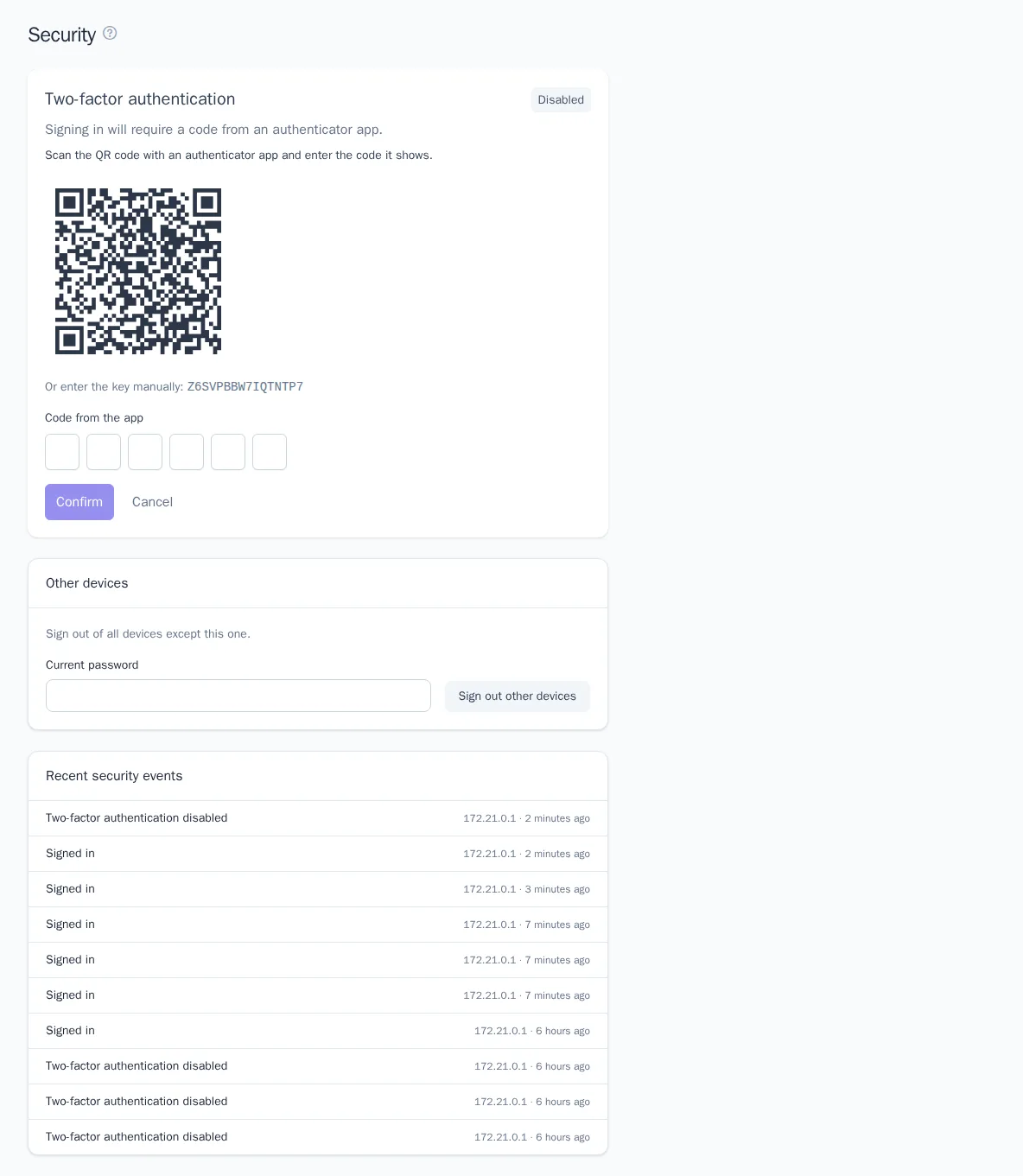
Two-factor authentication
Two-factor authentication (2FA) protects your account even if someone else learns your password: signing in also requires a six-digit code from an authenticator app on your phone (Google Authenticator, Microsoft Authenticator, 1Password, and similar apps).
To turn it on:
- Open Security and click Enable in the Two-factor authentication block.
- If the Confirm password dialog appears, enter your account password.
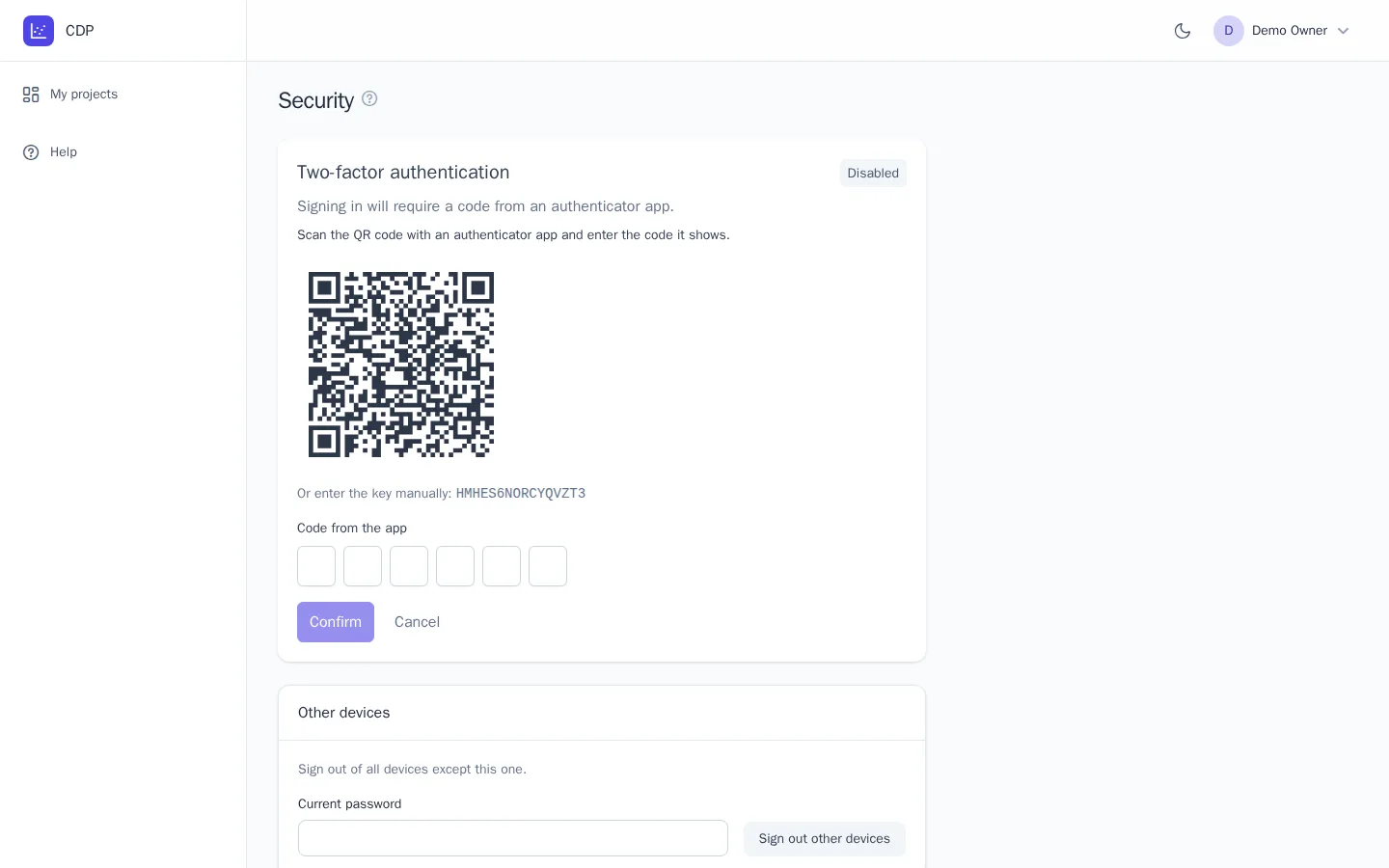
- Scan the QR code with your authenticator app. If scanning isn't convenient, enter the displayed key manually.
- Enter the code from the app in the Code from the app field and click Confirm.
- Click Recovery codes and store them somewhere safe, such as a password manager.
You need recovery codes if you lose your phone: on the sign-in page, enter one of them instead of the code from the app. Each code works only once. The New codes button generates a new set, and the old codes stop working.
To turn off 2FA, click Disable (confirm with your password if asked).
A project owner or administrator can require 2FA for all members. If you haven't turned it on, such a project won't open until you do.
Other devices
If you signed in on someone else's computer or suspect that someone else knows your password:
- In the Other devices block, enter your Current password.
- Click Sign out other devices.
All sessions except the current one end immediately. If your password may have leaked, change it on the Profile page afterward.
Recent security events
The bottom of the page shows the 10 most recent account events: sign-ins, failed sign-in attempts, password changes and resets, turning 2FA on and off, generating new recovery codes, and signing out other devices. Each event shows the IP address and time. If you see a sign-in you didn't make, change your password right away, sign out other devices, and turn on 2FA.
Good to know
- Your account is shared across all projects: changing your password or language, or turning on 2FA, applies everywhere.
- You can remove yourself from a project on the Members page with the Leave project button. See Members and roles.
- You can switch the color theme with the moon button in the top bar. See Getting started.