Journeys
A journey guides a customer through a scenario. It starts from an event, a segment entry, a date, or a schedule, and continues with waits, conditions, and messages. Typical examples: abandoned cart, welcome series, win-back for lapsed customers.
The section is in the menu under Engagement → Journeys. All roles can view journeys. Manager and above can edit and publish them, as can roles that have been granted permissions on specific journeys.
Journey list
The table shows the name and published version number, the status (Draft, Active, Paused, Archived), how many participants are in the journey right now (In progress), and the Total entries and Goals columns.
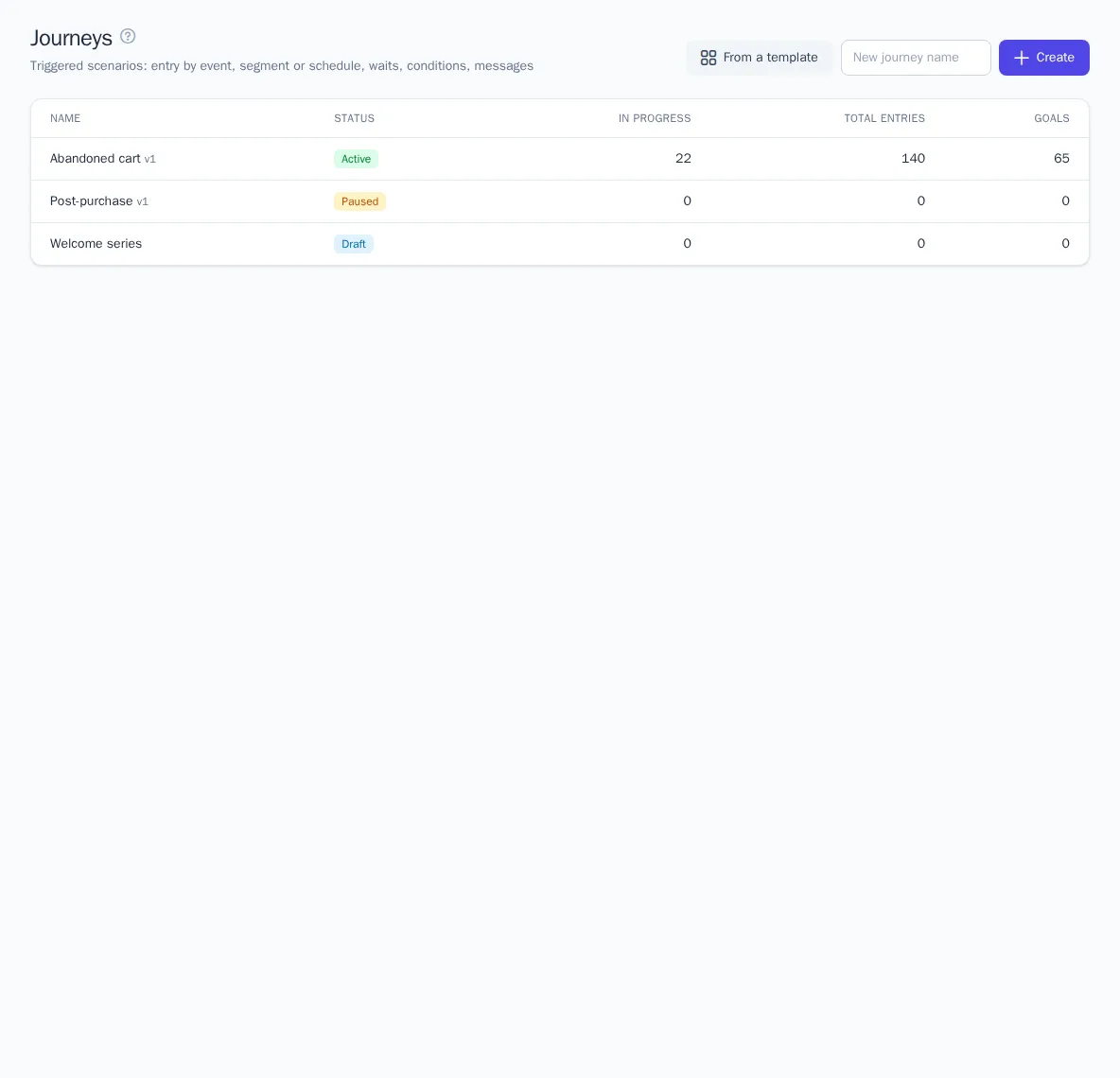
There are two ways to create a journey:
- enter a name and click Create to open the editor with an empty draft;
- click From a template and choose a ready-made scenario.
Journey templates
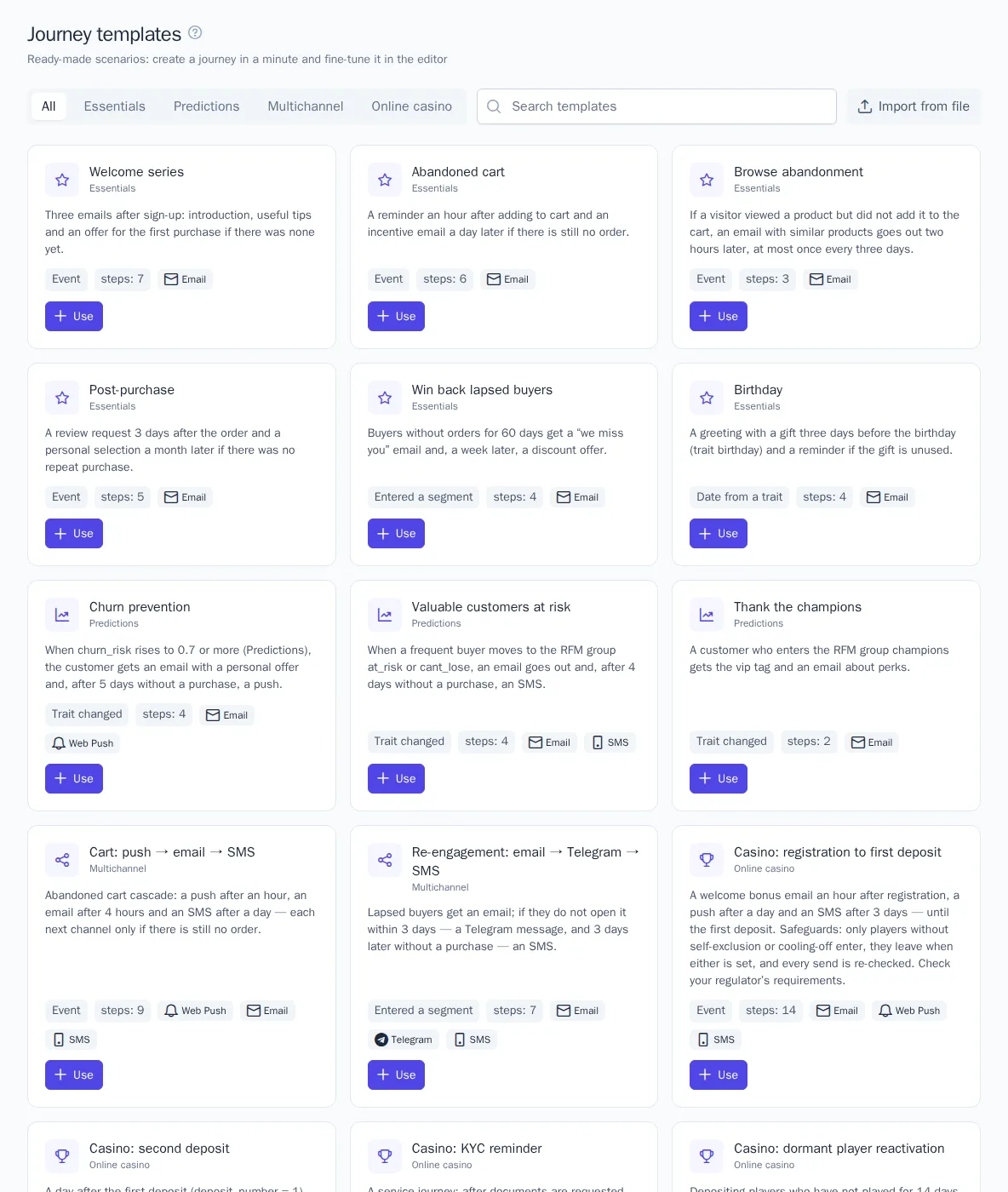
The Journey templates page has search and categories: Essentials, Predictions, Multichannel, Online casino, and Brand templates. For example, Essentials includes a welcome series, abandoned cart, abandoned browse, post-purchase review, win-back, and birthday.
- Click Use on a template card.
- In the New journey from a template dialog, enter a name. In the Channels block, choose an integration for each channel or leave Choose later. In the Segments block, choose an existing segment or Create a new one from the template.
- The dialog shows how many message templates will be created and which events will appear in the catalog.
- Click Create journey. The journey is created as a draft: check the texts, links, and delays, then publish it.
The Import from file button loads a journey exported with the Export button on a journey page, for example from another project. Further down the same page, the Template usage section shows how journeys from each template convert.
Editor
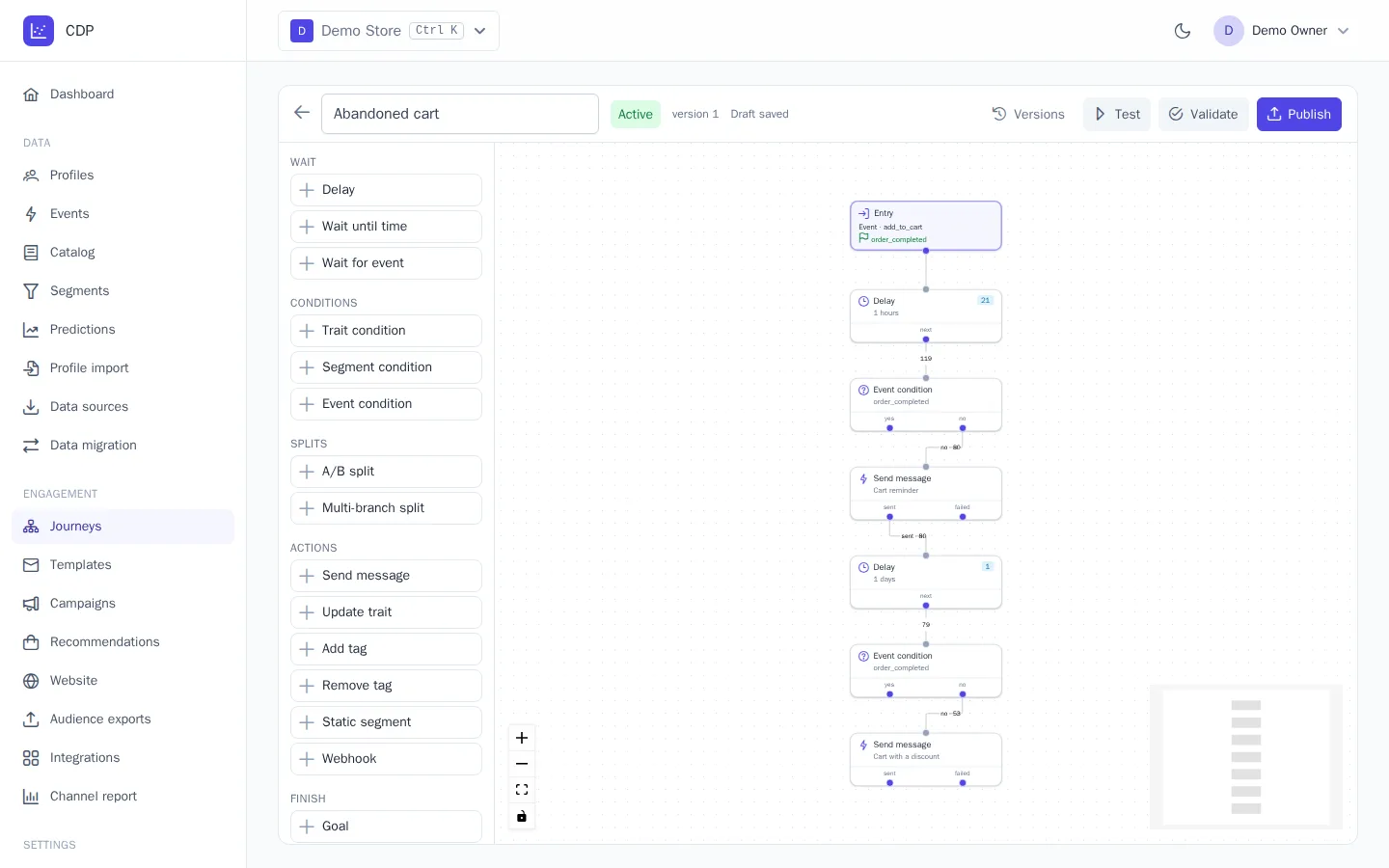
The node palette is on the left and the canvas is in the center. At the top are the name, the status, and the Versions, Test, Validate, and Publish buttons.
- Click a node in the palette: it's placed under the selected node and connected to its free output. You can also drag a node onto the canvas and then connect an output (at the bottom) to an input (at the top).
- Click a node to open its settings on the right. Click a connection to delete it.
- The draft saves itself a second after each edit. Next to the name you'll see Draft saved or Unsaved changes….
- Connections show how many participants went through each output. Nodes show how many participants are waiting there right now.
Entry
Click the Entry node and set up:
- Trigger: Event with property filters, Entered a segment, Left a segment, Trait changed, Date from a trait (for example, 3 days before a birthday), Schedule (the whole segment once, daily, or weekly), or API call;
- Audience: a segment. If you don't set one, everyone the trigger lets through enters;
- Re-entry: Only once, Again after finishing (you can set a pause), or Every time (in parallel);
- a Max participants at a time limit;
- Goal (event) and the window in which it counts. For example,
order_completedwithin 3 days. Reaching the goal ends participation and counts as a conversion; - events that make a participant leave the journey: Exit the journey on event.
Nodes
| Group | Nodes | Outputs |
|---|---|---|
| Wait | Delay for N minutes, hours, days, or weeks; Wait until time: a time of day in the customer's time zone, optionally on selected days of the week | next |
| Wait for event, up to a set time limit | received, timeout | |
| Conditions | by trait, by segment, by event | yes, no |
| Splits | A/B split: branches with shares adding up to 100% | branches |
| Multi-branch split: the first matching branch | branches, else | |
| Actions | Send message: an integration and a template. Waits up to 3 days for the send result | sent, failed |
| Update trait, Add tag, Remove tag, Static segment | next | |
| Webhook: a request to an external system | success, failed | |
| Finish | Goal, Exit | — |
If an output isn't connected to anything, the path ends there. Journey messages go through the messaging rules: subscription, frequency, and quiet hours. Transactional templates skip these checks.
Validation, testing, and publishing
- Validate highlights errors on the canvas. For example, the entry isn't connected to the first node, a node is unreachable, a loop has no wait, or branch shares don't add up to 100%.
- Test runs the draft on a profile. Conditions are evaluated against the customer's data, waits are skipped, and actions aren't performed. If you enter an address for test messages, send steps deliver a test to it. The Awaited events arrive switch sends the participant down the received branches. The path taken is highlighted on the canvas.
- Publish creates a new version. Participants go through the journey using the version they entered, and new participants enter the latest one. After publishing, edits go to the draft again until the next publish.
- Versions shows the publishing history. The To draft button copies the selected version into the draft.
Managing a journey
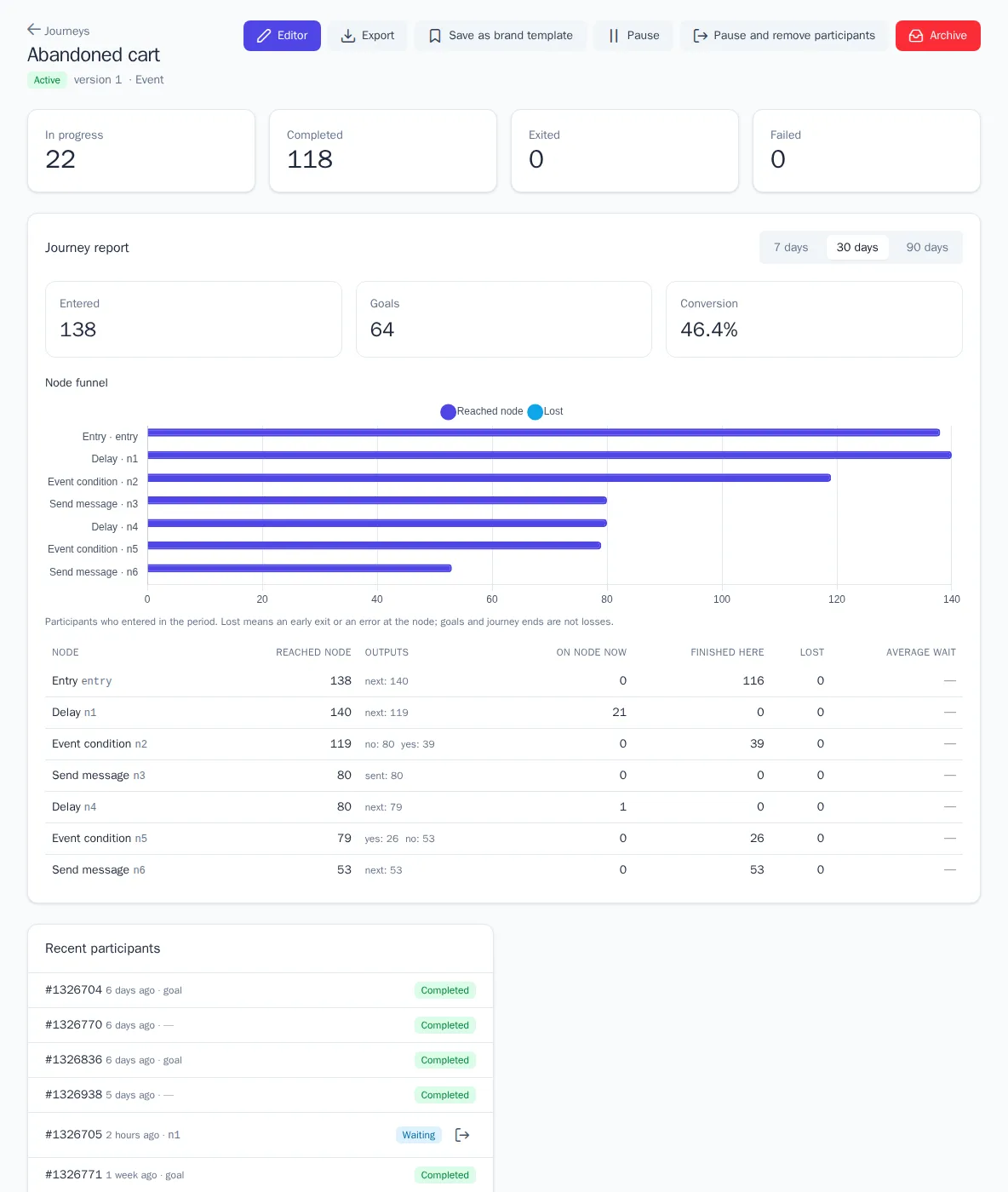
The journey page has the Editor, Export, Pause or Resume, and Archive buttons.
- Pause: new participants don't enter, and current ones stay where they are. Goals and exit conditions keep working. After you resume, participants continue.
- Pause and remove participants: the same as a pause, but all current participants leave the journey right away.
- Archive: all current participants leave the journey, and it can no longer be changed.
- The In progress, Completed, Exited, and Failed cards count participants for all time. The Recent participants list shows which node each participant is on and when they'll continue. The exit icon removes a participant from the journey manually.
Report and A/B test
The Journey report on the journey page shows participants who entered in the last 7, 30, or 90 days: Entered, Goals, and Conversion. The Node funnel shows these columns for each node: Reached node, Outputs, On node now, Finished here, Lost, and Average wait. If 20% or more of participants are lost, the number is highlighted in red.
Each A/B split has a table of branches and a verdict: Variant … beats the others, No difference, or Not enough data yet with an estimate of the sample size needed. The first branch is treated as the control. Significance is only calculated if the journey has a goal: a Goal node or an entry goal. Decide on a winner at a time you chose in advance, not at the first visible lead.