Events and the event catalog
An event is an action by a customer or the system: a page view, an add to cart, an order, an email open. Profiles, segments, journey triggers, and reports are all built from events. Data → Events shows what's coming into the project right now, and Data → Catalog shows which events and traits exist and how they're labeled.
Both sections are open to all project members. Owner, Administrator, and Manager can change labels, types, and PII flags in the catalog.
Where events come from
| Source | What it sends |
|---|---|
| Website tracker | page views, product actions, sign-ins. See Connecting your website |
| API from your server or app | orders, sign-ups, status changes. See Server integration |
| Imports and data sources | profiles from CSV, files, S3, and Google Sheets. See File imports and data sources |
| Moving from another platform | profile and event history. See Moving from other platforms |
| OneTrace.pro itself | segment entries, journey steps, message sends and opens, subscribes and unsubscribes |
Events are processed within a few seconds of being sent. A repeat event with the same messageId within 24 hours is discarded. An event time more than an hour in the future is replaced with the time it was received. The number of events per month is limited by the project's plan. See Project settings, plan, and audit.
Event stream
The Events page shows project events in real time. When you open it, the last 50 events from the past 7 days load, and new ones appear at the top automatically.
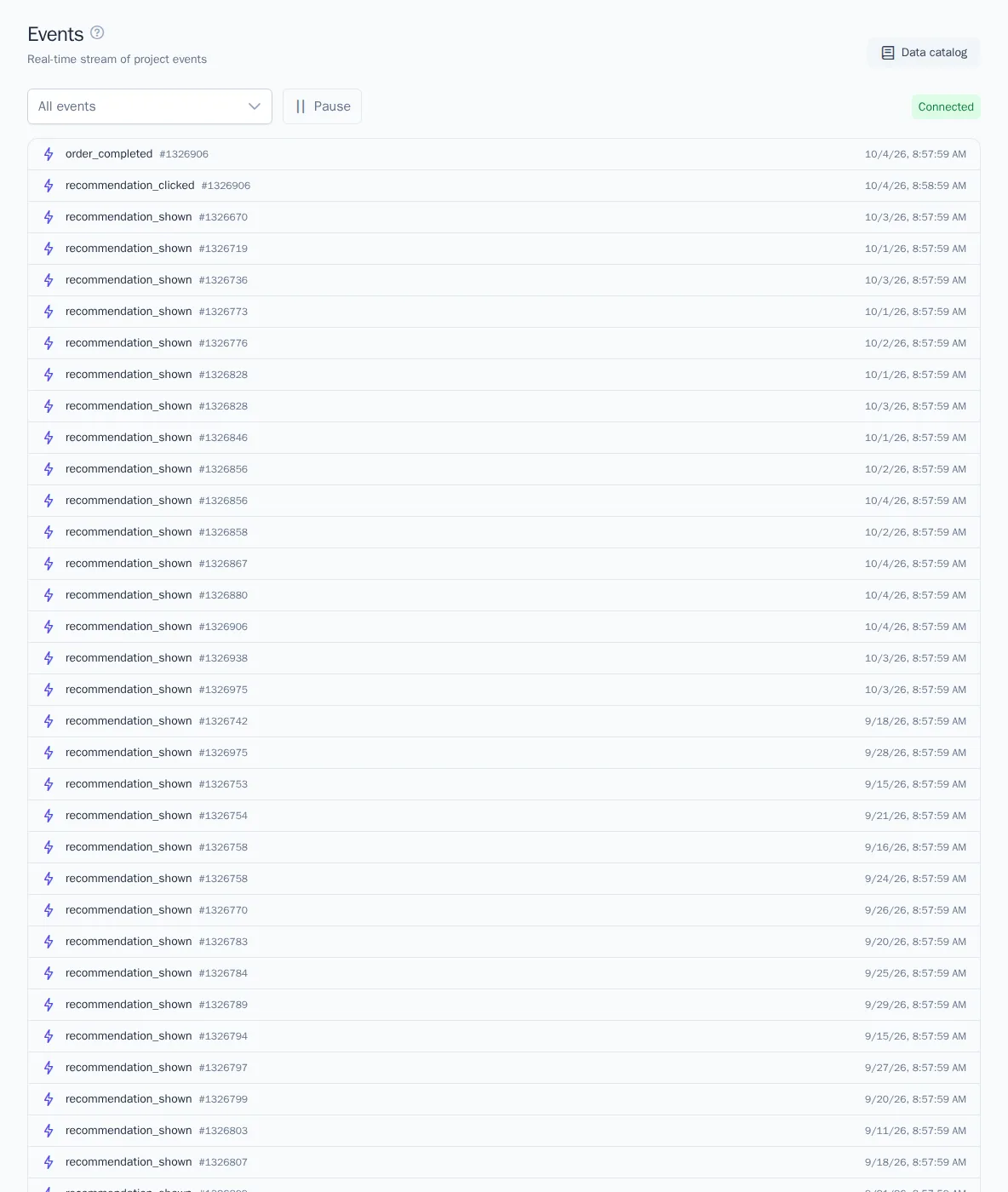
What you can do:
- Filter by name. Choose an event in the list on the left, for example
order_completed, and the stream shows only that event. All events clears the filter. - Pause. The Pause button stops the stream so you can look at events calmly; Resume turns it back on.
- Event properties. Click a row to expand its properties in JSON format.
- Go to the profile. The
#…number next to the name opens the profile card.
On the right is the connection status: Connected, Connecting…, or Disconnected. If the stream is very heavy, some events aren't shown on screen, and a Skipped due to high volume: N line appears. The events themselves are still saved; only the display skips them.
If you don't have permission to see personal data, emails, phone numbers, and PII properties in events are masked. For details, see Profiles.
The stream is handy for checking your setup: open your website in another tab, add a product to the cart, and make sure the event arrives with the right properties.
Data catalog
The catalog fills in automatically: as soon as a new event, property, or trait arrives in the project, it appears here with a detected type. You can open the catalog from the menu or with the Data catalog button on the events page.
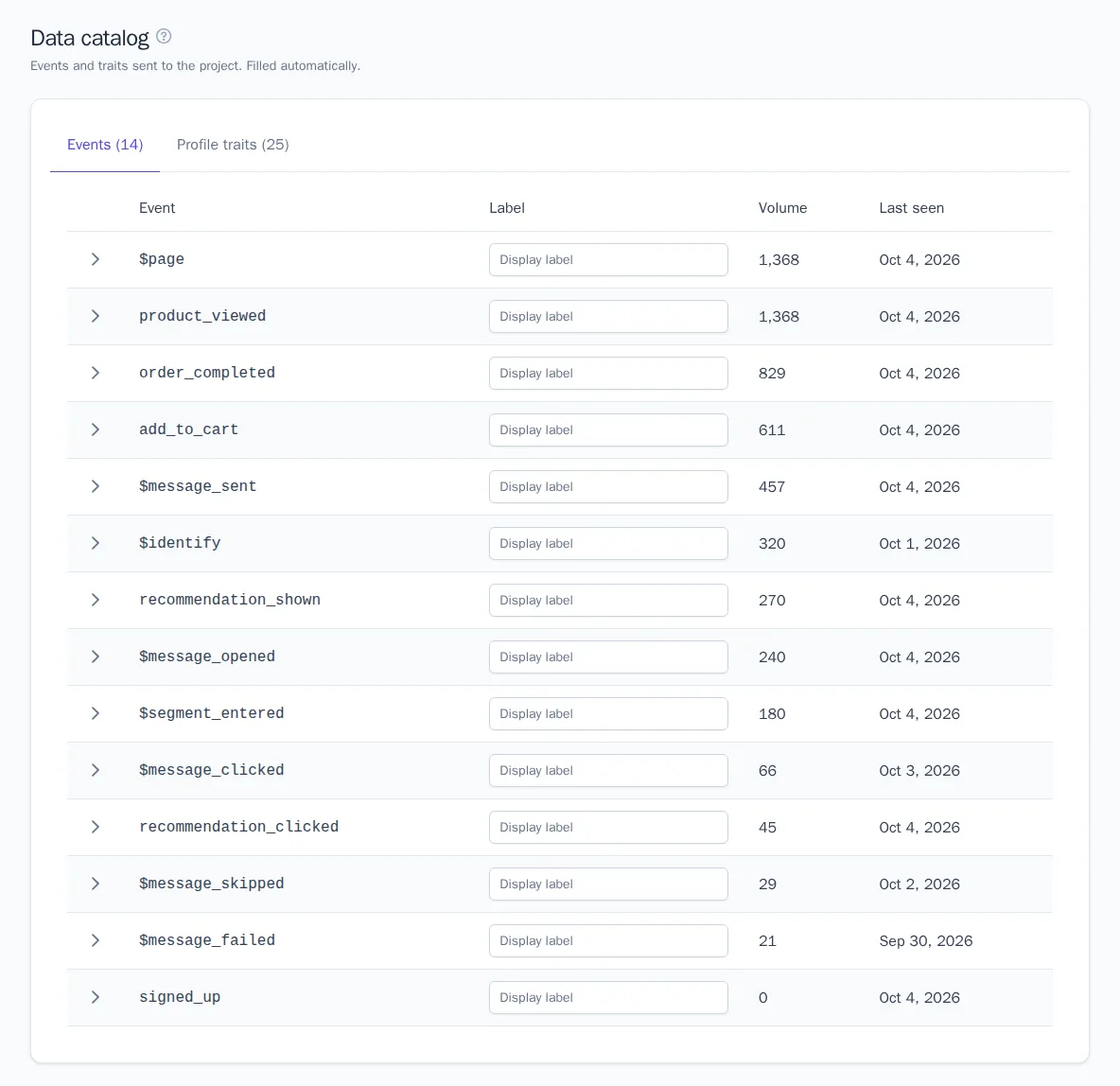
Events tab
The events table: Event (name), Label, Volume (how many times it arrived), and Last seen (the date of the most recent one). The arrow on the left expands the event's properties with their types, for example amount: number.
Profile traits tab
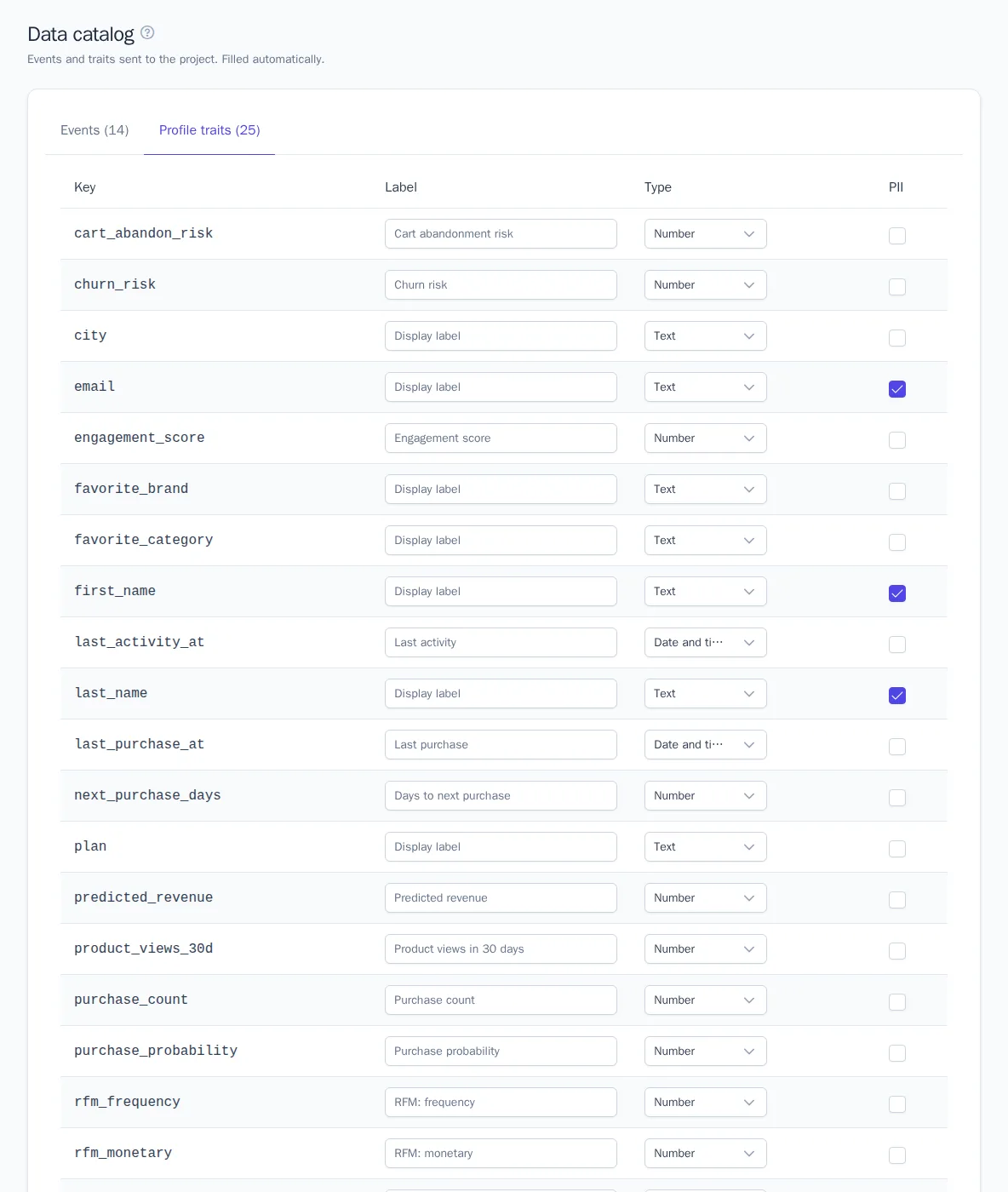
Traits are customer properties: email, name, city, plan, date of birth. Columns: Key, Label, Type, and PII.
Set up the catalog
- Enter a clear Label, for example "Placed an order" for
order_completedor "City" forcity. The change is saved immediately. - For a trait, check the Type:
string,number,boolean(yes/no),datetime(date and time),list, orobject. - Select PII if the trait contains personal data: passport, address, date of birth.
How this is used:
- Labels appear in the segment builder next to the key: "City (city)". Marketers don't have to remember technical names.
- Segment conditions depend on the type: numbers get greater than and less than, dates get before, after, and in the last. If a type was detected incorrectly, for example a date arrived as a string, fix it.
- Traits marked PII are masked for anyone without permission to see personal data. Email, phone, names, and address are marked automatically.
Reserved events
Names that start with $ are reserved for OneTrace.pro. You can't send your own event with such a name; the request returns an error.
| Event | When it appears |
|---|---|
$page, $identify, $alias |
calls to cdp.page() and cdp.identify(), and identifier merging |
$segment_entered, $segment_exited |
a profile entered or left a segment |
$journey_entered, $journey_completed, $journey_exited, $journey_failed |
journey participation steps |
$message_sent, $message_delivered, $message_failed, $message_skipped, $message_bounced, $message_complained, $message_opened, $message_clicked |
what happened to sent messages |
$subscribed, $unsubscribed |
changes to messaging consent |
System events appear in the stream, in the catalog, and in profile history, and you can use them in segment conditions just like your own events.
Tips for naming events
- Name events in Latin letters, in
snake_case, and in the past tense:order_completed,product_viewed,trial_started. - Don't put changing data in the name: use
order_completedwith anorder_idproperty rather thanorder_1001. - Send amounts as numbers, not as strings with a currency:
amount: 9980.