Recommendation widgets on your website
A widget is a ready-made product block on your website: "You may also like" on the home page, "Bought together" on a product page, "Recently viewed" in the cart. You set it up in OneTrace.pro and paste a short code snippet into your website once. After that, you can change the type, styling, and visibility without editing your website.
Widgets require the installed tracker (Connecting your website), a product catalog, and view, cart, and purchase events (Recommendations and product catalog). Owner, Administrator, and Manager can create and edit widgets.
Create a widget
- Open Engagement → Website, Widgets tab.
- Click Create widget.
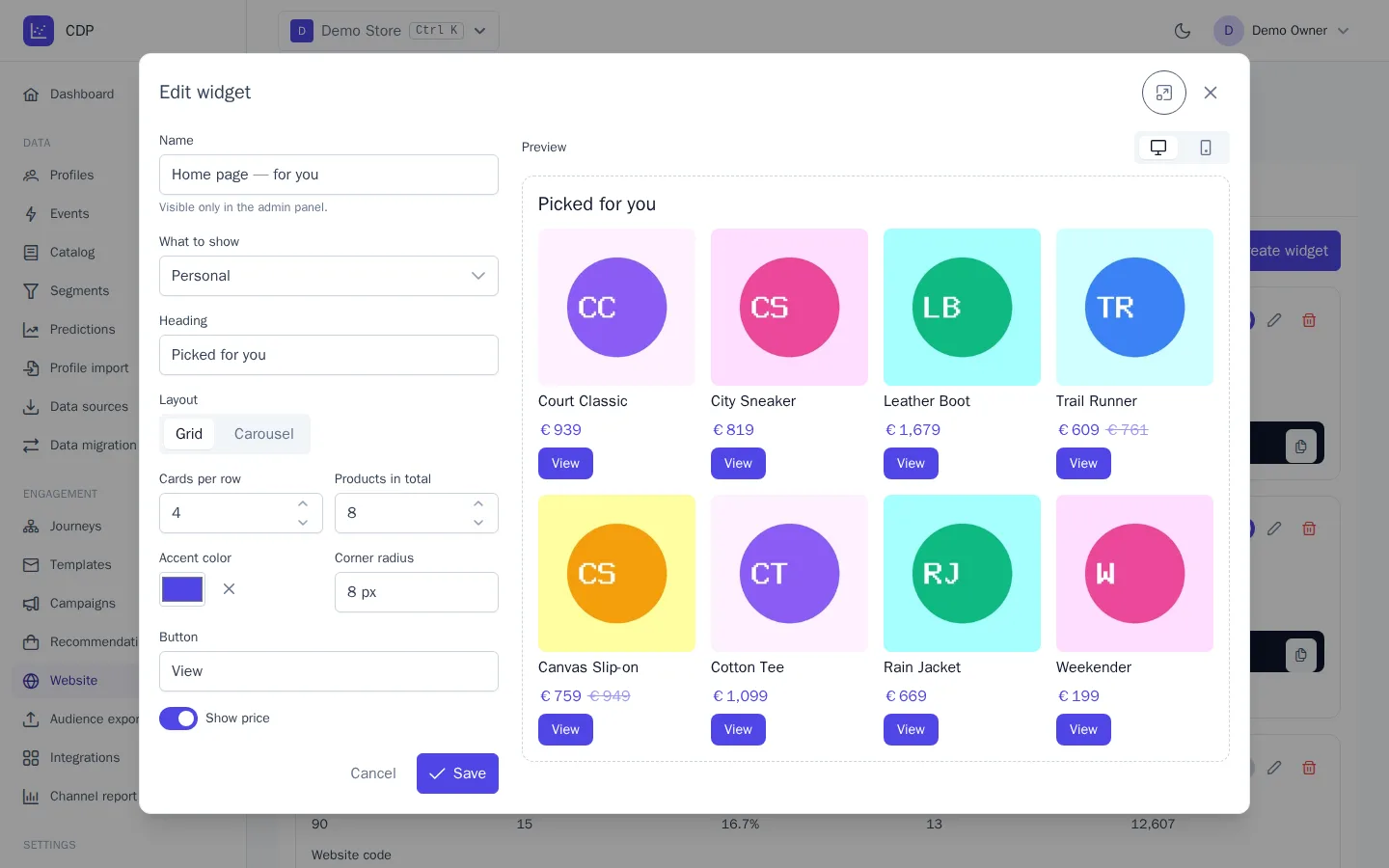
- Fill in the settings on the left; the preview on the right updates right away.
- Click Save.
Settings
| Field | What it sets |
|---|---|
| Name | the widget's name; visible only in the admin panel |
| What to show | the recommendation type: Personal, Popular, Trending, Viewed together, Bought together, Similar, Recently viewed |
| Category | for Popular and Trending: a catalog category ID; empty means the whole catalog |
| Heading | text above the products, for example "You may also like" |
| Layout | Grid or a scrolling Carousel |
| Cards per row | from 1 to 8 |
| Products in total | from 1 to 24 |
| Accent color | the color of the price and button; without it, the website's text color is used |
| Corner radius | corners of images and the button, from 0 to 32 px |
| Button | the button text, for example "Details"; empty means no button |
| Show price | the price and old price on the card |
Preview
The preview renders the widget just as it appears on your website, using real products from your catalog. For Viewed together and similar types, an example product is used: the first available product, whose ID is shown above the preview. If there are no matching products, gray placeholders are shown so you can check the styling. The Desktop / Phone switch narrows the space to phone width.
On your website, the layout adapts to the width of its container, not the screen: in a narrow column and on phones, cards are shown two per row. The widget takes its font and text color from your website.
Website code
Each widget in the list has a Website code block. Paste it into the page template where the block should appear:
<div data-cdp-widget="a1b2c3d4e5f6" data-item="SKU-1"></div>
Attributes:
data-item: the product ID of the page, or comma-separated IDs of cart products:data-item="SKU-1,SKU-7". Required for the Viewed together, Bought together, and Similar types; fill it in from the page template.data-category: a category ID for popular products, if different pages need different categories.data-exclude: comma-separated IDs of products that shouldn't be shown, for example ones already in the cart.
Personal and recently viewed products are picked for the visitor, so they don't need data-item.
If there are no matching products, the space on the page stays empty and the layout doesn't break.
Turning widgets on and off
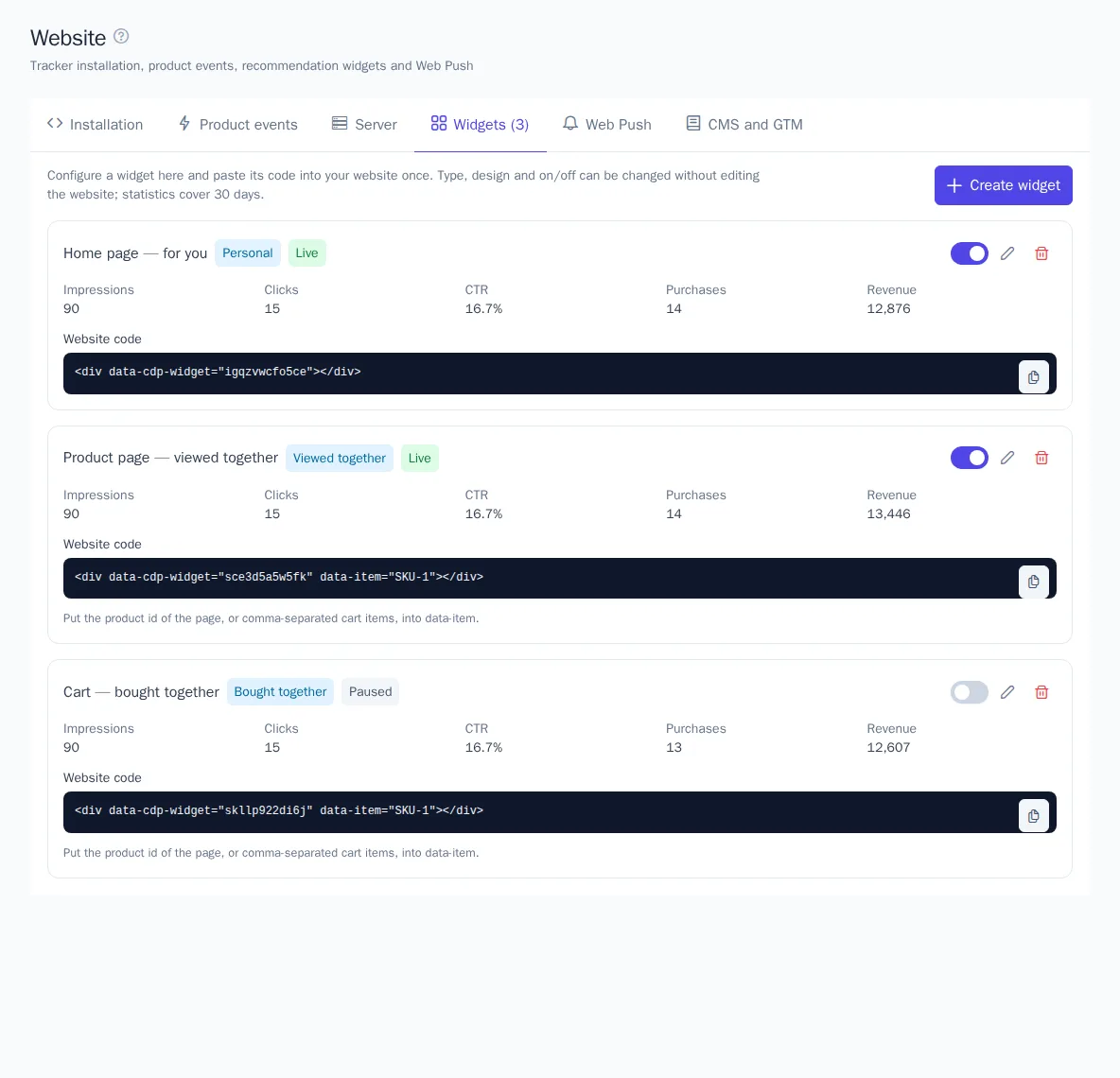
The Show on the website switch on the widget card turns it off without editing your website: the status changes to Paused and the block on the page is cleared. Turn it back on and the products return. The trash button deletes the widget completely, and it stops appearing on your website.
The pencil button opens Edit widget. Changes appear on your website the next time the page loads; you don't need to change the code.
Statistics
Under the widget name are its statistics for 30 days:
| Metric | How it's calculated |
|---|---|
| Impressions | at least half of the widget came into the visitor's view. A page load without scrolling to the block doesn't count, so the CTR of a widget at the bottom of the page is accurate |
| Clicks | clicks on product cards |
| CTR | clicks divided by impressions |
| Purchases | purchases of the product by the same customer within 7 days of clicking it |
| Revenue | the total of those purchases |
The overall effect of recommendations on your website by type is in the Recommendations section.
Single-page websites
The tracker finds widgets on its own after the page loads, when new elements appear, and when data-item changes. So on websites built with React, Vue, and similar frameworks, changing the attribute is enough: the block re-renders.
If you need to refresh the products without changing attributes, for example after the cart changes, call:
cdp.widgets({ force: true });
Your own code instead of a widget
Developers can render a recommendation block from code, without setting it up in the admin panel:
window.addEventListener('load', () => {
  cdp.renderRecommendations('#recs', {
    type: 'viewed_with', item: 'SKU-1', title: 'Viewed together', layout: 'carousel', columns: 4,
  });
});
The block looks the same as a widget, and impressions and clicks are counted automatically. You can call it before the tracker loads: the call waits in the queue. The element must already be on the page, which is why the example waits for the load event. An empty result clears the element. Color, corner radius, and the button are easier to set up in a widget in the admin panel.