Project settings, plan, and audit
The Settings group in the project menu brings together the main project settings, your plan and limit usage, and a log of all important member actions. Here you can rename the project, change its time zone, require two-factor authentication, find out who changed a segment or revoked a key, and delete the project.
| Page | Who can see it |
|---|---|
| Project settings | Owner, Administrator |
| Audit log | Owner, Administrator |
| Plan and billing | Owner |
Project settings
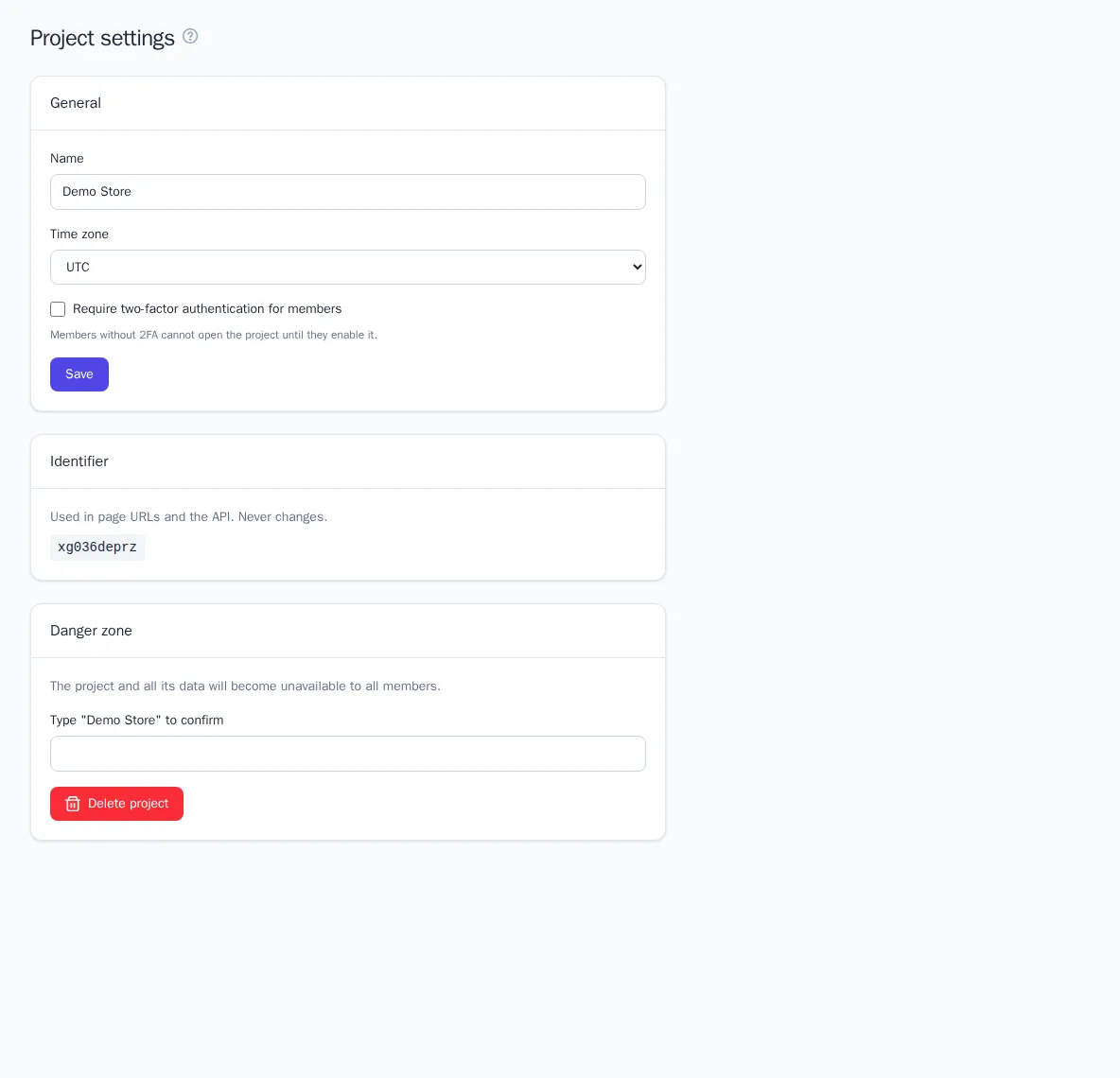
General
- Open Settings → Project settings.
- Change the Name or Time zone.
- If needed, turn on Require two-factor authentication for members.
- Click Save.
The time zone determines how days are counted in reports and on the dashboard, when quiet hours apply, what time date-based triggers fire (for example, a birthday greeting at 10:00), and which time the audit log is shown in. Choose the time zone where most of your customers live.
Requiring 2FA. Members without two-factor authentication can't open the project until they turn it on in their profile. You can only turn on this requirement if you have 2FA turned on yourself. See Profile and security.
ID
The project's short ID is used in page URLs and the API. It's assigned at creation and never changes.
Delete the project
The Danger zone block is visible only to the Owner.
- Enter the project name in the confirmation field.
- Click Delete project.
The project and all of its data (profiles, events, segments, journeys, integrations, keys) become unavailable to all members. Export any data you need before deleting.
Subscription, quiet hours, frequency limits, and project channels are set up on a separate Messaging rules page. See Messaging rules.
Plan and limits
The Plan and billing page shows which plan applies to the project and how much of each limit has been used; that's also where you choose a plan, pay invoices, and enter billing details — see Plan and billing. If the project was set up through a partner, the partner assigns the plan; contact them to change it.
The Usage this month block shows each limit as a bar: the primary color means everything is fine, yellow means 90% or more is used, and red means the limit is reached. The By month block shows event and message history for the last six months.
| Limit | What happens when it's exceeded |
|---|---|
| Events per month | new events aren't accepted until the start of next month |
| Messages per month | journey and campaign messages are skipped until the start of next month |
| Profiles | soft limit: a warning only |
| Active journeys | you can't publish or resume a new journey until you pause another one |
| Realtime segments | you can't turn on real-time updates for a new segment |
| Email and product images, MB | new images aren't uploaded |
| Event retention, months | older events, messages, and journey participations are deleted automatically |
On a paid plan, emails and events above the included volume aren't stopped; they go on an invoice — see Above the included volume.
When any limit is 90% used, all members see a warning on the project dashboard with a link to this page. If no plan is assigned, the subtitle says there are no limits other than the platform's.
Audit log
The audit log records actions in the project: who did what and when. It helps you figure out why a segment changed, who stopped a journey, or which IP address a key was revoked from.
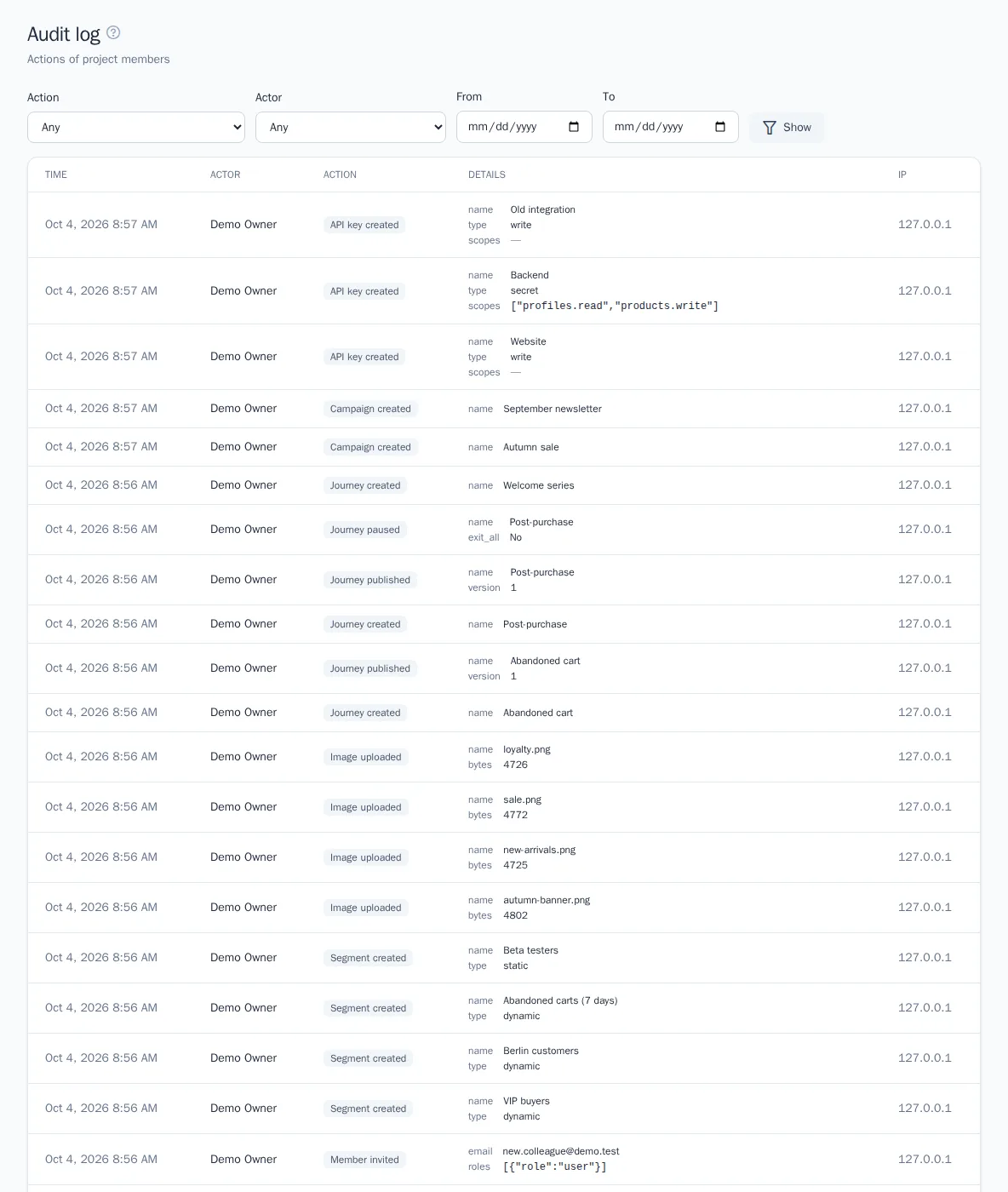
The log includes, for example:
- creating the project and changing its settings, messaging rules, and prediction settings;
- invitations, acceptances, role changes, and member removals;
- creating and revoking API keys;
- connecting, changing, and deleting integrations, data sources, and audience exports;
- creating, changing, and deleting segments, templates, and campaigns; publishing, pausing, and archiving journeys;
- exporting and deleting profiles, sending messages manually, and imports.
Each entry shows Time, Actor, Action, Details (what exactly changed), and the IP address. The Actor column may show API key "…" instead of a name, if the action was taken through the API, or System.
Find an entry
- Choose an Action, for example Segment deleted.
- Choose the author in the Actor field.
- Set the period in the From and To fields.
- Click Show. The Reset button clears the filters.
Good to know
- Audit log entries can't be changed or deleted; they're kept for 24 months unless the platform provider set a different period.
- Sign-ins and password changes belong to your account, not the project: they're shown on the Security page. See Profile and security.
- Members and roles are set up on the Members page. See Members and roles.