Campaigns
A campaign is a bulk send to segment members at a set time, either one-off or recurring. For example, a sale announcement for "VIP customers" or a weekly digest. Journeys react to an individual customer's behavior, while a campaign goes out to the whole audience at once.
The section is in the menu under Engagement → Campaigns. All roles can view campaigns and reports. Manager and above can create, launch, and stop them.
Create a campaign
- Enter a name in the Campaign name field and click Create. The campaign opens on the Settings tab.
- Audience. Choose Recipient segments and, if needed, Exclude segments, up to 10 in each field. The campaign goes to everyone who is in at least one selected segment and not in any excluded one. Below the fields you'll see an estimate: Audience now: N.
- Channel and content. Choose a Channel (integration) and a Message template. The list only shows templates for that channel.
- When to send. Choose one option:
- Now;
- At a set time: a date and time;
- Recurring: Daily, Weekly (choose the days of the week), or Monthly (a day of the month from 1 to 28). Set the time and the start and end dates.
- Delivery and goal. Rate, messages per minute limits the flow to protect your sender reputation and your website from traffic spikes. If you leave the field empty, there's no limit. Campaign goal (conversion) is an event, such as
order_completed, and the window after sending in which it counts. - Click Save, then Test to check the message. After that, click Launch or Schedule.
Times are in the project's time zone. If you turn on In each recipient's local time, each recipient gets the message at the set time in their own time zone. The time zone comes from the timezone trait; for profiles without it, from the project settings. Such a campaign starts with the easternmost time zone and can take up to a day.
Variants and A/B tests
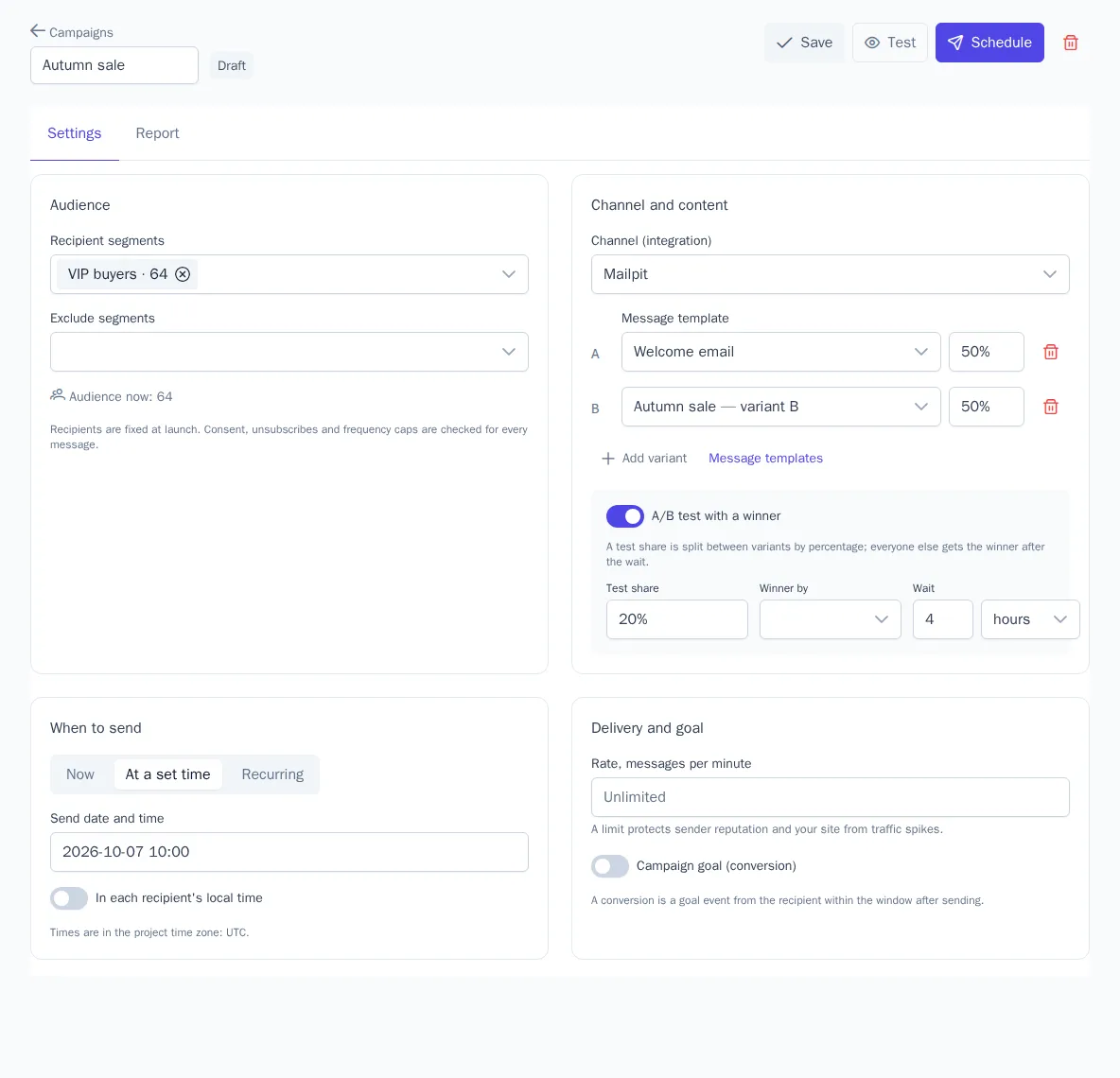
The Add variant button adds a variant with its own template and share, up to 5 variants (A–E). Variant shares must add up to 100%.
- If the A/B test is off, the audience is simply split between the variants by share.
- If you turn on A/B test with a winner, only the Test share of the audience (5–50%) gets the message first. It's split between the variants. After the set Wait, the variant with the best rate for the selected metric (Opens, Clicks, or Campaign goal) goes to all remaining recipients.
A winner is always chosen, even if the difference isn't proven: the remaining recipients need to get something. The report shows whether the result was significant. To use the Campaign goal metric, set a goal first.
What happens at launch
- The recipient list is fixed at launch. Anyone who joins the segment later only gets the message on the next run of a recurring campaign.
- Before each message is sent, subscription, frequency limits, quiet hours, and plan quota are checked (messaging rules). If a check fails, the message goes to Skipped.
- Changes made after the start don't affect a run in progress.
| Status | What you can do |
|---|---|
| Draft | Change settings, delete, launch |
| Scheduled | Edit (the launch time is recalculated), pause, cancel |
| Sending | Pause or cancel |
| Paused | Edit, resume, cancel, delete |
| Sent | View the report, delete |
| Cancelled | View the report, delete |
After each run, a recurring campaign returns to the Scheduled status with the next run time. Cancel campaign cancels all messages not yet sent and stops recurring runs. You can't delete a scheduled or sending campaign: cancel it first. If a run fails, for example because the integration was deleted, the campaign is paused and the error appears in the report.
Test send
The Test button opens the Send a test of the campaign dialog. Choose a profile whose data will be filled into the message and, optionally, your own address. You'll get one message per variant. Subscription, frequency, and quiet hours aren't checked, and the test doesn't appear in the report.
Report
On the Report tab, choose a run from the Run … list (the last 10 are shown) and refresh the data with the refresh button.
- Cards: Audience, Queued, Sent, Delivered, Opened, Clicked, Unsubscribed, Converted. Rates are calculated from sent messages.
- A table by variant. The A/B test winner is marked with a Winner label.
- The Significance by … block shows whether the variants differ statistically, with the rate, a 95% interval, and the probability of being the best. It also shows whether the difference was significant when the winner was chosen.
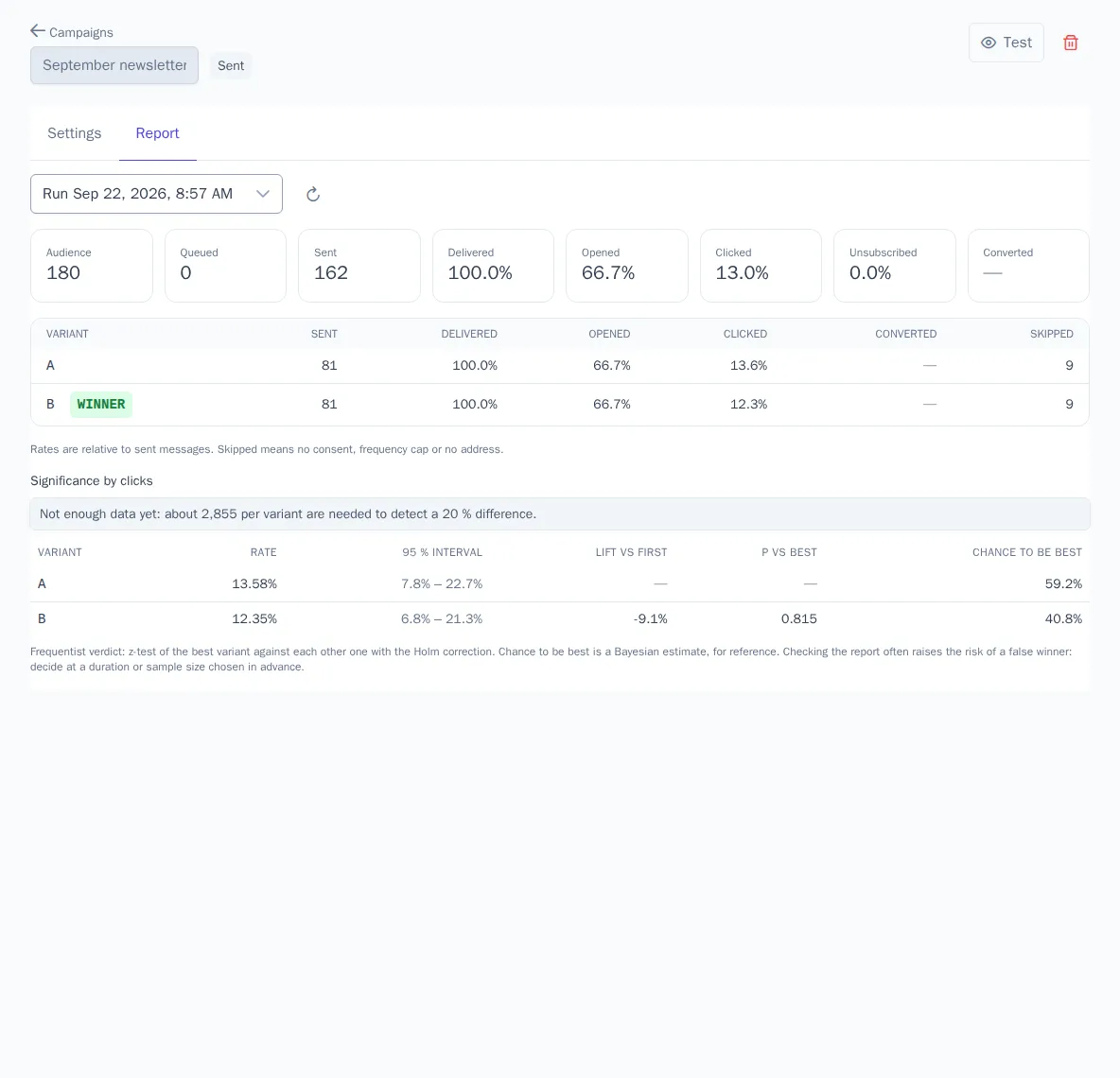
Skipped messages are recipients without a subscription, those filtered out by a frequency limit, or those without an address. Overall statistics for all channels are in the channel report.