Recommendations and product catalog
OneTrace.pro picks products for each customer: popular items, "bought together", similar items, recently viewed items, and a personal selection. Recommendations appear on your website and in emails, journeys, and campaigns. They need a product catalog and view, cart, and purchase events.
Open the section from the menu: Engagement → Recommendations. All project members can view it; Owner, Administrator, and Manager can connect feeds, change settings, and start a recalculation.
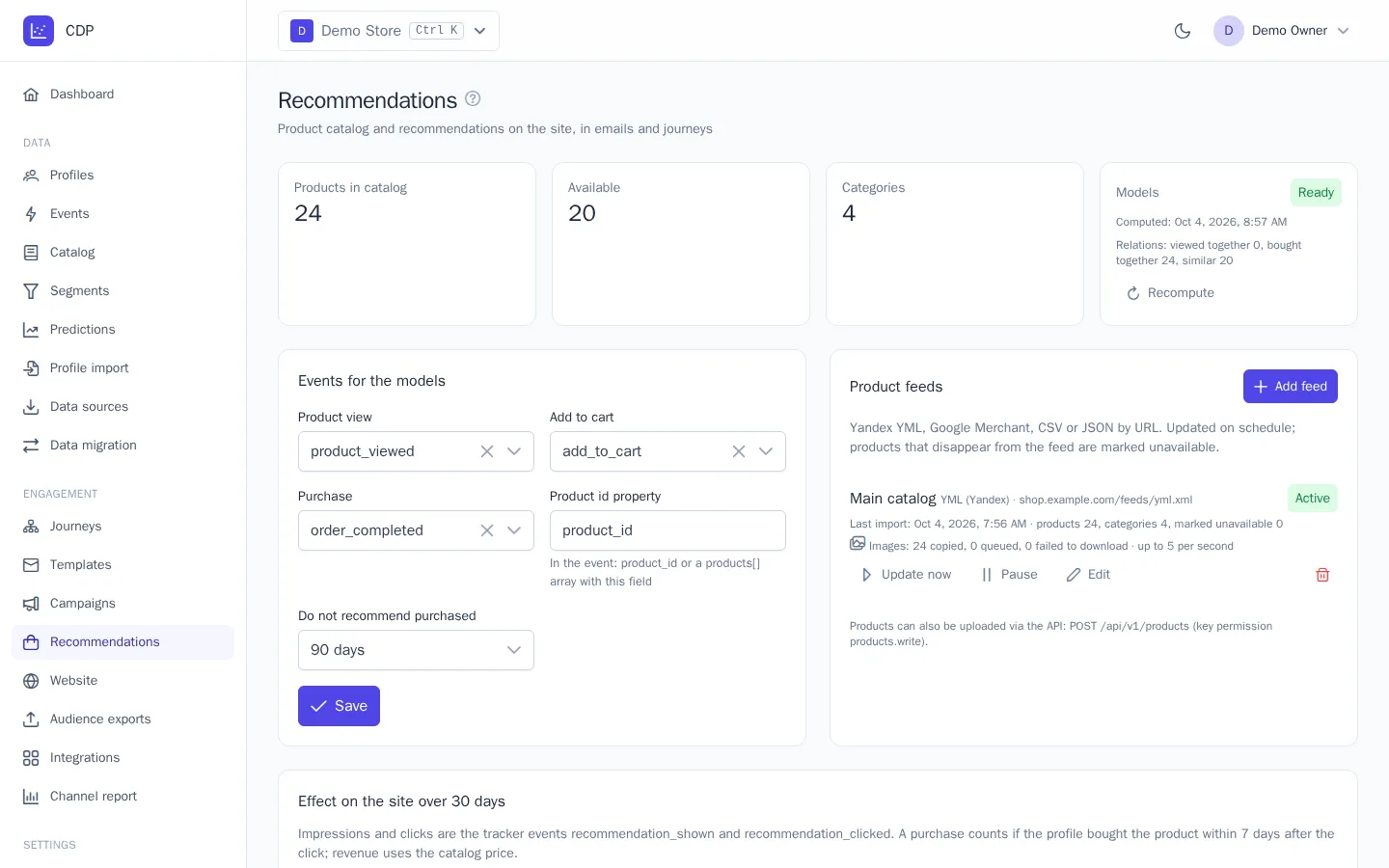
Product catalog
The top of the page shows how many products are in the catalog, how many of them are available, and how many categories there are. While the catalog is empty, there's nothing to recommend: connect a feed or upload products through the API.
Connect a feed
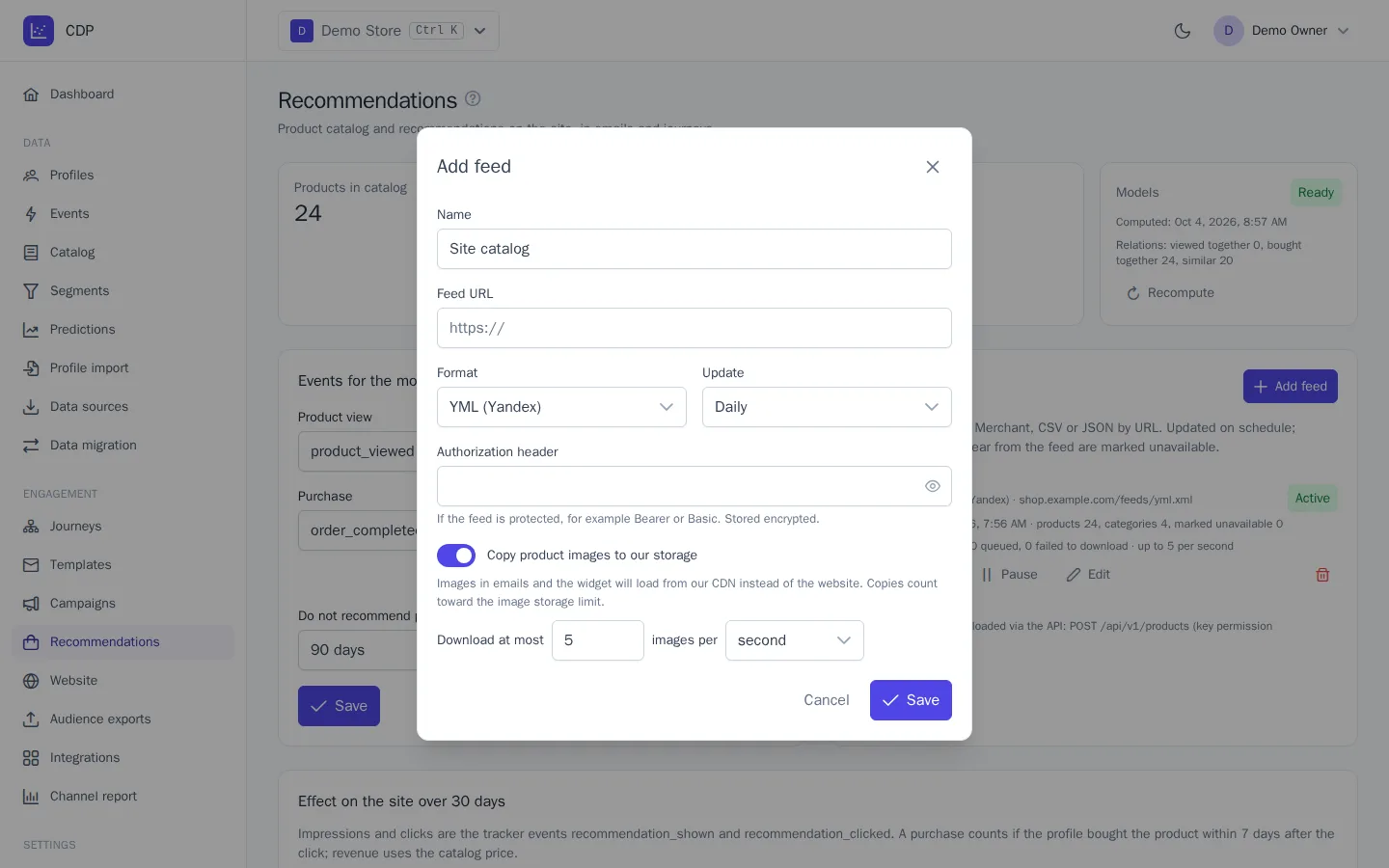
- In the Product feeds block, click Add feed.
- Enter a Name and the Feed URL (a link to the file).
- Choose a Format: YML (Yandex), Google Merchant, CSV, JSON, or JSON Lines.
- In the Update field, choose how often to reread the feed: every 1, 3, 6, or 12 hours, or once a day.
- If the feed is protected by a password or token, fill in the Authorization header, for example
Bearer …. It's stored encrypted. - Click Save. The first import starts right away.
In CSV and JSON, columns are recognized by name: id, name or title, url, image, price, old_price, currency, available, category, brand (their Russian equivalents also work). Other columns are treated as product attributes. The product ID must match the one your website sends in events; otherwise customer actions won't link to the catalog.
Each feed shows its status (Active or Failed), the last import time, and the result: how many products and categories were read and how many were marked unavailable. The Update now button runs an import outside the schedule. Pause stops scheduled imports (status “Paused”), and Update now resumes them. A failed feed retries on schedule, and the error text is shown under it.
Good to know:
- Products that are no longer in the feed are marked unavailable, not deleted: their event history is kept, and a product that returns to the feed becomes available again.
- Deleting a feed keeps its products in the catalog.
Image copies
In the feed settings, you can turn on Copy product images to our storage. Images in emails and widgets are then served from the OneTrace.pro CDN and don't depend on your website being available.
- Download at most … images per second, minute, or hour: a limit that keeps the load on your website down. The default is 5 per second.
- Under the feed, you can see how many images were copied, are queued, and failed to download. Until a copy exists (or if the image URL in the feed changed), the original image is shown.
- Copies count toward your plan's image storage limit. If the switch is unavailable, image storage isn't configured in your installation.
Upload through the API
Developers can upload and delete products with requests to https://cdp.onetrace.pro/api/v1/products, up to 1,000 products and categories per request. This requires a secret key with the Upload and delete products permission. See API keys and Server integration.
Events for the models
In the Events for the models block, specify which events represent product actions:
| Field | Example |
|---|---|
| Product view | product_viewed |
| Add to cart | product_added |
| Purchase | order_completed |
| Product id property | product_id: a single field in the event or a products[] array with this field |
| Do not recommend purchased | 30, 90, or 365 days; Recommend again for consumable products |
By default, the events are taken from the prediction settings. After you click Save, the models are recalculated.
Models and the nightly calculation
The Models card shows the status (Pending, Computing, Ready, No catalog, Failed), the calculation time, and the number of links between products.
Models are recalculated every night, as well as right after you save the settings and when you click Recompute. During a calculation and after an error, recommendations are served from the previous version.
Besides product links, the calculation writes the favorite_category, favorite_brand, and top_products traits to profiles. You can use them in segments, for example "favorite category is shoes".
Recommendation types
| Type | What it shows | Where it fits |
|---|---|---|
| Personal | a selection based on the customer's views, carts, and purchases, including today's actions | home page, a "You may also like" email |
| Popular | the most popular products over 30 days, across the catalog or a category | new visitor, empty cart |
| Trending | products with growing interest over the last week | home page, a "New this week" campaign |
| Viewed together | what people view along with this product | product page |
| Bought together | what people buy along with this product | cart, post-order email |
| Similar | products in the same category: brand, price, attributes | product page, out of stock |
| Recently viewed | the customer's latest views | abandoned browse |
A new visitor with no history gets popular products. Only available products are included in selections.
Check the results
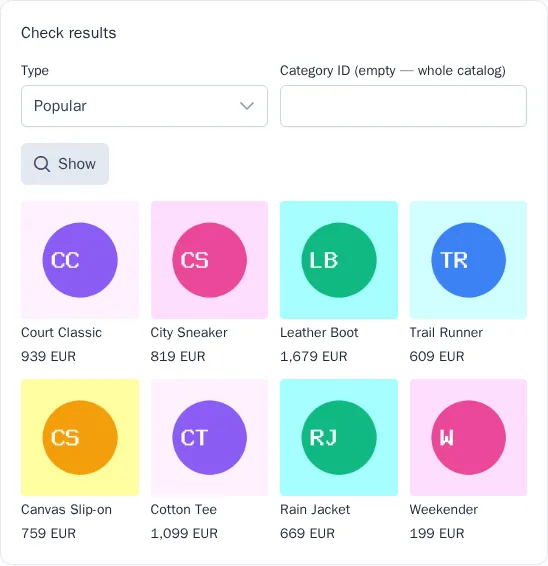
In the Check results block, choose a Type and enter a Product ID, Category ID, or Profile ID, depending on the type. Click Show to see the product cards the customer will get.
Effect report
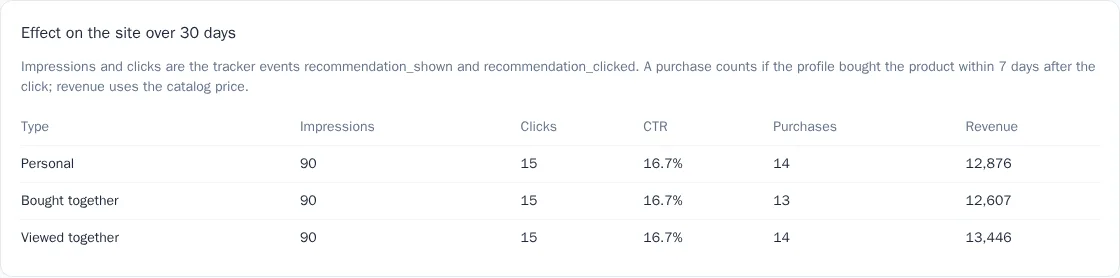
The Effect on the site over 30 days table shows impressions, clicks, CTR, purchases, and revenue for each type. A purchase counts if the customer bought the product within 7 days of clicking a recommendation, and revenue is calculated at the catalog price. The effect of recommendations in emails is shown in campaign and journey reports.
Where to show recommendations
- On your website: ready-made widgets from the Website section or a tracker call. See Recommendation widgets on your website.
- In emails: the Products block in the email builder. In it, you choose Which products, How many, the number of columns, Show price, and Button under the product. For the Viewed together, Bought together, and Similar types, the product is taken from the event that triggered the email (Event property with the product id); this is how an abandoned cart email is built. If there are no matching products, the block isn't shown in the email.
- In templates for any channel: the
recommendations()function:
{% for product in recommendations('personal', 4) %}
  <a href="{{ product.url }}">{{ product.name }}</a> — {{ product.price }}
{% endfor %}