Segments
A segment is a group of profiles: "VIP customers", "abandoned a cart in the last 24 hours", "subscribers from New York with no purchases". Segments serve as the audience for journeys, campaigns, and audience exports, and a dynamic segment's members update automatically.
The section is in the menu under Data → Segments. All project roles can view segments; Manager, Administrator, and Owner can create and edit them. A role can be limited to specific segments, in which case the member sees and edits only those.
Dynamic and static segments
| Dynamic | Static | |
|---|---|---|
| How it's populated | by rules | manually, through the API, by a journey action, by a migration |
| Updates | automatically: on schedule and, if turned on, in real time | only when you add or remove members |
| Example | "ordered twice in 30 days for a total over 5,000" | "offline event attendees", "list from the sales team" |
You choose the type when you create the segment; you can't change it later.
Create a segment
- Click New segment.
- Enter a name and, if needed, a description. Choose the type: Dynamic or Static.
- For a dynamic segment, build the Rules (see below) and choose a full recompute schedule.
- Click Save. The segment is calculated in the background, usually in seconds or minutes, depending on the amount of data.
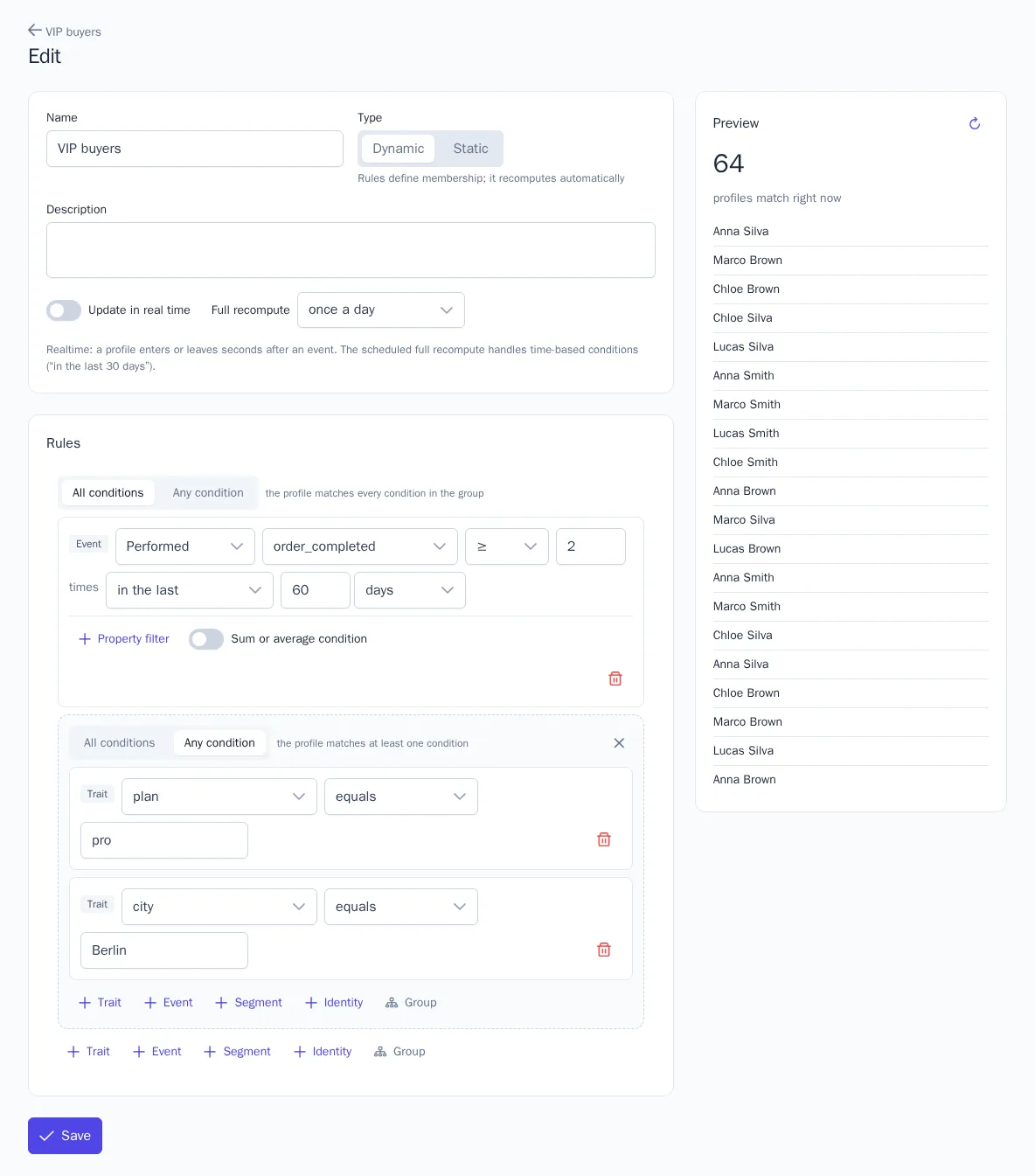
Rule builder
Rules are built from conditions. The buttons under a group add a condition of the type you need:
| Condition | What it checks | Example |
|---|---|---|
| Trait | the value of a profile attribute | city equals "New York"; churn_risk greater than 0.7 |
| Event | whether an event was performed, how many times, and in what period | "Performed order_completed ≥ 2 times in the last 30 days" |
| Segment | whether the profile is in another segment | "Is not in segment 'Employees'" |
| Identity | whether the profile has an email, phone, Telegram, and so on | "Has Email" |
Event conditions have more settings:
- the period: ever, in the last N minutes, hours, days, weeks, or months, or between two dates;
- Property filter: for example, the
order_completedevent whereamountis greater than 5,000; - Sum or average condition: the sum, average, minimum, or maximum of a numeric property over the period. This is how you build a "spent more than 20,000 this quarter" segment.
Operators depend on the data type: for strings, equals, is one of, contains, starts with; for numbers, greater than, between; for dates, in the last, more than … ago, anniversary within (handy for birthdays); for lists, contains any of, contains all of.
"All conditions" and "Any condition" groups
Each group works in one of two modes:
- All conditions: the profile matches every condition in the group (AND);
- Any condition: the profile matches at least one (OR).
The Group button adds a nested group with its own mode. For example, "VIP customers": in the main All conditions group, the order_completed event in the last 90 days, and in a nested Any condition group, rfm_segment equals champions or total_revenue greater than 50,000.
Limits: up to 4 levels of nesting and up to 50 conditions per segment. Segments can't reference each other in a loop.
Preview
The Preview block on the right shows how many profiles match the rules right now, plus a few examples. It updates after every edit, and a condition with an error is highlighted.
Predictions in rules
Prediction traits work like regular traits: churn_risk greater than 0.7 finds customers about to leave; rfm_segment equals at_risk finds valuable customers who stopped buying; cart_abandon_risk greater than 0.5 finds those likely to abandon their cart.
Updating a dynamic segment
- Full recompute runs on a schedule: from every 15 minutes to once a day (hourly by default). To run it right away, click Recompute on the segment page.
- Update in real time: a profile enters and leaves the segment within a few seconds of an event or a trait change. Turn this on for segments that journeys react to, for example "added a product to the cart".
Even with real-time updates, you still need the full recompute schedule: conditions like "in the last 30 days" change simply as time passes, without new events. The number of real-time segments is limited by your plan (20 by default). See Project settings, plan, and audit.
Each entry and exit writes system events to the profile history, and you can use them to start journeys (the Entered a segment and Left a segment triggers).
Segment page
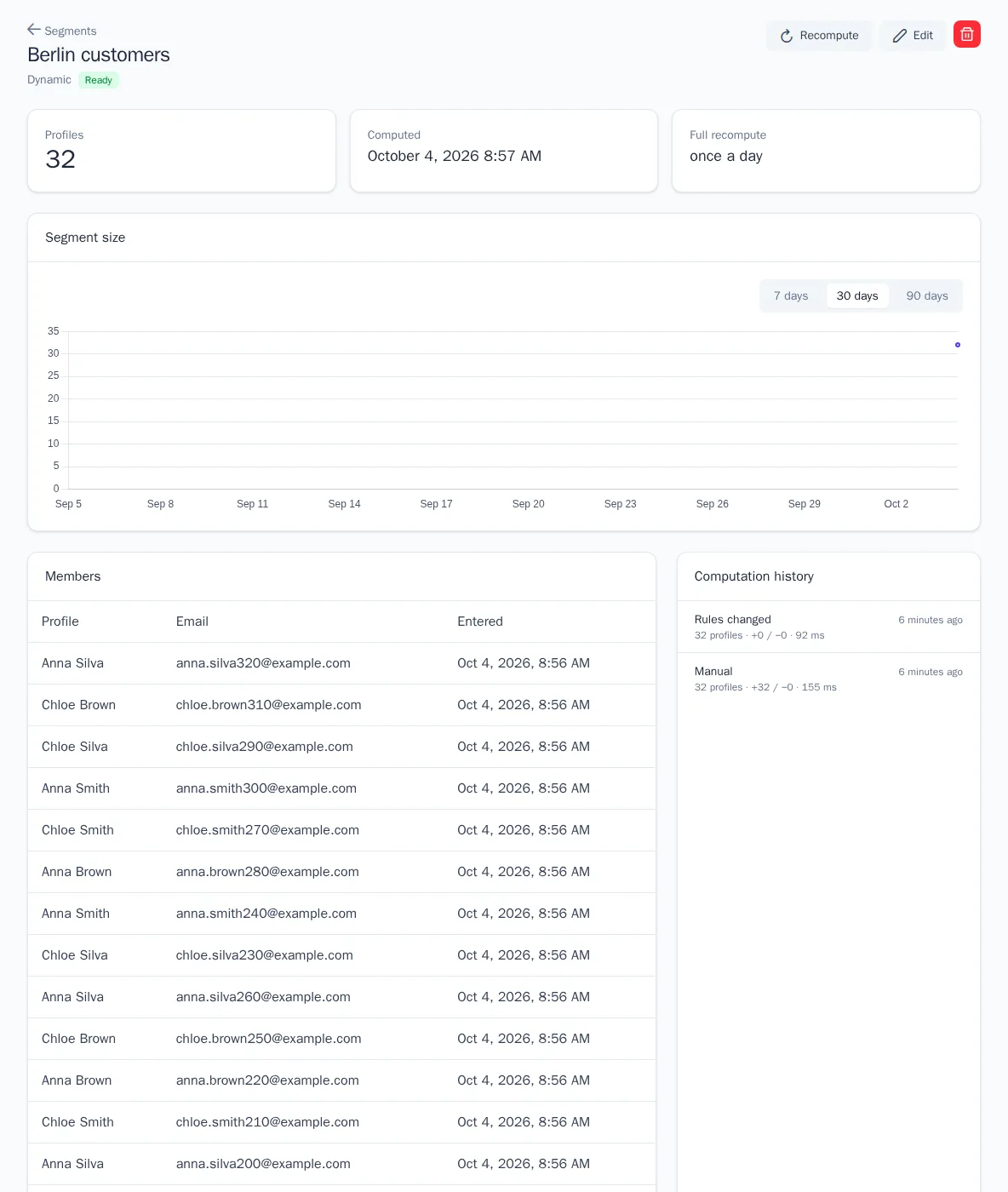
- Profiles, Computed, Full recompute: the current size, the time of the last recompute, and the schedule.
- Segment size: a chart of size changes by day for the selected period. Visible to roles with access to analytics.
- Members: the segment's profiles with their entry date.
- Computation history: when and why the segment was recalculated (on schedule, manually, after a rules change), its size, and how many profiles entered and left.
While the segment is being calculated, the page shows a notification and refreshes itself. If a recompute fails, the error text is shown at the top of the page.
Static segment members
- On a static segment's page, in the Members block, choose the identifier type: Email, Phone, User ID, or Anonymous ID.
- Paste the values separated by commas, spaces, or line breaks, up to 1,000 at a time.
- Click Add. Profiles are looked up by identifier and no new ones are created: the number not found is shown in a notification.
To remove members, select them in the table and click Remove selected.
Where segments are used
- Journeys: the Entered a segment and Left a segment triggers, the journey Audience, the Segment condition, and the Static segment action (add or remove a profile).
- Campaigns: Recipient segments and Exclude segments. Recipients are fixed at launch.
- Audience exports: sending a segment to ad platforms, S3, or a webhook.
Good to know
- Segments ignore subscriptions: an unsubscribed customer stays in the segment, and consent is checked when each message is sent.
- The does not equal condition includes profiles with no value: "city does not equal New York" also includes customers whose city isn't set.
- You can't delete a segment that other segments reference: remove those references first. Deleting a segment keeps the profiles and only removes the membership.