Moving from other platforms
The migration wizard moves data into OneTrace.pro from Customer.io, Mindbox, and Retail Rocket: profiles with attributes and identifiers, consents, segments, event and message history, orders, and email templates. You can stop a migration and resume it from the same point, and after the move you can load anything new.
The section is in the menu under Data → Data migration. It's available to the Manager, Administrator, and Owner roles (the Edit profiles and import permission).
What gets moved
| Platform | Where the data comes from | What gets moved |
|---|---|---|
| Customer.io | App API | profiles and attributes, consents and subscription topics, segments, events from the last 30 days, message history up to 12 months, email templates |
| Mindbox | Mindbox export operations | customers with custom fields, balances, and discount cards, subscriptions, segmentations, customer merges, actions, orders with line items |
| Retail Rocket | export files from the dashboard | subscriber base, segments (one file each), events, orders |
What the data looks like after the move:
- Profiles are merged by email, phone, and your customer ID. The platform's original ID is saved as an Anonymous ID like
mindbox:12345, which is handy for finding the profile in Profiles. - Consents appear in the Subscriptions block on the profile card with a source such as migration from Mindbox.
- Segments become static segments with their current members, named "Platform: name". Segment rules aren't moved; rebuild them in the segment builder if needed.
- Events and orders keep their original time. Orders arrive as an
order_completedevent with products. - Message history turns into send, open, click, and unsubscribe events.
- Email templates go to the Templates section. If the platform's variables couldn't be converted, needs review is added to the template name.
Run a migration
- Click New migration.
- Platform step: choose Customer.io, Mindbox, or Retail Rocket.
- Connection step: enter a name and the access settings.
- Customer.io: the account region, App API key, and how far back to load message history.
- Mindbox: the API domain, Endpoint ID, secret key, external customer identifier (it becomes the profile's User ID), the History from date, and the names of the export operations for customers, merges, actions, and orders.
- Retail Rocket: click Save, then choose the export type in the File contents field and click Upload file. CSV, JSON, and JSON Lines files up to 500 MB are supported, up to 50 files.
- Click Test connection: the key and region are checked without importing any data. Then click Next.
- Data and launch step: in the What to move block, select the data types you need. The Estimate volume button shows how many records the platform returns.
- Read the What else to request from the platform block: it lists what to prepare on the platform side or move separately.
- Click Start import.
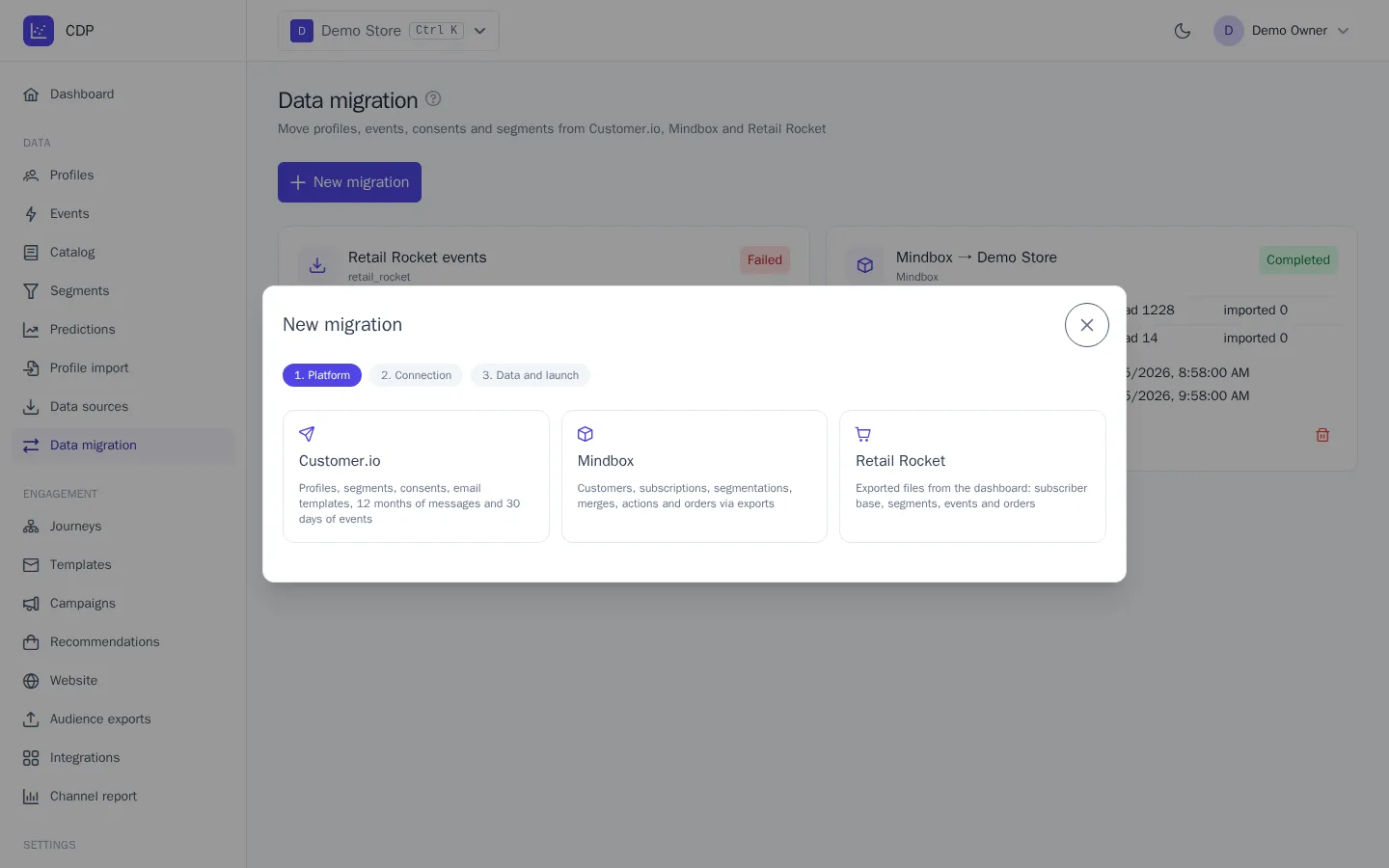
The draft is saved at every step: you can close the wizard and come back to it with the Continue setup button on the migration card.
Migration progress
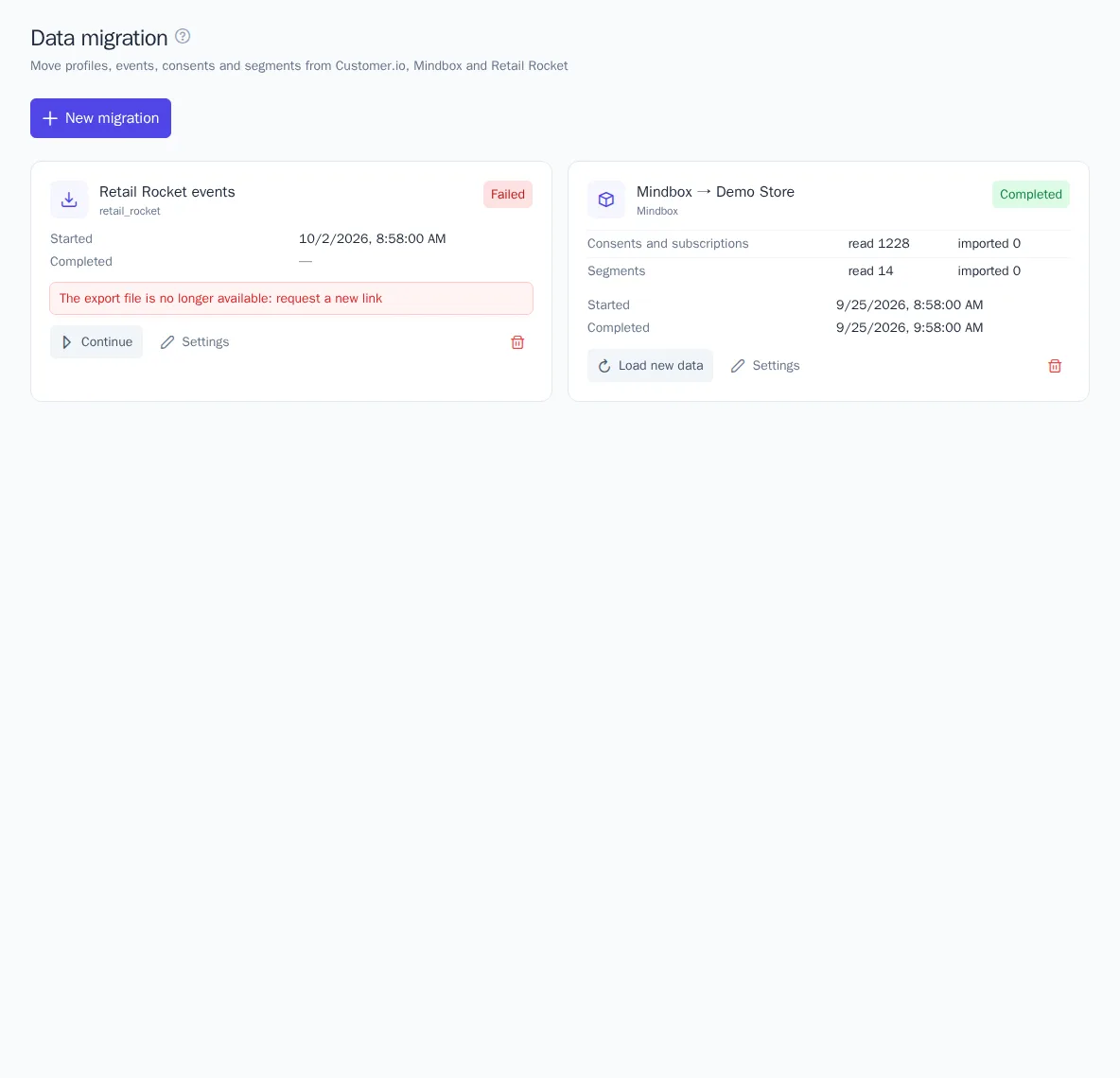
The migration card shows the status and counters for each data type: how many records were read, imported, skipped, and failed. The page refreshes itself while the migration runs.
| Status | What it means |
|---|---|
| Draft | setup isn't finished |
| Queued, Running | data is being moved |
| Waiting for platform | Mindbox is preparing an export; the check repeats in a minute |
| Completed | all selected data was moved |
| Failed | the move was interrupted; the error text is shown on the card |
| Stopped | you stopped the move |
Errors in individual records (for example, The record has no profile identifier) don't stop the migration: you can expand the first 20 of them in the Record errors block.
Stopping, resuming, and loading new data
- Stop interrupts the move after the current batch of records.
- Continue: after an error or a stop, the move resumes from the last saved point, not from the beginning. Records that are read again aren't duplicated.
- Load new data appears on a completed migration. It picks up what has appeared on the platform since the last run; the date is shown in the Next run loads changes since line. This lets you move gradually: move the history in advance, then load the latest changes on switchover day.
- Settings lets you change the connection and the data selection. You can't change settings while a migration is running: stop it first.
- Delete deletes the migration and the uploaded files. Data that was already moved stays in the project.
Good to know
- Customer.io only returns events for the last 30 days. Export older history from your source systems or via Data Warehouse sync. Objects and relationships, as well as the suppression list, aren't moved.
- Mindbox: create JSON export operations in Mindbox in advance and include all the fields you need. Emails and phone numbers must be exported without hashing. Mindbox doesn't export the product catalog or promo codes: connect the same product feed through data sources.
- Retail Rocket: file columns are recognized by their Russian and English names; other subscriber base columns become traits. Email templates and the catalog are moved manually.
- Moved events count toward your plan's monthly event limit. If the limit runs out, the migration stops with an error; after the limit is increased, click Continue.
- Large volumes take a long time to move, especially from Mindbox, because the platform prepares each export itself. You can close the page and the move will continue.