Product search on your website
Product search is a search box on your website with suggestions as you type and a results page that OneTrace.pro fills with products from your catalog. Search handles typos, word forms, queries typed in the wrong keyboard layout, prices and brands in the query text, and the meaning of descriptive queries, and it ranks the top results by the visitor's interests and by what other customers choose. The ready-made search widget draws the suggestions and the results page on its own, with no code on your website.
Search requires the installed tracker (Connecting your website) and a product catalog (Recommendations and product catalog). Search isn't included in every plan: if your plan doesn't include it, there's no Product search item in the menu, the code block on the installation tab isn't shown, and search requests return a "feature unavailable" error.
How products are found
- Query words are searched in the product's name, brand, categories, and attributes; the SKU is matched exactly.
- Word forms in the project's languages are taken into account: "куртки" finds "Куртка зимняя". Languages are set in the project settings, see Project settings, plan, and audit.
- Typos are corrected: "крутка" finds "куртку", and "dres" finds "dress".
- A query typed in the wrong keyboard layout works too: "ghbdtn" is searched as "привет".
- If nothing matches all the words, search shows products that match at least one of them.
- Popular and in-stock products rank higher. Popularity comes from recommendations and is updated once a day.
- The top results are reordered by the visitor's interests: products from the categories and brands they viewed and bought move up.
- Sizes and parameters in the query, such as "205/55 r16", "5x112", or "winter", become filters if the store industry has them.
- Prices, brands, and characteristic values in the text become filters, see Query understanding.
- A descriptive query also finds products by meaning, see Semantic search.
- Products that people choose and buy more often for this query rank higher, see Learning from behavior.
New and changed catalog products appear in search within a minute of a feed upload or an API request.
Typo correction
If a query finds nothing, or finds products for only some of its words, search corrects the words using your catalog's dictionary — product names in all catalog languages, brands, categories, and popular searches on your website — and searches again. Results for the corrected query are shown with the note "Showing results for “…”." and a "Search for “…” instead" link to find exactly what was typed. If products were found only by some of the words, the correction is offered as a "Did you mean “…”?" hint. Results found by all the words or by meaning get no hint: a word missing from the catalog is not necessarily a typo.
The dictionary updates on its own after catalog changes. In the suggestions as you type, the corrected query is also shown as a row if nothing matches what was typed.
Query understanding
Search recognizes in the query text what visitors usually pick with filters and applies it right away:
| In the query | Becomes |
|---|---|
| "under 3000", "from 1000 to 2000", "cheaper than $50", "до 3000", "unter 50 €" | a price filter — in the 10 interface languages |
| a brand from the catalog: "nike sneakers" | a brand filter |
| a characteristic value from the catalog: "red dress", "linen shirt" | a characteristic filter — words are compared without endings |
A number with a unit of measure — "up to 3 years", "up to 5 kg" — isn't treated as a price. What was recognized is shown in the results as selected filters: the visitor sees why the results are filtered and can remove a filter — then this feature of the text is no longer recognized. If nothing is found with the recognized filters, search runs again on the plain text.
Semantic search
A descriptive query — "shoes for mountain running", "gift for mom", "for the rain" — may not contain a single word from the product names. For such queries, search additionally looks for products close in meaning: for each product, OneTrace.pro keeps a semantic description built from the product and category names in all catalog languages, the brand, and the characteristics.
- Meaning is added to queries of three words or more, and to queries whose words found nothing or found only partial matches. Short queries that are found by their words are searched as before.
- Products found both by words and by meaning rank higher.
- A query in another language finds products by meaning if the catalog has translated names.
- A query unrelated to the store's products — "car insurance" in a clothing store — usually gets nothing by meaning.
- Meaning works when results are sorted by relevance.
Semantic descriptions are recalculated only for changed products, usually within a minute of a catalog upload.
Learning from behavior
Once a day, search learns from website events over 90 days: for each query searched by at least 5 different visitors, it finds the products that at least two of them clicked in the results; a purchase of the product after a click counts as three clicks. These products move to the top of the results for this query — only among the products found, and only when results are sorted by relevance.
In the report on the Website → Product search page, the Learned queries metric shows for how many queries the order already takes behavior into account, and such queries are marked "learned" in the table.
Search widget
The search widget is ready-made suggestions and a results page drawn by the tracker. Turn it on in the Search widget block on the Website → Product search page: check Show the search layer on the website and save.
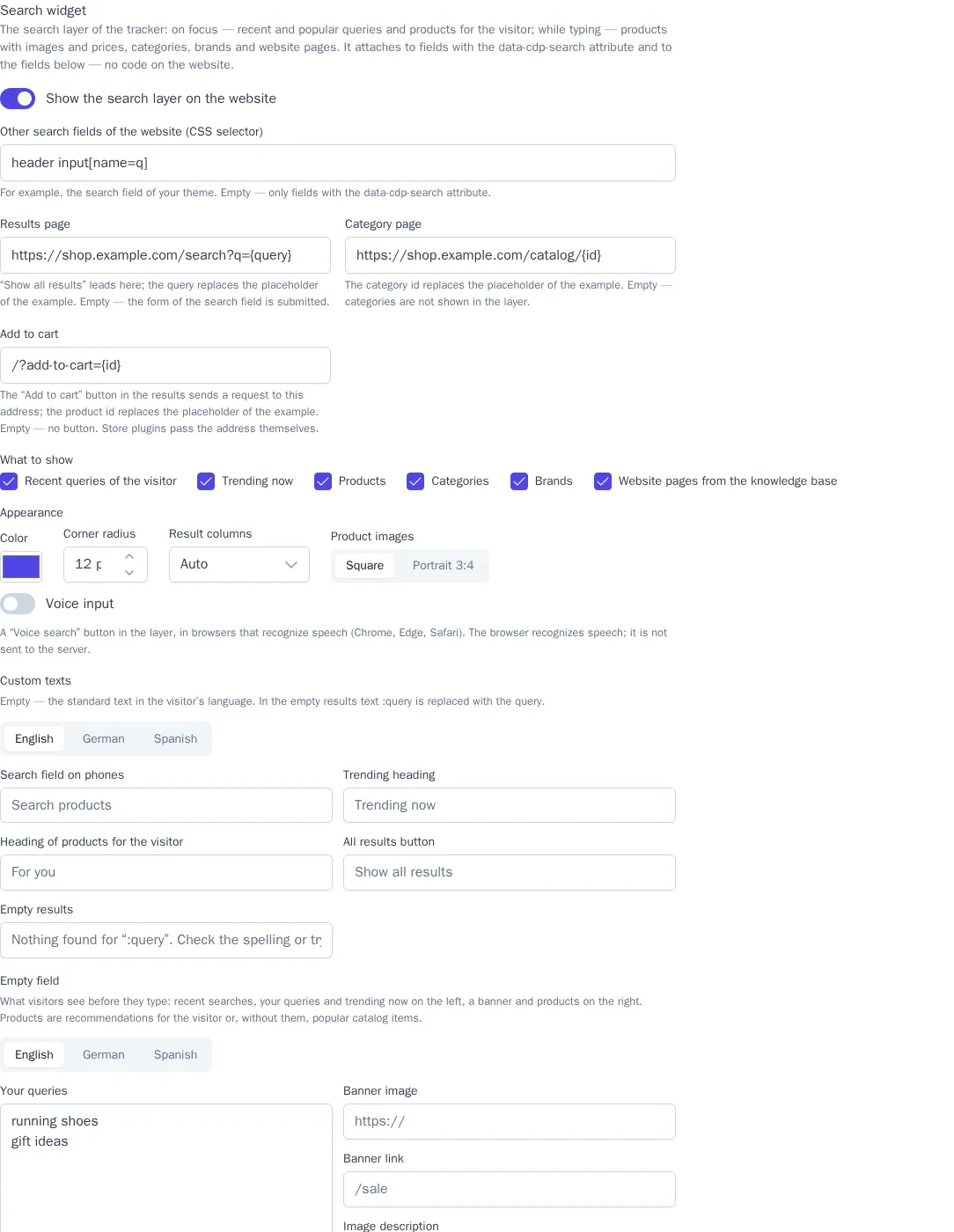
Search layer. When the visitor clicks the search field, a layer opens under it: the visitor's recent searches, what's trending now, and products for the visitor. As they type — query suggestions, categories, brands, website pages from the knowledge base, and products with an image and price. On phones, the layer opens full screen. The layer attaches to fields with the data-cdp-search attribute and to the fields from Other search fields of the website (CSS selector) — for example, to your theme's search field without editing its code.
| Setting | What it sets |
|---|---|
| Results page | where "Show all results" leads; {query} is replaced with the query; empty — the field's form is submitted |
| Category page | a link to the category; {id} is the catalog category ID; empty — categories aren't shown in the layer |
| Add to cart | the address for the "Add to cart" button in the results; {id} is the catalog product ID; empty — no button |
| What to show | layer blocks: recent searches, trending, products, categories, brands, website pages |
| Appearance | color, corner radius, result columns, and product image proportions |
| Voice input | a voice search button in browsers that recognize speech; the browser recognizes speech, and only the text reaches OneTrace.pro |
| Custom texts | replacements for the standard labels in each project language; an empty field — the standard text in the visitor's language |
| Empty field | what visitors see before typing: Your queries (one per line, up to 8) come first in the trending block, even when “Trending now” is off; a banner above the products — Banner image (an https link), Banner link, Image description; for each project language. Products are recommendations for the visitor or, without them, popular catalog items |
The Preview block shows the real layer and results with products from your catalog.
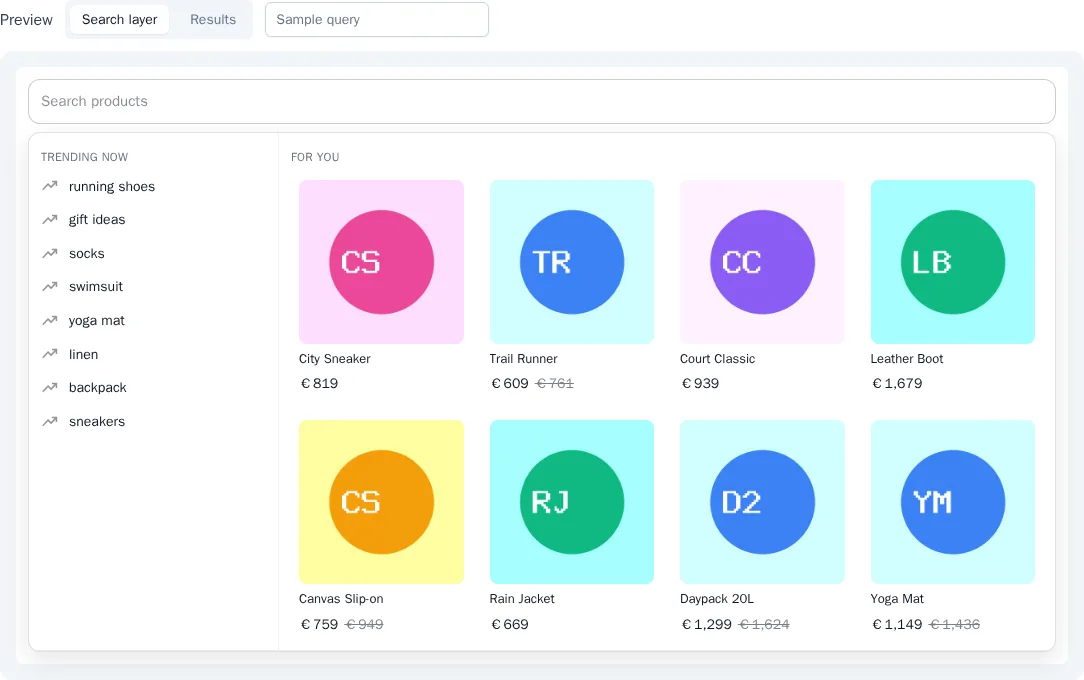
Results page. Put a container on your website's search page, and the tracker will draw the results with filters, sorting, and loading more on scroll:
<div data-cdp-search-results data-query-param="q"></div>
The query and filters are kept in the page address: a link to the results can be shared, and "Back" returns to the previous selection. data-query-param is the query parameter in the address (q by default), data-per-page — products per page (up to 48), data-cart-url — the cart address if it differs from the settings. If the website has neither a results page nor a search form, the results open in a window over the page.
"Add to cart" button. The button sends a POST with the quantity to your website's cart address and expects a JSON response: {"ok": true} — the product was added, and the button shows "Added"; {"ok": false, "redirect": "…"} — a product variant must be chosen, and the given page opens. After adding, the tracker notifies the website with the cdp:add-to-cart event, which the theme uses to update the mini cart. The cart address must be on the website's domain: a cart on another site doesn't see the customer.
Store plugins. In the WooCommerce and Magento 2 plugins and the 1C-Bitrix module, turn on the search widget setting — the store's search page will show the widget results, and the "Add to cart" button will add products to the store cart. While the widget is turned off here, the store shows its own search page.
Search box
Without the widget, you can attach suggestions to the search field on your website with the data-cdp-search attribute:
<form action="/search">
  <input name="q" data-cdp-search data-category-url="/catalog/{id}">
</form>
As you type, suggestions appear under the field: popular searches on your website, matching categories, and products with an image and price. You can move through them with the arrow keys; Enter opens the selected row, and Esc closes the suggestions. Enter without a selected row submits your website's form as usual.
| Attribute | What it sets |
|---|---|
data-cdp-search |
attaches suggestions to the field |
data-category-url |
a link to the category page; {id} is replaced with the catalog category ID; without this attribute, categories aren't shown in the suggestions |
data-search-url |
the results page address for a field without a form; {query} is replaced with the query |
Suggestions use your website's font and contain no interface text, so they fit a website in any language.
Results page
Ready-made e-commerce plugins insert the results into the store's search page on their own. On your own website, get the products from the tracker:
window.addEventListener('load', async () => {
  const q = new URLSearchParams(location.search).get('q');
  const result = await cdp.search(q, { perPage: 24 });
  // result.items — products, result.total — how many were found, result.facets — categories, brands, prices, and characteristics for filters
});
Parameters: category, brand, priceMin, priceMax, sort (relevance, popular, price_asc, price_desc), page, perPage, attributes. When a product is clicked, call cdp.searchResultClicked(product).
Characteristic filters. result.facets.attributes holds the characteristics of the store industry with labels in the visitor's language and the number of products for each value, for example "Rim diameter, inches": 16, 17, 18. Pass the selected values in attributes: cdp.search(q, { attributes: { rim_diameter: [17, 18], season: 'winter' } }). Several values of one characteristic are combined with "or", different characteristics with "and". result.filters holds the sizes and parameters recognized in the query text: show them to the visitor so it's clear why the results are filtered. Requires tracker 1.15.0.
If the query has a redirect rule (see Query rules), result.redirect holds the page address: open it instead of the results.
The response also has: result.corrected — the results are shown for a corrected query, result.suggestion — "Did you mean", result.filters — also the price (price_min, price_max) and brand recognized in the text, result.learned — the order takes visitor behavior into account, result.semantic — some products were found by meaning. Options: correct: false — search for exactly what was typed, ignore: ['price'] — don't recognize the price, brand (brand), or characteristic in the text.
Servers can make the same requests with a write key: https://cdp.onetrace.pro/api/v1/search and https://cdp.onetrace.pro/api/v1/search/suggest. The full list of parameters is in the API reference: https://cdp.onetrace.pro/api/v1/openapi.json.
Query report
The Website → Product search page shows what visitors search for on your website over 7, 30, or 90 days:
- Searches and visitors — how many times people searched and how many different people.
- No results — the share of searches that found nothing.
- CTR — the share of visitors who clicked a product in the results of their query.
- Purchases and revenue — a product clicked in the results and bought by the same customer within 7 days. Revenue uses the product price from the catalog. Shown when a purchase event is set in the recommendation settings, see Recommendations and product catalog.
- Learned queries — for how many queries the order of results takes clicks and purchases into account, see Learning from behavior.
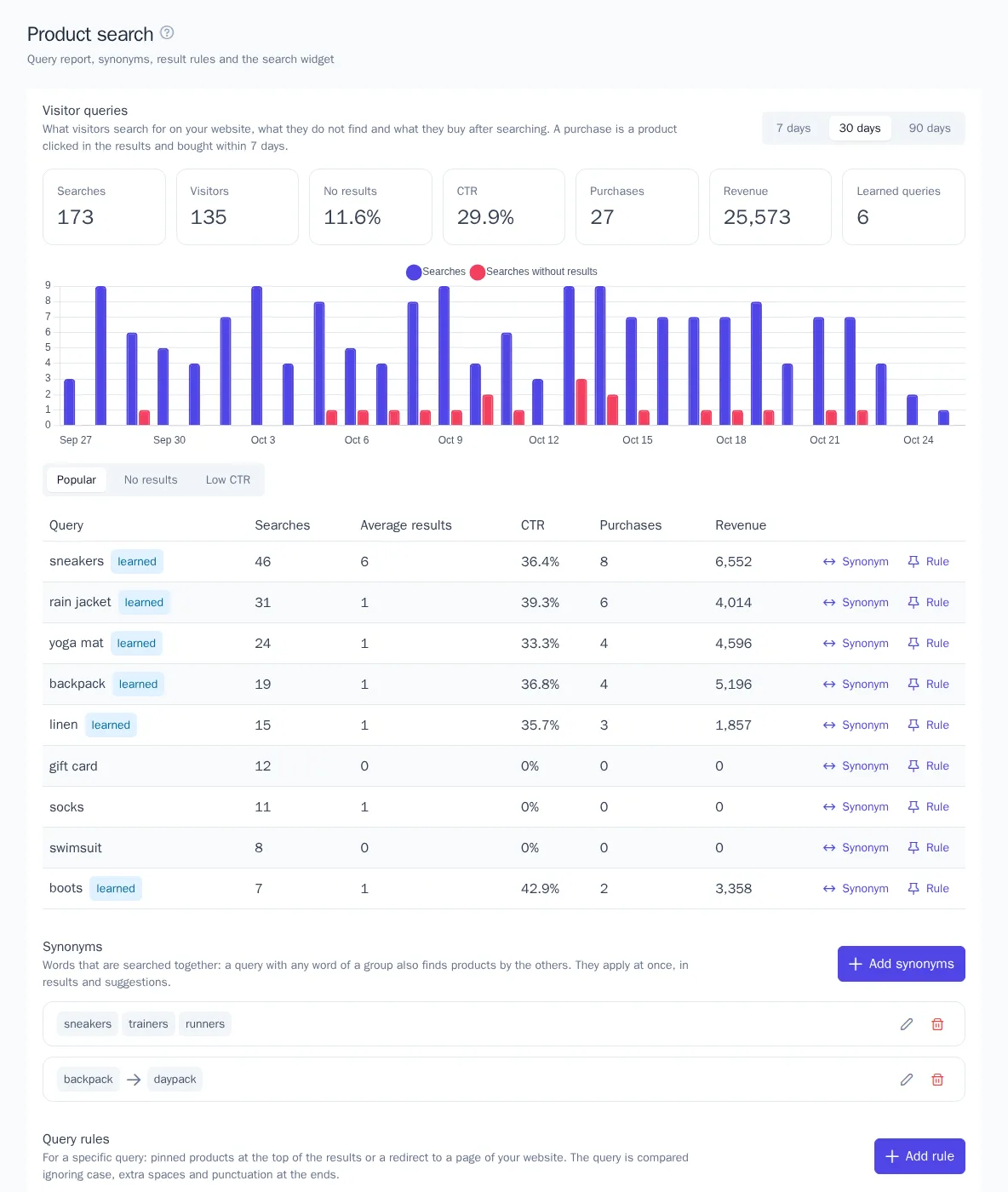
Tables under the chart:
| Table | What it shows |
|---|---|
| Popular | queries by the number of searches |
| No results | queries that never found anything: a hint at missing products or synonyms |
| Low CTR | queries with at least 5 searches where fewer than 10% lead to a click: the results are not what visitors expect |
Queries are compared ignoring case and extra spaces. From a table row you can add a synonym or a rule for the query right away.
Synonyms
Synonyms are words and phrases searched together: a query with any word of a group also finds products by the others. For example, with the group "sneakers, trainers, running shoes", the query "white trainers" also finds white sneakers.
- Two-way group — every word is searched as the others.
- One-way group — only the first word is searched as the others: "iphone → apple phone" finds apple phones for "iphone", but "apple phone" is not searched as "iphone".
A word or phrase of a group is replaced in a query only when it appears as a whole. Synonyms apply right after saving, in results and suggestions. A project can have up to 500 groups, a group up to 20 words.
Query rules
A rule applies when a visitor searches for exactly this query (ignoring case, extra spaces, and punctuation at the ends) and does one or both of these:
- Pinned products — up to 24 products in the order you set come first in the results, even if the search itself does not find them. The other results follow without repeats. Pinning applies when results are sorted by relevance and not filtered; out-of-stock products are not shown.
- Redirect — a page of your website opens instead of the results, for example "delivery" → the delivery terms page.
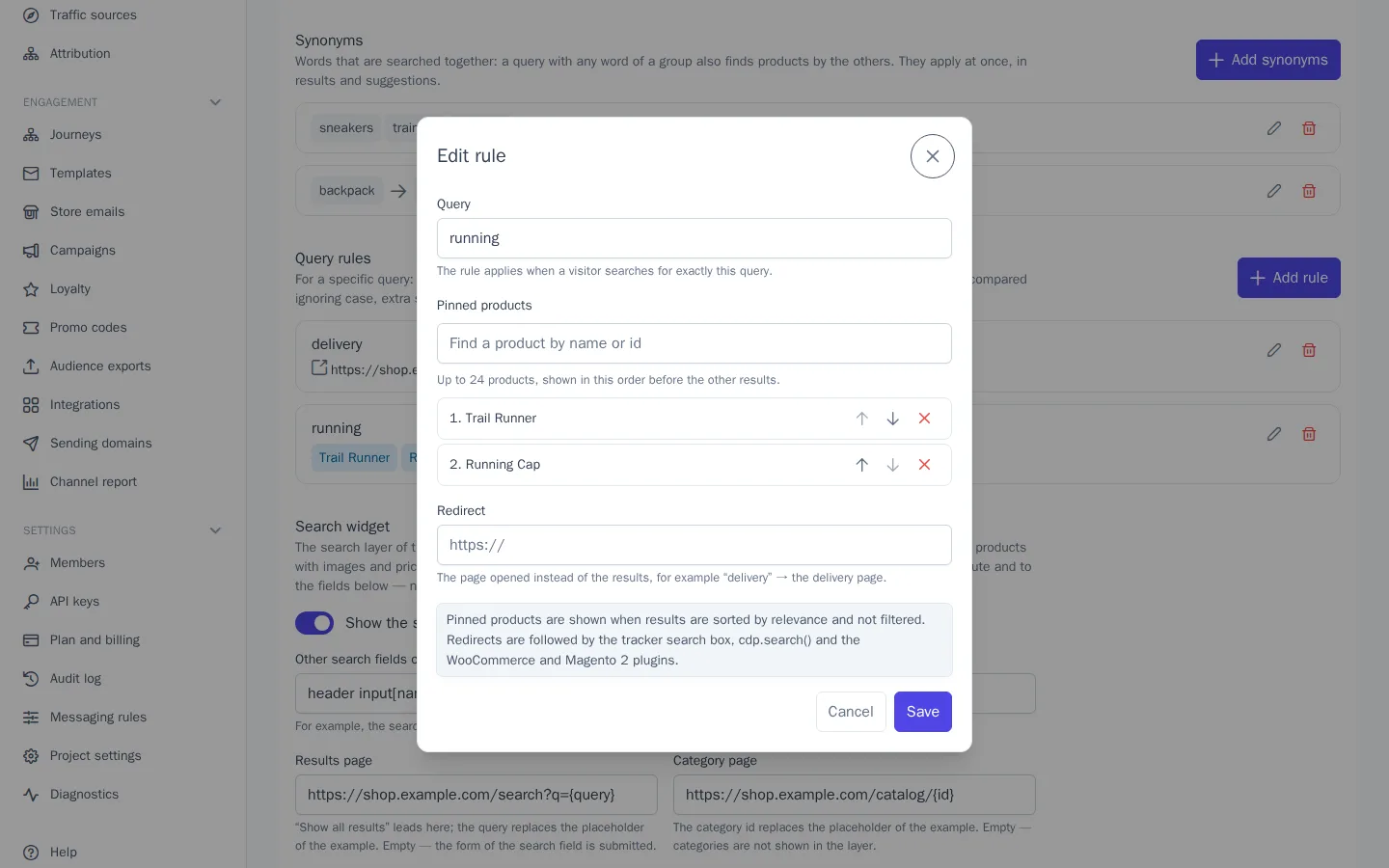
Redirects are followed by the tracker search box (Enter on a query with a rule), cdp.search() on your own results page (the redirect field), and the WooCommerce and Magento 2 plugins. A project can have up to 1000 rules.
Request limit
Search requests — both results pages and suggestions as you type — count toward the plan's monthly limit. The limit grows with the plan's profile volume: Growth — 20 requests per profile of volume per month, Enterprise — 40; during the free trial — 50,000 requests. Usage is shown on the Plan and billing page, see Plan and billing.
The project owner gets emails at 90% and 100% of the limit. Search keeps working for another 10% over the limit, and after that it's unavailable until the next month starts: the widget stops taking over the website's search field and says in the results that search is unavailable, and store plugins immediately show the store's built-in search. Your own results page gets the unavailable flag from cdp.search() — show your website's own search.
Statistics
The tracker records two events:
| Event | When |
|---|---|
search |
the first page of results was shown; properties: query is the query, results is how many were found |
search_result_clicked |
a click on a product in the results or in the suggestions; properties: query, product_id, position, source |
Popular searches in the suggestions are built from search events over 30 days. The events are visible in the customer's profile card and available in segments, for example "searched but didn't buy", see Segments.