Control group
A control group shows how much revenue your messages bring in. OneTrace.pro doesn't send marketing messages to a small random share of profiles, and the report compares their purchases with everyone else's. The difference is the effect of campaigns, journeys, and other messages, which click-based attribution can't show: some customers would have bought without any emails, and some bought after an email without clicking it.
Open Analytics → Control group. The section is available on the Growth plan. See Plans. All roles with access to analytics can view the report; roles with permission to change project settings can turn the group on and change it.
How the group works
- Members are random. Each profile joins the group with a probability equal to its share. New profiles are assigned the same way. As long as the share doesn't change, a profile stays in its group.
- The group gets no marketing messages in any channel: campaigns, journey and cascade messages, and messages sent via the API. In the profile's message log, these messages appear as skipped with the reason "control group".
- The group still gets transactional messages (orders, passwords, subscription confirmation), test sends, manual sends from the profile page, and messages from campaigns and journeys with Send to the control group too turned on.
- Group members move through journeys like everyone else: conditions, waits, loyalty points, and other nodes work; only messages aren't sent. A cascade for a profile in the group stops at the first step and doesn't try other channels.
- Website and ads work as usual. Forms, widgets, recommendations, and audience syncs to ad accounts work for the group too: the report measures the effect of messages specifically.
Turning it on and changing the share
- Set Share of profiles, from 1 to 50%. 5–10% is usually enough: the bigger the project, the smaller the share can be.
- Click Turn on. This starts the group's period.

The Change share button opens the share field, and Save share starts a new period with new members: some profiles that got messages will join the group, and the other way round. Turn off ends the period, and messages go to everyone again. Reports for past periods stay available: choose them in the Period field. Turning the group on, changing the share, and turning it off are recorded in the audit log.
If the project switches to a plan without the control group, the group stops working and messages go to all profiles.
Exceptions: "Send to the control group too"
An important non-transactional message, such as a notice about changed terms, can be sent to everyone. In the campaign settings (the Audience block) and in the journey entry, turn on Send to the control group too. The switch appears when the group is on.
Such sends dilute the measurement: the group got the message too, so the effect looks smaller than it really is. The report lists the period's campaigns and journeys that had this switch on.
Control group in the campaign report
Campaign recipients who are in the control group stay in its audience, but they don't get the email: at the same time, the profile's message log shows a skip with the reason "control group". They aren't counted in the run's Audience; their number is shown below the report cards.
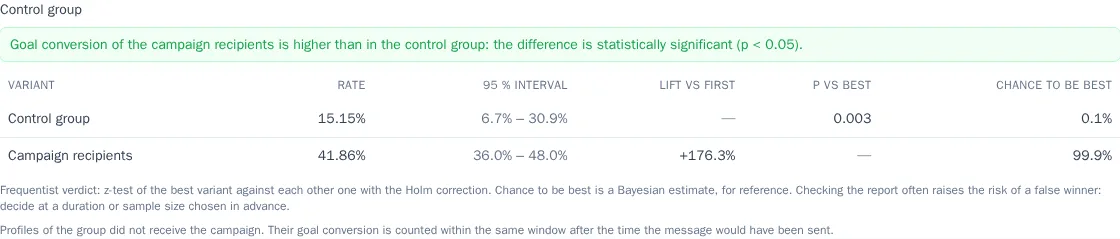
If the campaign has a goal, the Report tab shows the Control group block: goal conversion of the campaign recipients and of the group profiles within the same window after sending, plus a verdict on whether the difference is significant. This shows whether the campaign brought extra conversions, not just how many recipients reached the goal.
Report
The report needs a purchase event and its amount, the same ones as the Revenue report uses, taken from the prediction settings. It counts orders of the period in the project currency and all profiles that appeared before the end of the period.
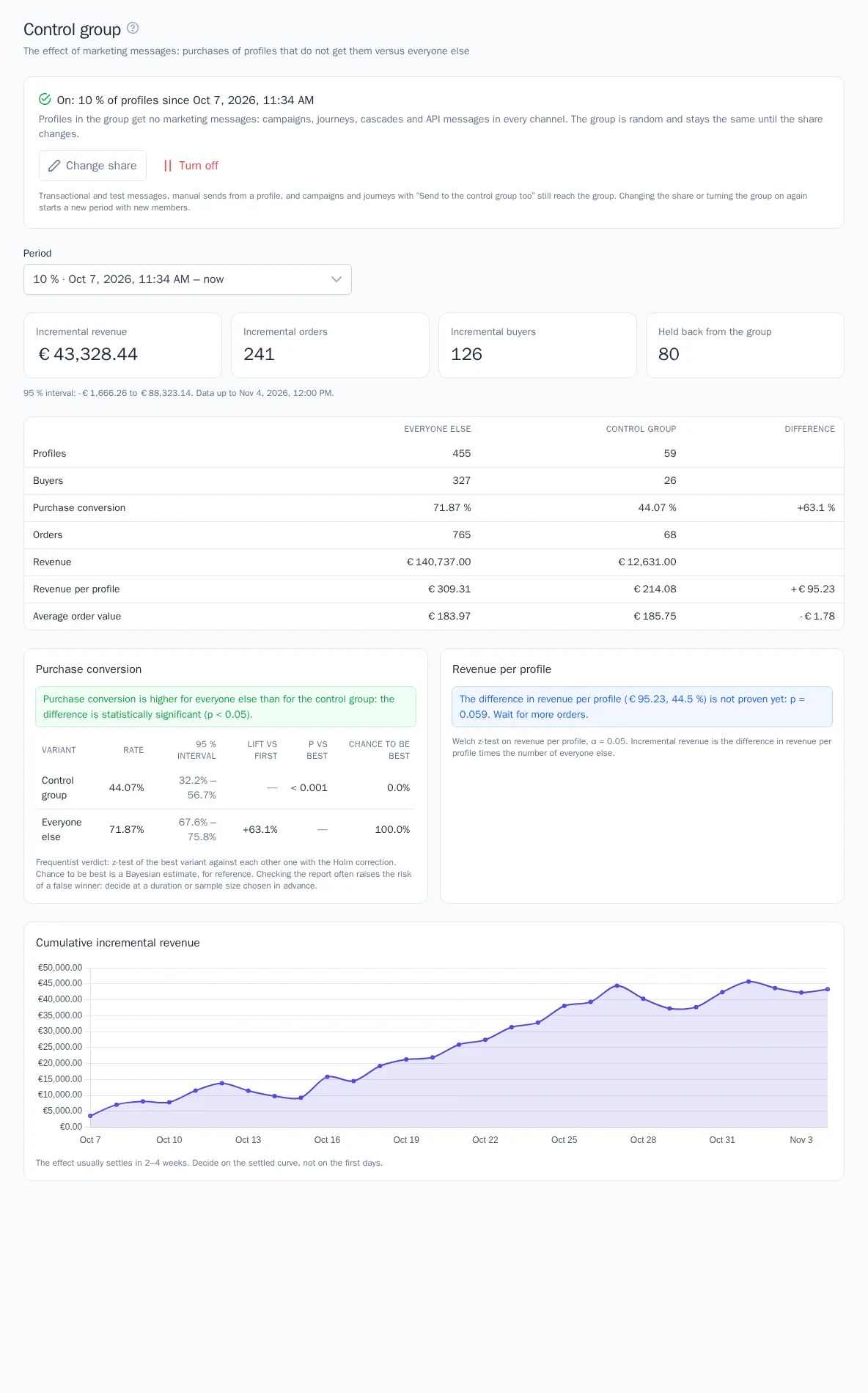
- Incremental revenue: how much revenue messages brought in over the period. It's the difference in revenue per profile between everyone else and the group, multiplied by the number of other profiles. Below the cards is a 95% interval: if it's entirely above zero, the effect is almost certainly positive.
- Incremental orders and Incremental buyers are calculated the same way.
- Held back from the group: how many marketing messages the group didn't get over the period.
- The table compares everyone else and the group: profiles, buyers, purchase conversion, orders, revenue, revenue per profile, and average order value. In the Difference column, conversion shows the relative lift, and money shows the difference in currency.
- Purchase conversion: the same significance verdict as in A/B tests (Journeys): better, no difference, or not enough data.
- Revenue per profile: whether it's higher or lower for everyone else and whether the difference is proven (Welch z-test, α = 0.05). Each group needs at least 30 profiles.
- Cumulative incremental revenue: how the effect builds up day by day (by week for periods longer than 120 days).
Good to know
- Give the group time. The effect usually settles in 2–4 weeks. The first days are noisy: decide by the settled curve and the interval, not by the first value.
- A negative effect with a proven difference means messages get in the way of purchases: check frequency, quiet hours, and content. Messaging rules and the best send time can help.
- Don't change the share unless you need to: each change starts the period over.
- Report via the API. Group periods and the report for a period are available in the public API and to AI assistants via MCP with a key that can read analytics. You can turn the group on or change the share only here, in the interface.
- A control group doesn't replace A/B tests. To compare two emails with each other, use campaign variants or a split in a journey.