Marketing calendar
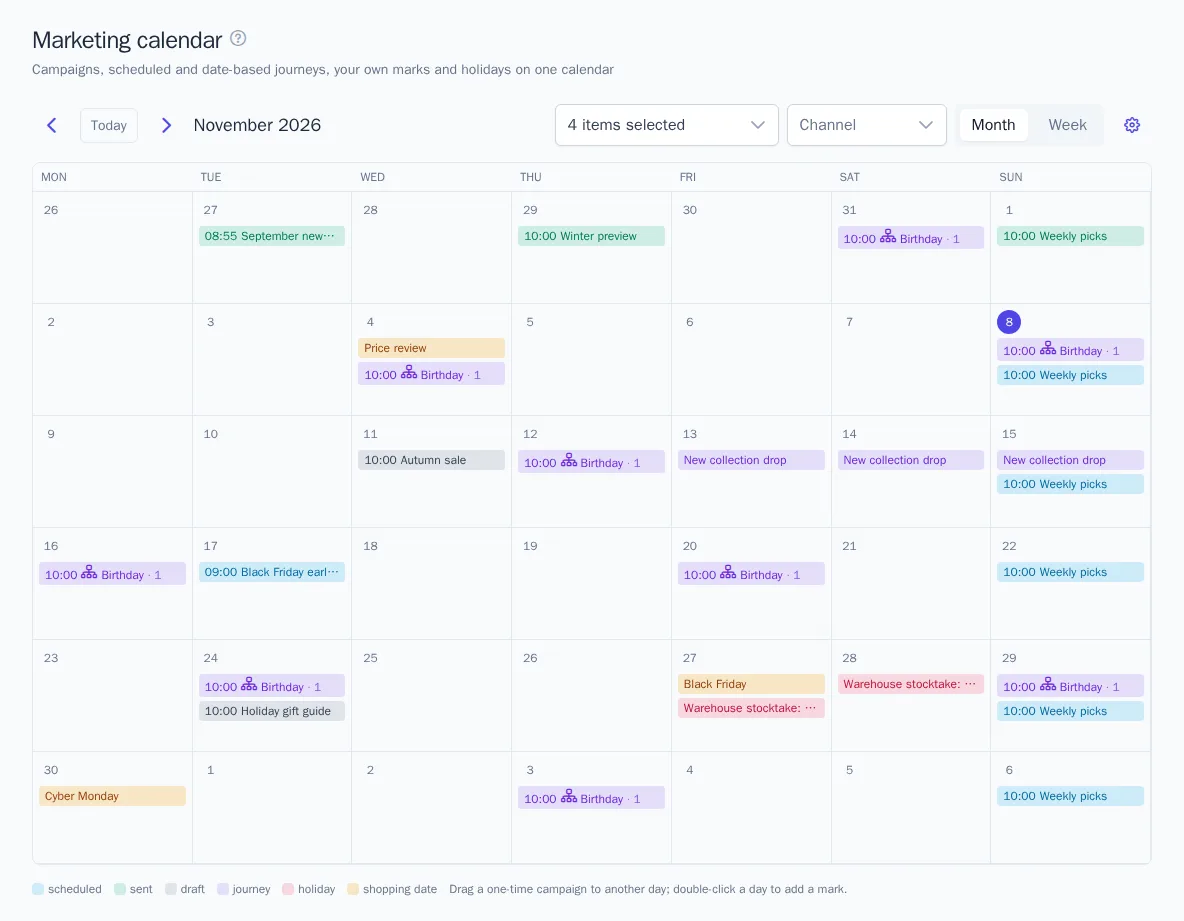
The calendar shows everything the project has sent and is going to send on one grid: campaigns, journeys that run on a schedule or on a date from a trait, team marks, and a country's holidays. It makes planning the season easy: you can see which weeks are already busy, where there are gaps, and whether a sale clashes with a holiday.
The section is in the menu under Engagement → Calendar. Everyone who has access to campaigns can view the calendar. Those who can edit campaigns, Manager and above, can move campaigns, add marks, and change the calendar settings.
What's on the calendar
- Campaigns. Past launches appear on the day and at the hour they were sent, future ones according to their schedule: a one-time campaign once, a recurring one at every repeat. The color shows the status: draft, scheduled, or sent. Click a campaign to open it.
- Journeys with the "Schedule" trigger: upcoming segment checks and the last one, with the number of participants who entered.
- Journeys with the "Date from a trait" trigger, such as birthday greetings: how many profiles will enter the journey on each day. The number is calculated from the dates in profile traits and is updated once an hour.
- Your own marks: the team's periods and events, such as a collection launch, a warehouse stocktake, or the sale season.
- Holidays and shopping dates of the selected country: public holidays and days like Black Friday, Cyber Monday, or the 11.11 sales. Dates of Muslim holidays are provisional and are labeled "date to be confirmed".
Times are shown in the project's time zone (project settings). Switch the view with the Month and Week buttons; the arrows move through periods, and Today takes you back to the current one. With the What to show and Channel filters you can keep, for example, only email campaigns and holidays. If a day has more than four items, the "Month" view shows "N more" below them, and the "Week" view shows all items of the day.
Moving a campaign
A one-time campaign that is a draft or scheduled can be dragged to another day: the send time stays the same, and a scheduled campaign gets its launch time recalculated. A campaign can't be moved to the past. Recurring campaigns and past launches can't be dragged: the schedule of a recurring campaign is changed in its settings.
If approval is turned on in the project, moving is a change too: an approved campaign goes back to review, and a scheduled one goes back to draft.
Your own marks
To add a mark, double-click a day or click "+" in the corner of the day. Enter the Title, the From and To dates (up to 92 days), the Color, and optionally a Note. For a one-day mark, leave both dates the same. Click a mark to open it and edit or delete it.
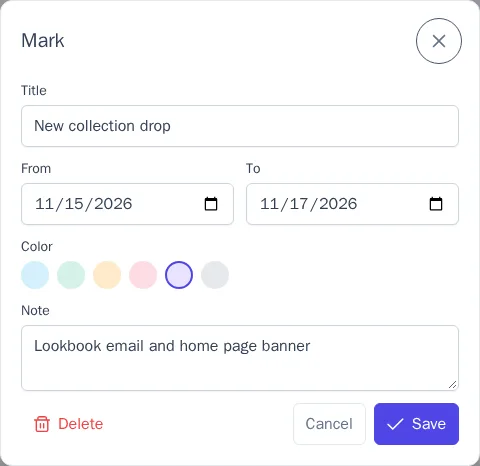
Marks are visible to everyone who opens the project calendar. They don't affect campaigns or journeys: they are notes for the team.
Calendar settings
The gear button opens Calendar settings. They are shared by the whole project:
- Your own marks: show the team's marks;
- Holidays and shopping dates and Holiday country: Russia, Belarus, Kazakhstan, Uzbekistan, Türkiye, Germany, France, Italy, Spain, United Kingdom, United States, Brazil, or China. By default, the country is chosen from the project's default language;
- Journeys with the "Date from a trait" trigger: show how many profiles will enter such journeys on each day.
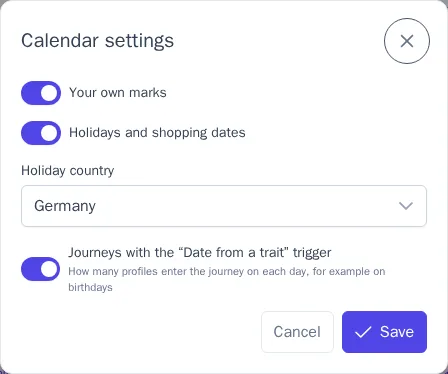
Campaigns and scheduled journeys are always shown. Holiday names are displayed in the interface language.