Shopping in WhatsApp
In WhatsApp, you can send customers product carousels and forms. A carousel is a set of swipeable cards with a photo, a price and a Buy button that leads to the product page on your website. A form opens right in the chat: the customer picks a size, checks options or enters a date, and the answer goes straight to their profile.
The section is in the menu under Engagement → WhatsApp templates. It appears once WhatsApp is connected and is available from the Growth plan. Everyone with access to message templates can view templates and forms; those who can change templates can create and delete them.
Meta templates
WhatsApp allows the first message to a customer and bulk sends only with templates that Meta has reviewed and approved. The Templates tab lists all templates of your WhatsApp Business account: those created here and in WhatsApp Manager.
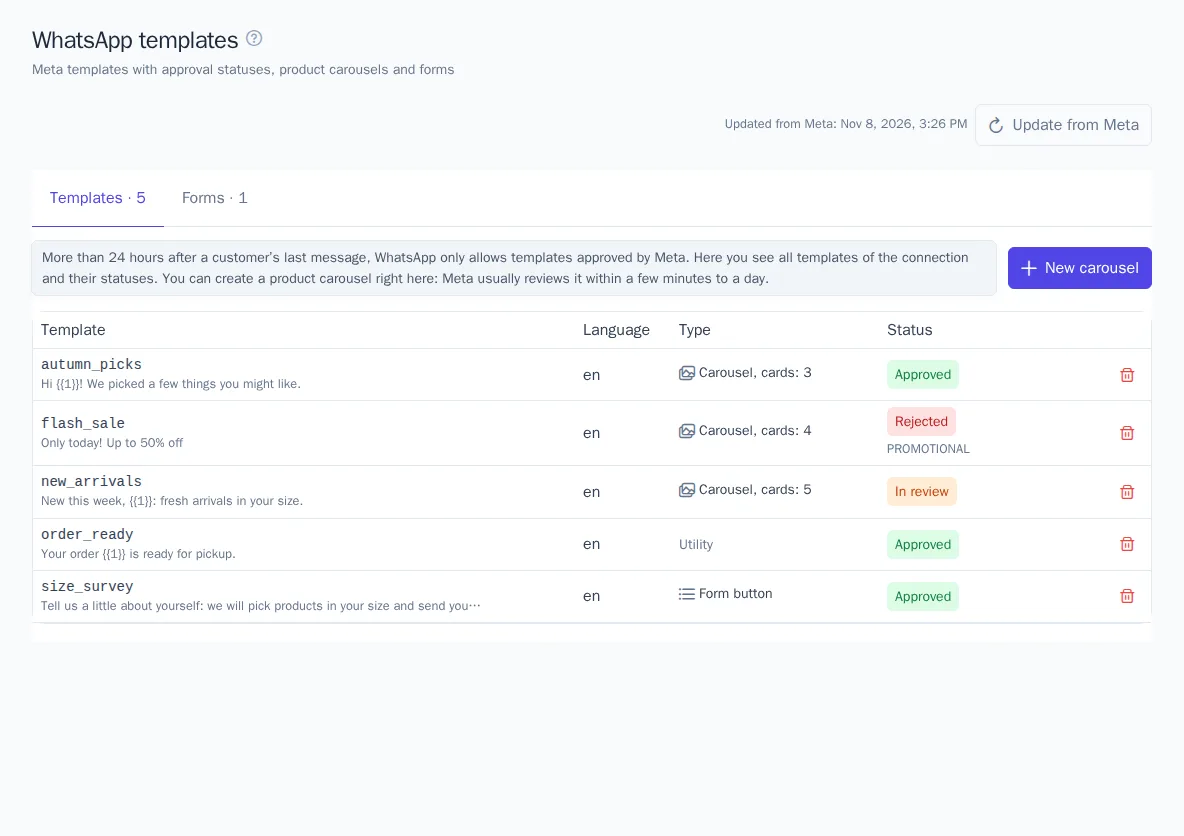
- Status shows what Meta decided: approved, in review, rejected, paused. A rejected template shows the reason next to it.
- The list updates from Meta by itself when it is older than 15 minutes. Update from Meta does it right away.
- A deleted template is also deleted in Meta.
If you have several WhatsApp connections, choose the one you need at the top.
Product carousel
- Click New carousel.
- Enter the Template name in lowercase Latin letters, digits and
_, for exampleautumn_picks, and the Language:en,ru,de. - Write the Text above the cards. The variables
{{1}},{{2}}are filled in when the message is sent, for example with the customer's name. Meta asks for an example of each variable. The text can't start or end with a variable. - Set how many Cards the carousel has, from 2 to 10.
- Write the Card text, up to 160 characters. Its variables are product fields: name, price, old price, discount, brand.
- Add one or two Card buttons: Product link and Quick reply.
- Choose a Sample image from the media library, JPEG or PNG. Meta looks at it during the review; sent cards will show the product photos.
- Click Submit for approval.
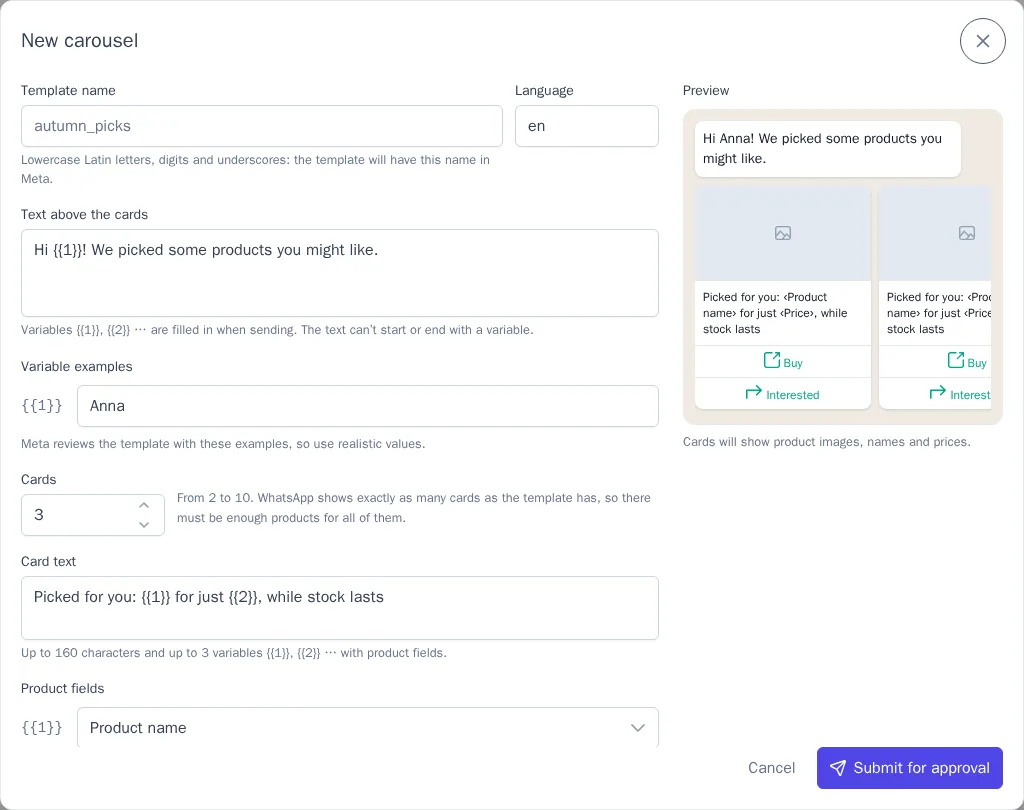
Meta usually reviews a template within a few minutes to a day, and the status updates by itself. A carousel is always a marketing template: Meta requires this.
Sending a carousel
A carousel is sent with a WhatsApp message template of the product carousel message type, in a campaign or a journey.
- Create a message template for WhatsApp and set Message type to product carousel.
- Choose a carousel from the Meta templates. Only an approved one can be sent.
- Fill in the parameters of the text above the cards, for example
{{ traits.first_name }}. - Choose where the Carousel products come from:
- recommendations: personal, popular, viewed together, bought together, similar and other recommendation types. For viewed together, bought together and similar, enter the product to pick from, for example
{{ event.properties.product_id }}from the journey event. For popular products, you can limit the category; - Own list: product ids separated by commas, in the order of the list.
- recommendations: personal, popular, viewed together, bought together, similar and other recommendation types. For viewed together, bought together and similar, enter the product to pick from, for example
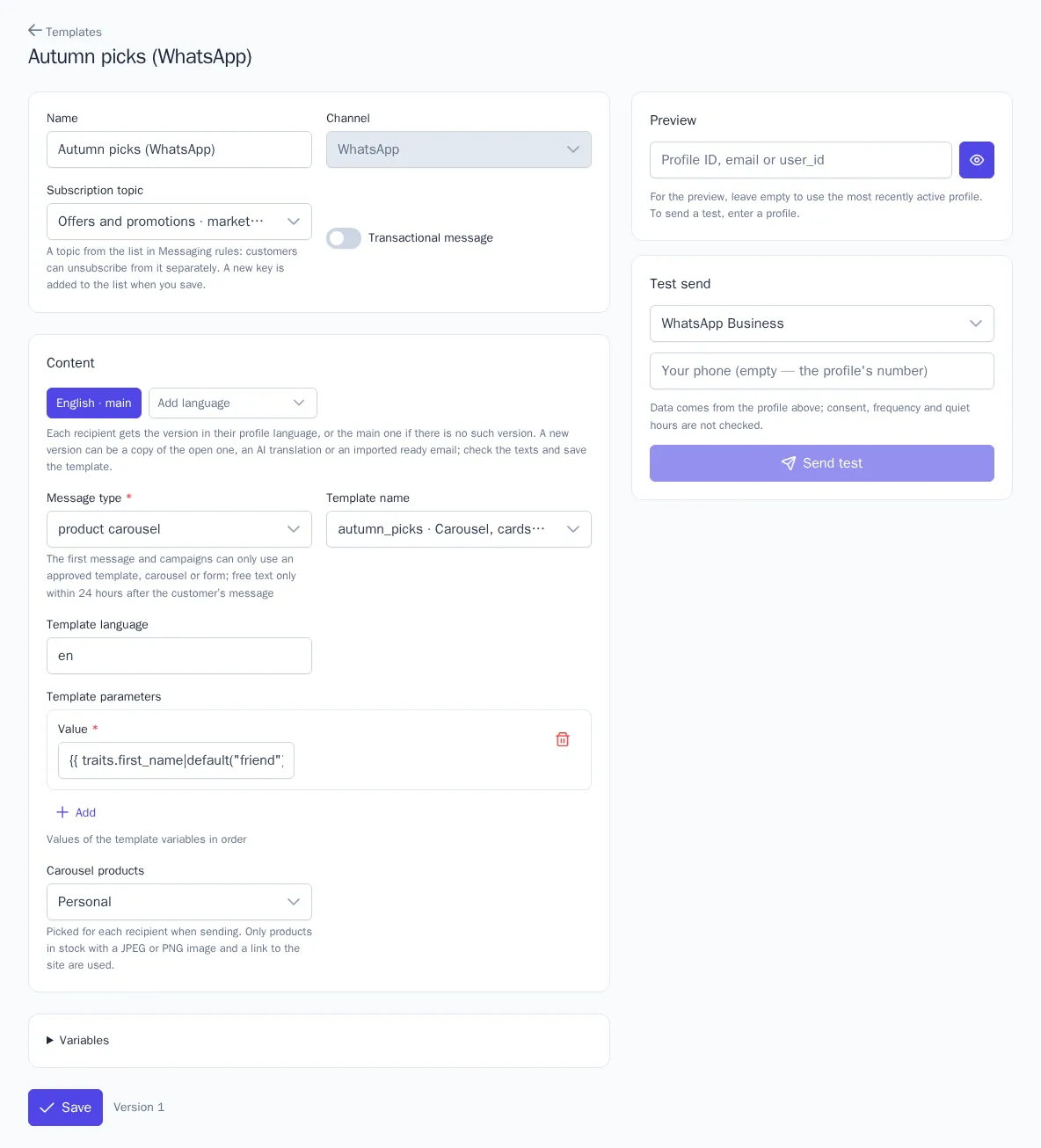
Products are picked at send time, separately for each customer. Cards get products that are in stock and have a JPEG or PNG photo and a link to the website.
- The message has exactly as many cards as the template: Meta requires this. If fewer products fit, the message isn't sent, and its status shows how many products were found.
- The Product link button leads to the product page through click tracking: clicks show in the campaign and journey report, as with emails.
- A tap on the quick reply comes to the profile as a
whatsapp.messageevent with theproduct_idproperty. You can use it to start a journey or build a segment of people who liked the product. - The Pre-launch check of a campaign or journey warns you if the carousel isn't among the connection's templates or Meta hasn't approved it yet.
You can also send a carousel created in WhatsApp Manager. Product fields are filled in by order: name, price, old price. A link like https://your-store/{{1}} gets the end of the product's address.
Forms
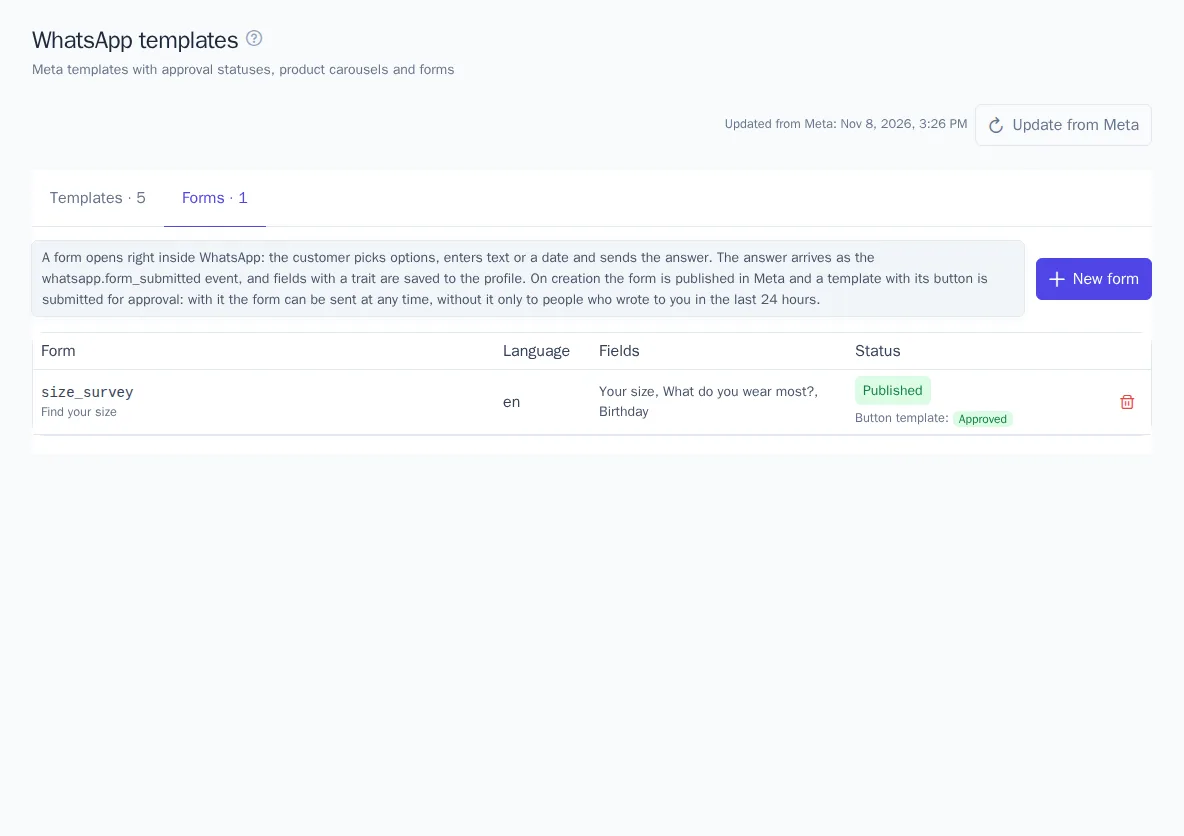
The Forms tab lists WhatsApp forms. A form opens from a message with a button, and the answers are saved to the customer's profile.
-
Click New form.
-
Enter the Name in Meta in lowercase Latin letters, digits and
_. The form and the template with its button get this name. -
Choose the Language and the Template category: marketing or utility.
-
Fill in the Title and, optionally, the Text above the fields.
-
Add up to 8 fields:
- Single choice and Multiple choice: from 2 to 10 options, one per line;
- Text: a short answer;
- Date: a date picked in a calendar.
Each field has a Label, a Key and a Required checkbox. In Save to trait, you can enter a profile trait, for example
clothing_sizeorbirthday: the answer is saved to it. -
Write the text of the Submit button.
-
In the Message with the button block, write the message text and the label of the button that opens the form.
-
Click Publish.
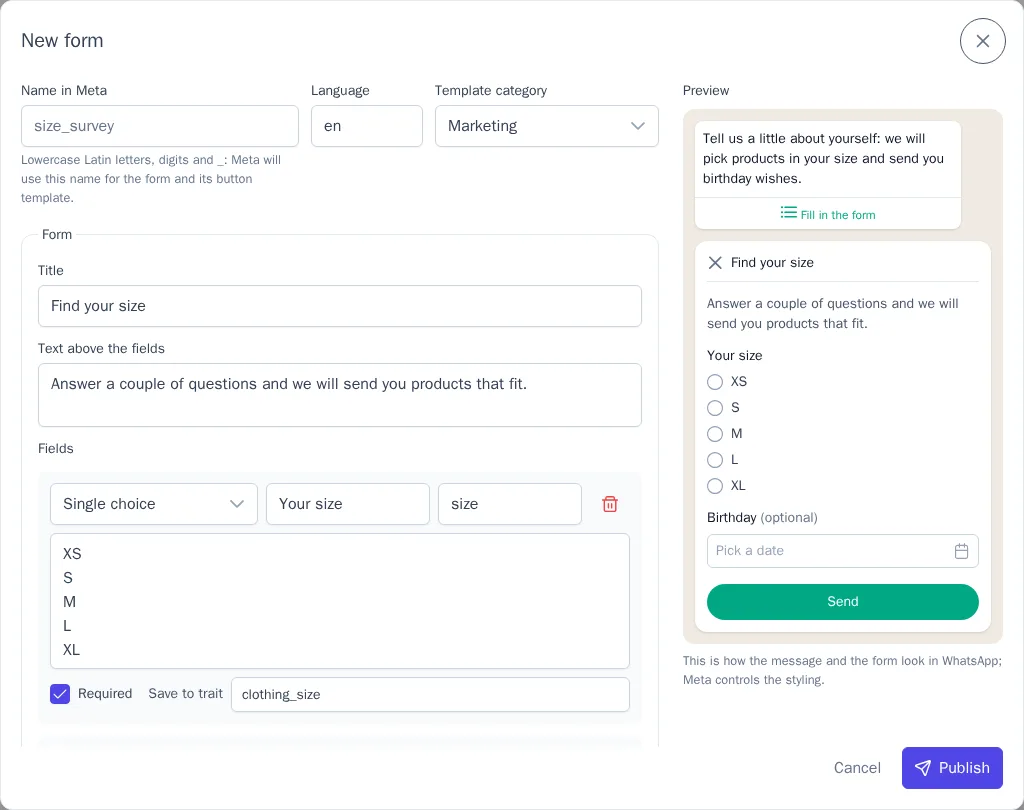
OneTrace.pro publishes the form in Meta and right away submits the template with its button for approval. Meta doesn't let you change a published form: to change the questions, create a new form. Deleting a form turns it off in Meta and deletes the template with its button.
Meta allows publishing forms only for verified businesses. Without verification, Meta refuses, and the reason appears in the creation dialog.
Sending a form
A form is sent with a WhatsApp message template of the form message type, in a campaign or journey, or with the Send WhatsApp form journey node.
- If the customer wrote to you in WhatsApp less than a day ago, the form goes out as a regular message with a button.
- Later, the form can only be sent with the approved template with its button. OneTrace.pro chooses the method itself.
- Until Meta approves the template, the form reaches only those who wrote to you within the last day. The Pre-launch check warns you about this, and a message that wasn't sent shows the reason.
OneTrace.pro sees the one-day window from live chat conversations. If WhatsApp messages don't come to the chat, the form goes out as a template.
Answers
When a customer submits a form:
- answers of fields with a trait are saved to the profile right away;
- the profile gets a
whatsapp.form_submittedevent. Its properties hold the form name (form), its number (form_id) and the answers by field keys: a single choice as text, multiple choices as a list, a date as2026-05-17.
You can use the event to start a journey, and the traits to build a segment, for example "wears size M", or to pick recommendations.
Journey node
The Send WhatsApp form node sends a form and waits for a reply to it. How long to wait is set in the node. The node's outputs:
- received: the customer replied, and the answers are already in the profile;
- timeout: there was no reply within the set time;
- failed: the message wasn't sent, for example there is no phone number or no consent to WhatsApp.
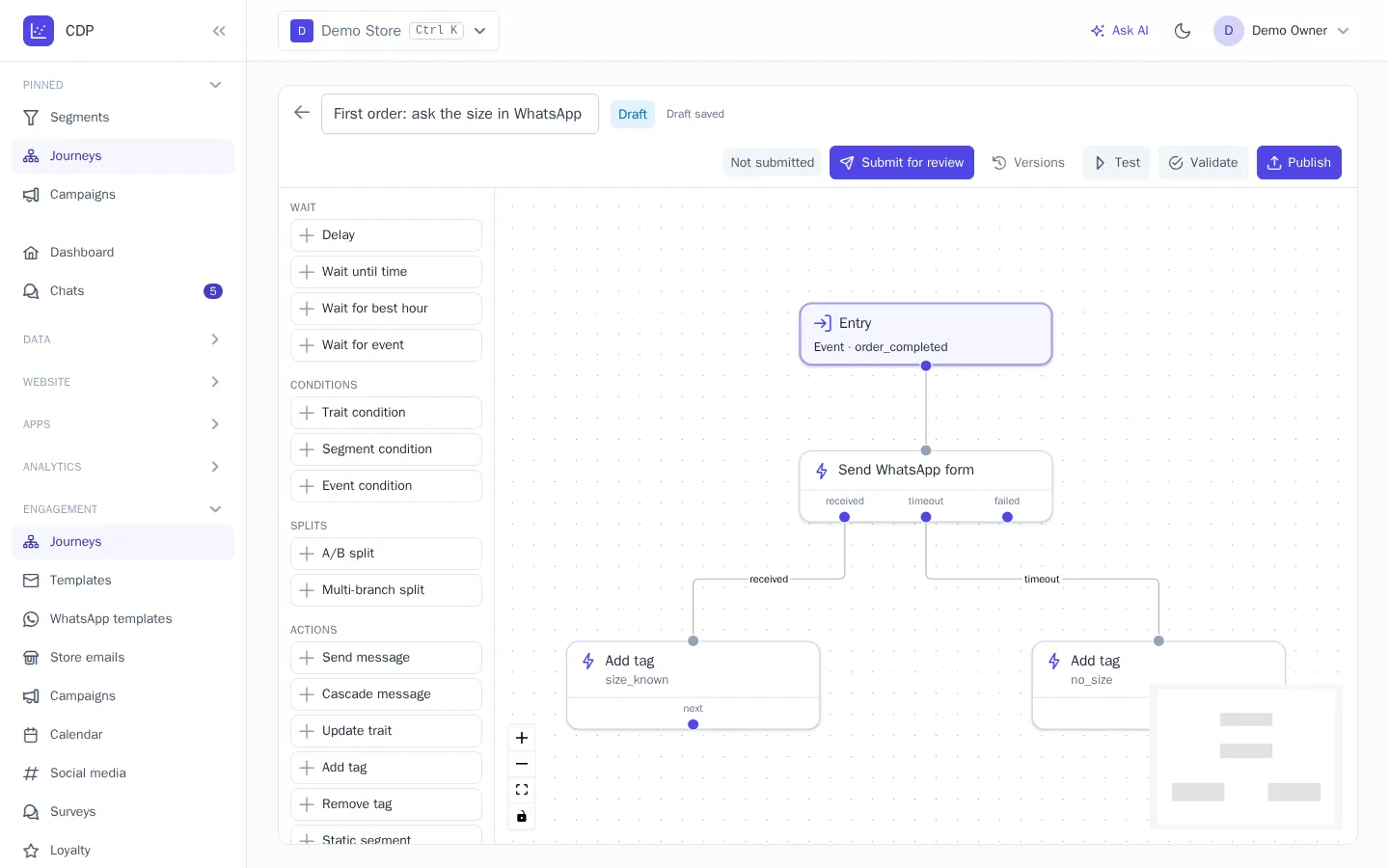
The node doesn't count a reply to another form. If the message fails after the wait has started, the participant goes to the timeout output.