Wallet cards
A loyalty card in Apple Wallet and Google Wallet is always in the customer's phone: it shows the points balance, tier, active promo code, and a barcode for the checkout. OneTrace.pro updates the card itself: after an order, a points award, or a new promo code, the customer sees the new values, and Apple Wallet shows a notification. The card is also a messaging channel: a short message arrives as a notification and stays on the back of the card.
Wallet cards are available from the Growth plan (plans). The section is in the menu under Engagement → Wallet cards. Manager, Viewer, and above can see the statistics and the design; roles with permission to manage integrations, Administrator and Owner, can change the design.
Connect
Cards are issued by your store, under its own name and with its own Apple and Google keys. Connect one or both platforms:
- Open Integrations and click Add integration → Wallet cards (integrations).
- For Apple Wallet:
- in Apple Developer, open Certificates, Identifiers & Profiles → Identifiers and register a Pass Type ID, for example
pass.com.example.loyalty; - create a Pass Type ID Certificate for it, install it on a Mac, and export it from Keychain Access together with the private key to a
.p12file; - paste the
.p12contents in base64, or the certificate and key in PEM, into the Pass Type ID certificate field, and the export password into the Key password field. OneTrace.pro adds the Apple WWDR intermediate certificate itself.
- in Apple Developer, open Certificates, Identifiers & Profiles → Identifiers and register a Pass Type ID, for example
- For Google Wallet:
- in the Google Pay & Wallet Console, create an issuer and copy the Issuer ID;
- in Google Cloud, enable the Google Wallet API, create a service account and a JSON key for it;
- add the service account's email to the Google Pay & Wallet Console as an issuer user;
- paste the Issuer ID and the JSON key into the integration.
- Click Save and Test: for Apple, the test shows the Pass Type ID, the team, and the certificate's expiry date; for Google, it confirms that the pass class has been created.
Until Google approves your issuer for publishing, only test users added in the console can save the Google card. An Apple certificate is valid for a year: before it expires, issue a new one and replace it in the integration, or the cards will stop updating.
Card design
Open Wallet cards or click Card design on the integration. If you have several integrations, choose one at the top.
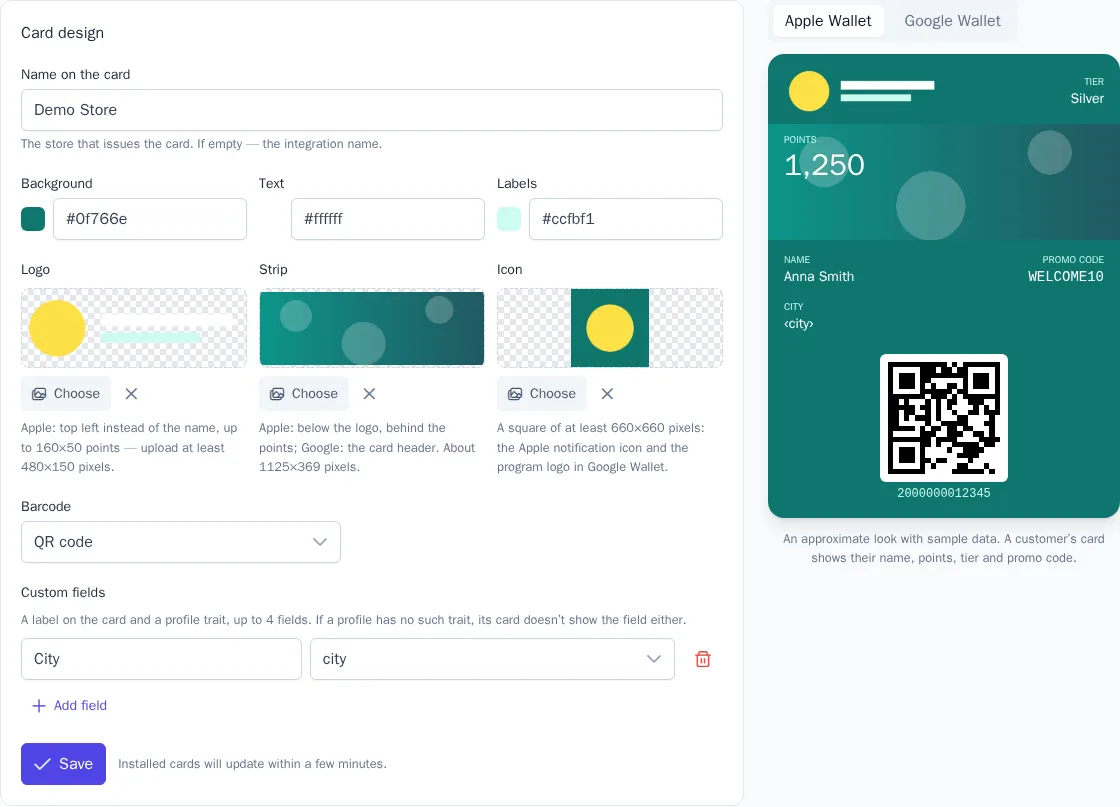
| Field | What it sets |
|---|---|
| Name on the card | The store that issues the card. If empty, the integration name |
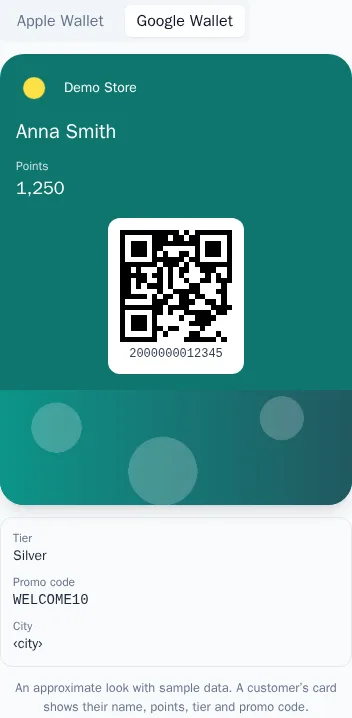
| Background, Text, Labels | The card colors. Google Wallet uses only the background color and picks the text color itself |
| Logo | Apple: top left instead of the name. Upload at least 480×150 pixels |
| Strip | Apple: a wide image below the logo, behind the points; Google: the card header. About 1125×369 pixels |
| Icon | A square of at least 660×660 pixels: the Apple notification icon and the program logo in Google Wallet |
| Barcode | QR code, Code 128, PDF417, or Aztec, whichever the checkout scanner reads. The barcode holds the card number |
| Custom fields | Up to 4 fields: a label on the card and a profile trait, for example "City" — city. If a profile has no such trait, its card doesn't show the field either |
Images are chosen from the media library; this requires access to message templates. An image used by the card can't be deleted from the media library. On the right is the Preview with sample data; the switch shows how the card looks in Apple Wallet and in Google Wallet. The preview is approximate: the exact look depends on the phone.
Click Save. Cards that customers have already installed update within a few minutes.
What the card shows
- Points and tier: from the customer's account in the loyalty program.
- Name: from the
first_nameandlast_nametraits. - Promo code: the latest personal promo code issued to the customer and not used yet.
- Card number and barcode. If the profile already has a loyalty card number (the
loyalty_cardidentifier, for example from in-store checks), the Wallet card uses the same number; otherwise OneTrace.pro issues a new 13-digit number. - Custom fields from the design and the latest message: on the back of the card.
The card updates when the points, tier, name, custom fields, or promo code change. Apple Wallet shows a notification about a new balance, tier, and promo code. If two profiles are merged into one, the cards move to the remaining profile.
How a customer adds the card
The card is issued through a personal link: a page on your brand's domain with the Add to Apple Wallet and Add to Google Wallet buttons. The button for the platform the page was opened on comes first. The link is valid for 90 days, and the page is in the profile's language.
- In emails and other messages: the
{{ wallet_url }}variable (templates), for example in the loyalty program's welcome journey. - In the preference center: the Loyalty card in Wallet link.
- In the store's customer account: the
GET /api/v1/profiles/{type}/{value}/walletrequest with a secret key and the Read profiles permission (API keys). It returns the link, its expiry, the platforms, and the profile's cards.
The link appears when the project has an enabled Wallet cards integration with an Apple certificate or a Google key.
Messages to the card
The Wallet cards channel works in templates, journeys, and campaigns like other channels, with A/B variants and delivery statuses. A template has a Title (the label of the field on the back), Text, and an optional Link; variables work in them.
- Apple Wallet shows the text as a notification and keeps it on the back of the card until the next message. The message is delivered when the phone has fetched the updated card.
- Google Wallet adds the message to the card with a notification. Google shows at most 3 notifications a day per card.
Only customers with an installed card of this integration receive the message. If there is no card, sending fails with the error "The profile has no Wallet card installed." Use a condition or a segment to message in Wallet only those who have the card.
Statistics
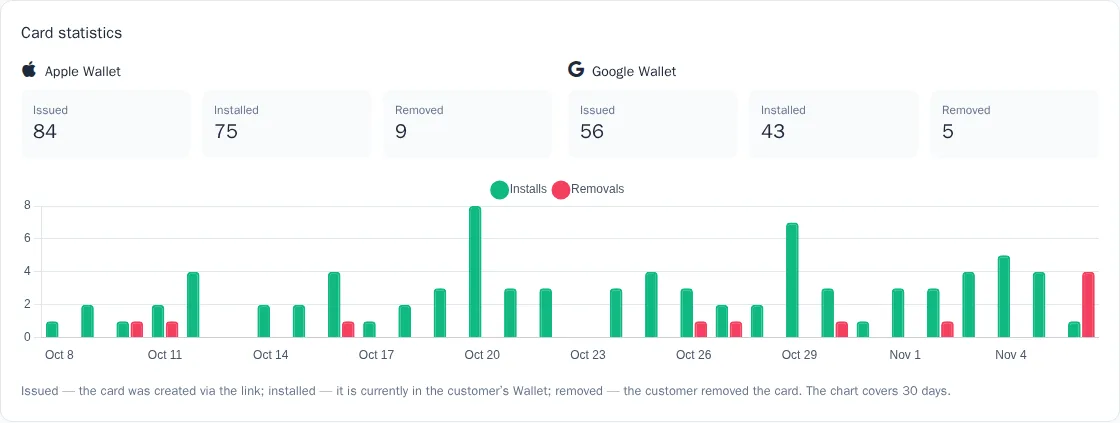
The Card statistics block shows for each platform:
- Issued: how many cards were created via links;
- Installed: how many cards are currently in customers' Wallets;
- Removed: how many customers removed the card.
The chart below shows installs and removals by day over 30 days in the project's time zone.
In the profile card, the Wallet cards block shows the customer's cards: the platform, the card number, and the date when the card was installed, removed, or issued but not installed.