CRM
CRM sync brings contacts and deals into OneTrace.pro, and leads too for CRMs that have them. Supported CRMs are amoCRM (and Kommo), Bitrix24, HubSpot, Pipedrive, Zoho CRM, Odoo, Salesforce, and Microsoft Dynamics 365. Contacts become profiles, deal stages become events, and won deals become purchases in the revenue report. You can build segments on them and launch journeys: for example, message a customer when a deal moves to the "Contract" stage, or win back someone who hasn't bought anything in a long time. Journeys can also act in the CRM: create a deal, assign a task to a manager, or change the stage. Segments can be exported back to the CRM as a list or a label.
The section is in the menu under Data → CRM. CRM sync is available starting with the Growth plan, see Plans.
Supported CRMs
Every CRM is connected with your own keys: a token, an API key, or an app that you create in your CRM. OneTrace.pro never asks for your CRM password.
| CRM | Connection | Leads | Companies | Segments in the CRM | Instant changes |
|---|---|---|---|---|---|
| amoCRM, Kommo | long-lived token | — | yes | contact tag | webhook is set up automatically |
| Bitrix24 | inbound webhook | yes | yes | contact "Segments" field | outbound webhook, set up manually |
| HubSpot | private app token | — | yes | static list | webhook, set up manually |
| Pipedrive | API token | — | yes | person label | webhook is set up automatically |
| Zoho CRM | Self Client | yes | yes | contact tag | notifications are set up automatically |
| Odoo | login and API key | yes | yes | partner tag | automation rule, set up manually |
| Salesforce | Connected App | yes | yes | campaign | Outbound Message or Flow, set up manually |
| Microsoft Dynamics 365 | Entra ID app | yes | yes | marketing list | webhook or Power Automate, set up manually |
Without instant changes, the sync still works: it reconciles changes every 15 minutes.
The webhook address on the sync card contains a key (?t=…): with it, changes arrive at most once a minute. An address without the key that you entered in the CRM earlier still works, but at most once every 10 minutes, so replace it with the address from the card. Webhooks that connect on their own get the new address the next time you save the connection.
Connect amoCRM
- In amoCRM, open amoMarket (Settings → Integrations in older accounts) and click Create integration → External integration. Grant access to all account data.
- On the Keys and scopes tab, click Generate long-lived token and copy the token. For changes to arrive right away, the token must be issued by an amoCRM administrator.
- In OneTrace.pro, open Integrations and choose amoCRM in the CRM group.
- Enter the Account domain (
amocrm.ruorkommo.com), the Subdomain (the part of the address before the dot: formycompany.amocrm.ru, it'smycompany), and the Long-lived token. - Click Test, then Save.
When you save, OneTrace.pro subscribes to deal, contact, and company changes in amoCRM automatically, and the address appears in the Webhook field. If amoCRM was connected a while ago, save the connection again to subscribe to company changes too. If the token wasn't issued by an administrator, the subscription isn't possible: the sync still works, and the address for manual setup is shown on the card in the CRM section.
amoCRM has no separate leads: requests from forms and chats become deals. Requests in "Incoming leads" arrive as a contact and a deal once a manager accepts them.
Connect Bitrix24
- In Bitrix24, open Developer resources → Other → Inbound webhook. Select the CRM (crm) and Users (user_brief) permissions; the second one is needed so that events include the names of responsible users. Save and copy the URL, which looks like
https://your-portal.bitrix24.com/rest/1/code/. - In OneTrace.pro, open Integrations, choose Bitrix24 in the CRM group, and paste the URL into the Inbound webhook URL field. An on-premise portal on your own domain works too.
- Click Test, then Save.
Without an outbound webhook, changes arrive with the reconciliation every 15 minutes. To get them right away:
- Copy the webhook URL from the sync card in the CRM section.
- In Bitrix24, open Developer resources → Other → Outbound webhook, paste the URL, and select the create and update events for deals, contacts, companies, and leads:
ONCRMDEALADD,ONCRMDEALUPDATE,ONCRMCONTACTADD,ONCRMCONTACTUPDATE,ONCRMCOMPANYADD,ONCRMCOMPANYUPDATE,ONCRMLEADADD,ONCRMLEADUPDATE. - Copy the Application token from the outbound webhook settings and paste it into the Outbound webhook token field of the connection. OneTrace.pro then accepts only signals with this token.
The inbound webhook URL is a key to your CRM: it's stored encrypted and isn't shown after saving.
Bitrix24 leads are synced in the classic CRM mode; the simple mode has no leads. To export segments, the user who created the inbound webhook needs permission to change CRM settings: on the first export, OneTrace.pro creates the "Segments" field for contacts, see Segments in the CRM.
Connect HubSpot
- In HubSpot, open Settings → Integrations → Private Apps and click Create a private app.
- On the Scopes tab, select these permissions:
crm.objects.contacts.readand.write,crm.objects.companies.read,crm.objects.deals.readand.write,crm.objects.owners.read,crm.schemas.contacts.read,crm.lists.readand.write. Create the app and copy the token on the Auth tab. - In OneTrace.pro, open Integrations, choose HubSpot in the CRM group, paste the Private app token, click Test, then Save.
For changes to arrive right away, on the private app's Webhooks tab, enter the address from the sync card in the CRM section and subscribe to the creation of contacts, companies, and deals and to changes of their properties.
HubSpot has no separate leads: the lifecycle stage is a contact property. To use it in segments, add a "Lifecycle Stage → trait" rule, see Sync settings.
Connect Pipedrive
- In Pipedrive, open the profile menu → Personal preferences → API and copy your personal API token. The token works with its user's permissions: an administrator's token is best, because then all deals are visible and the webhook is set up automatically.
- In OneTrace.pro, open Integrations, choose Pipedrive in the CRM group, paste the API token, click Test, then Save.
When you save, OneTrace.pro registers a webhook for all changes in Pipedrive. If this fails, the address for manual setup is shown on the card in the CRM section: in Pipedrive, open Tools and apps → Webhooks, create a webhook with the action and object *, and paste this address.
Pipedrive leads are linked to a person: their contact is synced anyway, so there are no separate lead profiles.
Connect Zoho CRM
- Open the Zoho API Console, click Add Client, and choose Self Client. Copy the Client ID and Client Secret.
- On the Generate Code tab, enter the scopes
ZohoCRM.modules.ALL,ZohoCRM.settings.ALL,ZohoCRM.users.READ,ZohoCRM.org.READ,ZohoCRM.notifications.ALL, set the duration to 10 minutes, and click Create. Copy the code. - In OneTrace.pro, open Integrations and choose Zoho CRM in the CRM group. Enter the Zoho data center (the address where you sign in to Zoho: for
accounts.zoho.eu, it'szoho.eu), the Client ID, the Client Secret, and the Grant code. - Click Save right away: the code is valid for only a few minutes. If it has expired, generate a new one.
The code is needed only once: OneTrace.pro exchanges it for permanent access and subscribes to Zoho notifications about changes to contacts, leads, companies, and deals on its own, renewing the subscription every day.
Connect Odoo
Odoo 16 and later are supported: Odoo Online, Odoo.sh, and your own server.
- In Odoo, open the profile menu → My Profile → Account Security and click New API Key. The key works with the user's permissions: the user needs access to CRM and contacts.
- In OneTrace.pro, open Integrations and choose Odoo in the CRM group. Enter the Odoo address (for example,
https://mycompany.odoo.com), the Database (for Odoo Online, it usually matches the subdomain), the user's login, and the API key. - Click Test, then Save.
Odoo has no API for subscribing to changes. For changes to arrive right away, in Odoo 17 and later, turn on developer mode and in Settings → Technical → Automation Rules create a rule for contacts and one for leads and opportunities: the trigger is on creation and update, and the action is Send Webhook Notification to the address from the sync card in the CRM section.
Only won Odoo opportunities become purchases. Sales orders aren't synced: if Odoo also runs your store, its purchases already come to OneTrace.pro from the website.
Connect Salesforce
- In Salesforce, open Setup → App Manager and click New Connected App. Enable OAuth, add the Manage user data via APIs (api) scope, and select Enable Client Credentials Flow.
- Open the app → Manage → Edit Policies, and in the Client Credentials Flow section, set Run As to the user the sync runs as. This user needs access to contacts, accounts, leads, and opportunities, and to export segments, also to campaigns (Marketing User license).
- In Manage Consumer Details, copy the Consumer Key and Consumer Secret.
- In OneTrace.pro, open Integrations and choose Salesforce in the CRM group. Enter the Salesforce domain (the My Domain address, such as
https://mycompany.my.salesforce.com, from Setup → My Domain), the Consumer Key, and the Consumer Secret. - Click Test, then Save.
For changes to arrive right away, create a Flow in Salesforce that runs when contacts, leads, accounts, and opportunities change, with an Outbound Message action or an HTTP request to the address from the sync card in the CRM section. Reconciliation uses requests from your org's daily API limit; if the limit is exhausted, the sync waits an hour.
Connect Microsoft Dynamics 365
- In the Microsoft Entra admin center, open App registrations → New registration and create an app. On the Overview page, copy the Directory (tenant) ID and the Application (client) ID.
- In Certificates & secrets, click New client secret and copy the value from the Value field.
- In the Power Platform admin center, open Environments → your environment → Settings → Users + permissions → Application users and click New app user. Add the app you created and assign it a role that can read and write contacts, accounts, leads, opportunities, and marketing lists.
- In OneTrace.pro, open Integrations and choose Microsoft Dynamics 365 in the CRM group. Enter the Dynamics 365 environment URL (the Environment URL, such as
https://mycompany.crm4.dynamics.com), the Tenant ID (Directory ID), the Application (client) ID, and the Client secret. - Click Test, then Save.
For changes to arrive right away, create a Power Automate flow with the Dataverse trigger When a row is added, modified or deleted for contacts, accounts, leads, and opportunities, and an HTTP action to the address from the sync card in the CRM section. You can also register this address as a Dataverse webhook in the Plugin Registration Tool.
The client secret has a limited lifetime: when it expires, create a new one and save it in the connection.
What is synced
Contacts. Each CRM contact becomes a profile or is matched to an existing one by email and phone. The first and last name, the first email, and the first phone are synced. Other contact fields can be synced to traits, see Sync settings.
Companies. For all supported CRMs, the contact's company is written to traits of their profile: company_name is the name, company_industry the industry, company_employees the number of employees, and company_website the website. The set of fields depends on the CRM and is shown on the sync card: HubSpot, Zoho CRM, Salesforce, and Dynamics 365 provide all four; Bitrix24 and Odoo the name, industry, and website (Bitrix24 stores the number of employees as a range); amoCRM the name and website; Pipedrive only the name. If a company is renamed, the profiles of its contacts are updated at the next reconciliation.
Leads. For Bitrix24, Zoho CRM, Odoo, Salesforce, and Dynamics 365, each lead becomes a profile with the crm_lead_status trait (the lead status) and the company name. This way, segments and journeys can also work with people who aren't customers yet. When a lead is converted into a contact, the lead's profile is merged with the contact's profile by a shared email or phone.
Deals. For deals, events are recorded in the profile of the deal's contact:
| Event | When |
|---|---|
crm_deal_created |
the deal was created |
crm_deal_stage_changed |
an open deal moved to another stage; the properties contain the new and the previous stage |
crm_deal_won |
the deal was won |
crm_deal_lost |
the deal was lost |
Event properties contain the deal name, pipeline, stage, amount, and currency. A won deal is also recorded as a purchase: the purchase event from the predictions settings with the deal amount. That's why it shows up in revenue, RFM segments, predictions, and ad conversions.
Deals without a contact are saved, but they have no events: there's no profile to record them in. Their number is shown in the run summary.
First load
Right after you connect, the sync loads all contacts, companies, leads, and deals, starting with the oldest. While this is in progress, the card says loading history; a large CRM takes several hours to load.
Events from the history go to profiles, reports, and predictions, but don't trigger journeys, don't award loyalty points, and don't issue promo codes: a customer won't get an email about a deal closed a year ago. The CRM doesn't keep stage changes from before the connection, so the history brings only the creation and the outcome of each deal.
After the first load, events are recorded as usual and trigger journeys.
Sync card
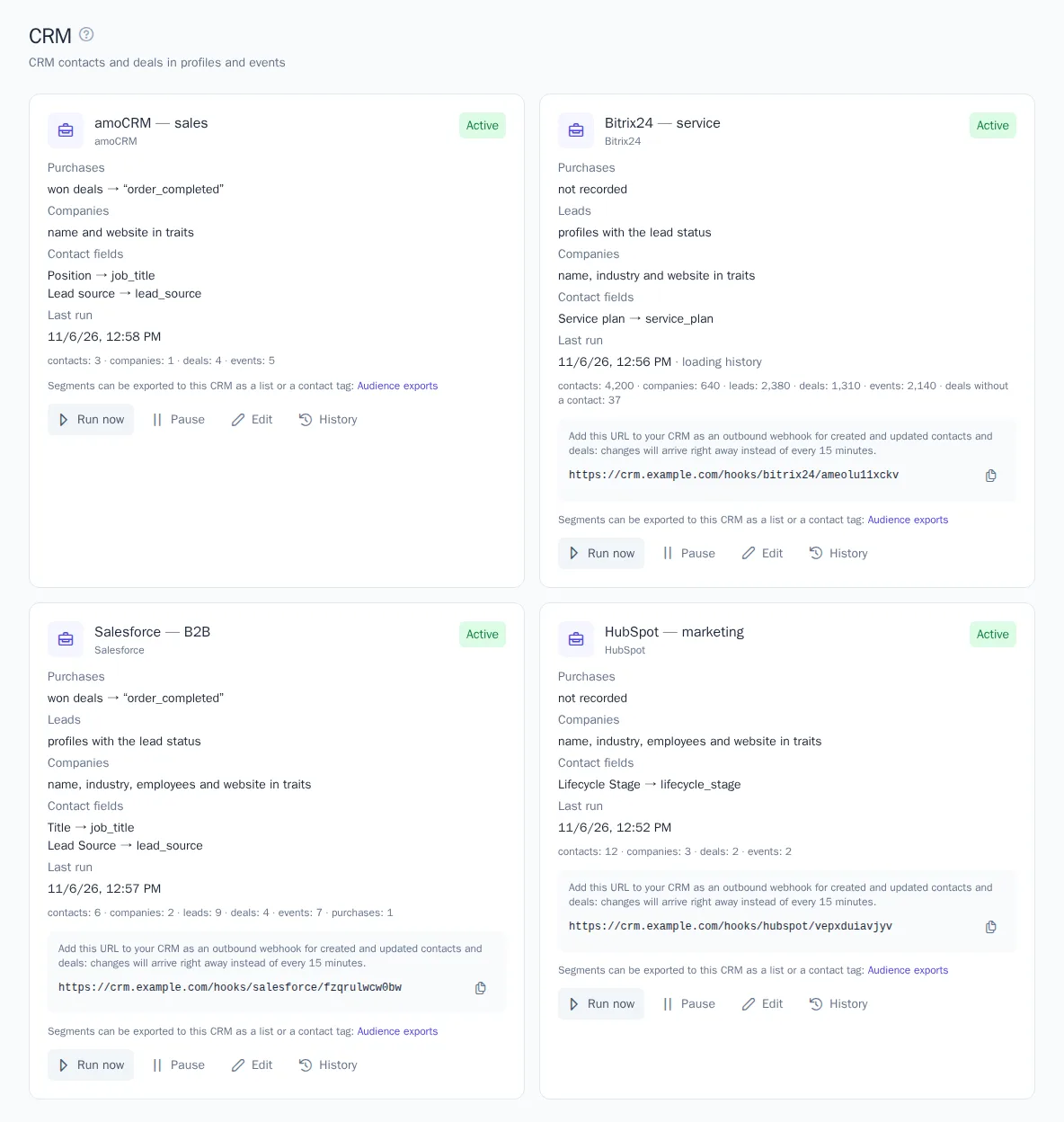
The card shows the status, what is recorded as purchases, whether leads and companies are synced, which fields are synced, and the time and summary of the last run: how many contacts, companies, leads, and deals were read, how many events and purchases were recorded, and how many deals have no contact. If CRM changes have to be set up manually, the card also shows the webhook address.
- Run now reconciles changes right away without waiting for the schedule.
- Pause stops the sync. CRM webhooks no longer trigger it either.
- History lists the runs with their summaries and errors.
If the CRM responds with an error, the sync shows it on the card. Temporary errors, such as an exceeded request limit or an unavailable CRM, are retried automatically. If the token is revoked, the key is deleted, or the secret has expired, the sync stops: fix the connection in Integrations and save it, and the sync continues from where it stopped.
Sync settings
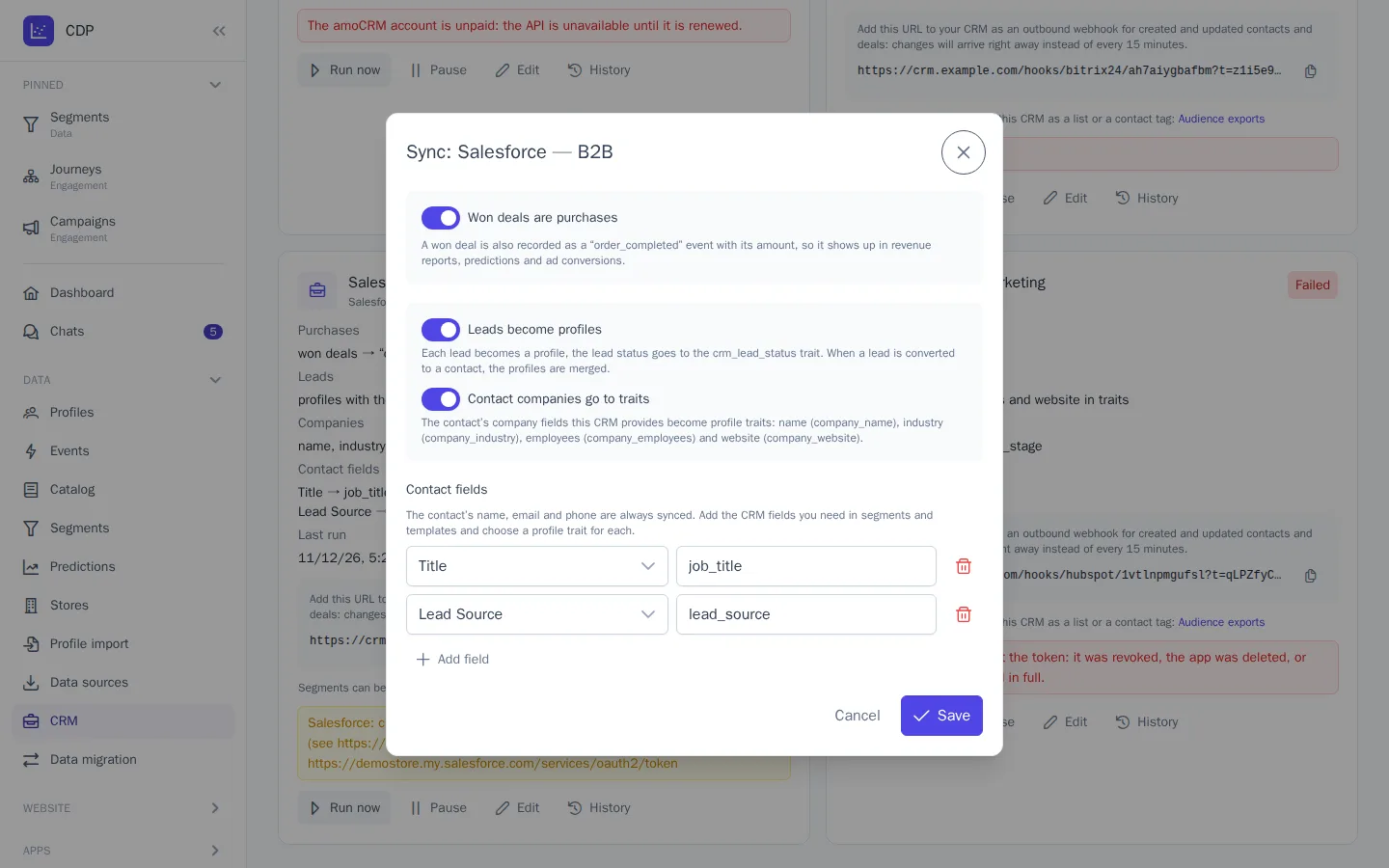
The Edit button on the card opens a dialog:
- Won deals are purchases: whether to record a won deal as a purchase. Turn it off if orders already come from the website and the deal duplicates them.
- Leads become profiles: whether to sync leads (only for CRMs with leads). Turn it off if you don't need leads in OneTrace.pro: then a profile appears only once the lead becomes a contact.
- Contact companies go to traits: whether to write the
company_*traits (only for CRMs with companies). - Contact fields: up to 30 "CRM field → profile trait" rules. For example, the "Job title" field → the
job_titletrait. Theemail,phone,first_name, andlast_nametraits and the OneTrace.pro system traits are reserved; thecompany_*andcrm_lead_statustraits are filled by the sync itself, so don't use them in rules.
Segments in the CRM
You can export OneTrace.pro segments to any of the supported CRMs: for example, so that managers can see in the CRM which customers are in "VIP" or haven't bought anything in a long time. No separate connection is needed: the export works through the same CRM connection.
- Open Audience exports and click New export.
- Choose a segment, and in the Destination field, choose the CRM connection.
- In the Name in the CRM field, enter a name for the list or label. If you leave it empty, the segment name is used.
- Choose the mode and schedule and click Save.
In the CRM, the segment becomes:
| CRM | What is created |
|---|---|
| amoCRM | a contact tag |
| Bitrix24 | a value of the contact "Segments" field (the list field is created on the first export) |
| HubSpot | a static contact list |
| Pipedrive | an option of the person "Label" field |
| Zoho CRM | a contact tag (up to 25 characters) |
| Odoo | a partner tag |
| Salesforce | a campaign with contacts as members |
| Microsoft Dynamics 365 | a static marketing list of contacts (requires Dynamics 365 Sales) |
If a list or label with this name exists, OneTrace.pro uses it; otherwise, it creates one. Only profiles linked to contacts of that CRM are sent: website visitors and leads aren't exported. Those who leave the segment are removed from the list or have the label removed.
Journey nodes
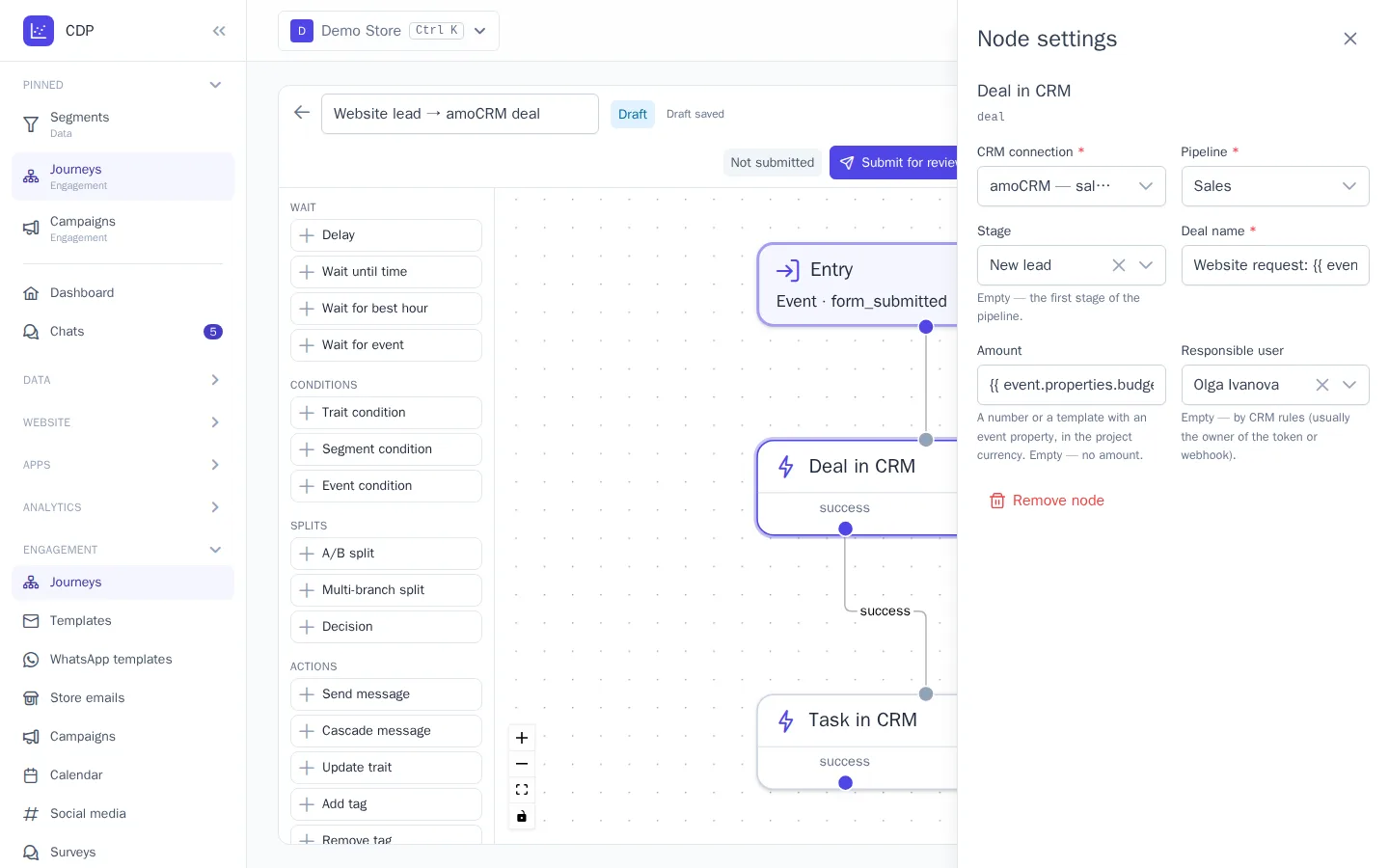
In the journey editor, the actions group has four CRM nodes:
| Node | What it does | Outputs |
|---|---|---|
| Deal in CRM | creates a deal in the selected pipeline and stage (empty means the first stage) with a name and amount from a template and a responsible user. If the profile has no contact in the CRM, it creates one from the name, email, and phone; a contact with the same email isn't duplicated | success, failed |
| Task in CRM | assigns a manager a task with text and a due date, attached to the profile's open deal or, if there is none, to the contact | success, failed |
| Deal stage in CRM | moves the profile's open deal in the selected pipeline to a stage | success, failed |
| Contact in CRM | writes contact fields and adds a note to the contact's feed | success, failed |
The connection, pipeline, stage, responsible user, and field are chosen from lists that OneTrace.pro gets from the CRM during the sync. In texts, the name, and the amount, you can use template variables, such as the customer's name or the order amount from the event.
Each action is performed in the CRM once per participant step: if the CRM responded with an error and the step was retried, no second deal or task appears. The node takes the failed output if the profile has no contact in the CRM (and, for a deal, no email or phone either), there's no open deal in the required pipeline, or the CRM refused the request. The reason is shown in the participant's log.
In a journey test, CRM nodes don't create anything.
Who can set it up
The section is available to those who have the permission to change profiles, just like data sources. Those who manage integrations can connect a CRM. Segment export to the CRM is set up by those who can create audience exports.
Good to know
- One sync belongs to one CRM connection. You can connect several accounts: for example, the sales team's amoCRM and the support team's Bitrix24.
- A connection is tied to a CRM account. Keys from another account, portal, or environment aren't accepted in the same connection: create a new connection for them.
- Deleting the connection in Integrations stops the sync; profiles and events remain. Webhooks and subscriptions that OneTrace.pro registered itself (amoCRM, Pipedrive, Zoho CRM) are removed as well.
- An amoCRM deal has no currency of its own: the amount is recorded in the project currency. Other CRMs pass the deal currency; Odoo passes the company currency, and Salesforce without multiple currencies uses the project currency.
- In Zoho CRM, Odoo, Salesforce, and Dynamics 365, there's one pipeline, "Deals", with all stages. In Dynamics 365, stages are sales stages, and "Won" and "Lost" are separate stages: the Deal stage in CRM node closes the deal when you choose them.
- Contact fields that don't exist in the CRM aren't included in requests: if a field was deleted in the CRM, the rule simply stops filling the trait.