Data warehouse exports
An export regularly copies project data to your warehouse: profiles, events and, optionally, messages, segments, consents, and products. Analysts work with this data in their own tools: they build BI reports, join it with data from your accounting system, and train models.
The opposite direction, reading changed rows from your warehouse into profiles and events, is handled by a data source.
The section is in the menu under Data → Data warehouses. Data warehouse exports are available on the Enterprise plan, see Plans.
Where you can export
| Warehouse | How the data gets there |
|---|---|
| S3 (AWS, Yandex Object Storage, MinIO) | NDJSON.gz files in your bucket |
| Google Cloud Storage | NDJSON.gz files in your bucket |
| BigQuery | tables in a dataset of your Google Cloud project |
| Snowflake | tables in a schema; data goes through your AWS S3 bucket |
| ClickHouse | tables in a database on your server |
| PostgreSQL | tables in a schema on your server |
First, connect the warehouse on the Integrations page in the Data warehouses group: enter the access details and click Test.
- S3: the bucket and access keys; for Yandex Object Storage and MinIO, also the API address.
- Google Cloud Storage and BigQuery: a service account key (JSON). For Cloud Storage, the account needs the Storage Object User role on the bucket; for BigQuery, the BigQuery Data Editor and BigQuery Job User roles. For BigQuery, you also specify the data location:
EU,US, or a region. - Snowflake: the account, the user and their RSA private key without a password, the role, a compute warehouse, and an AWS S3 bucket with keys. Assign the public key to the user with the
ALTER USER … SET RSA_PUBLIC_KEYcommand. - ClickHouse: the HTTP interface address, for example
https://ch.example.com:8443, the user, and the password. - PostgreSQL: the host, port, database, user, password, and connection encryption.
The ClickHouse or PostgreSQL server must be reachable from the internet: internal network addresses aren't accepted.
Create an export
- Click New export.
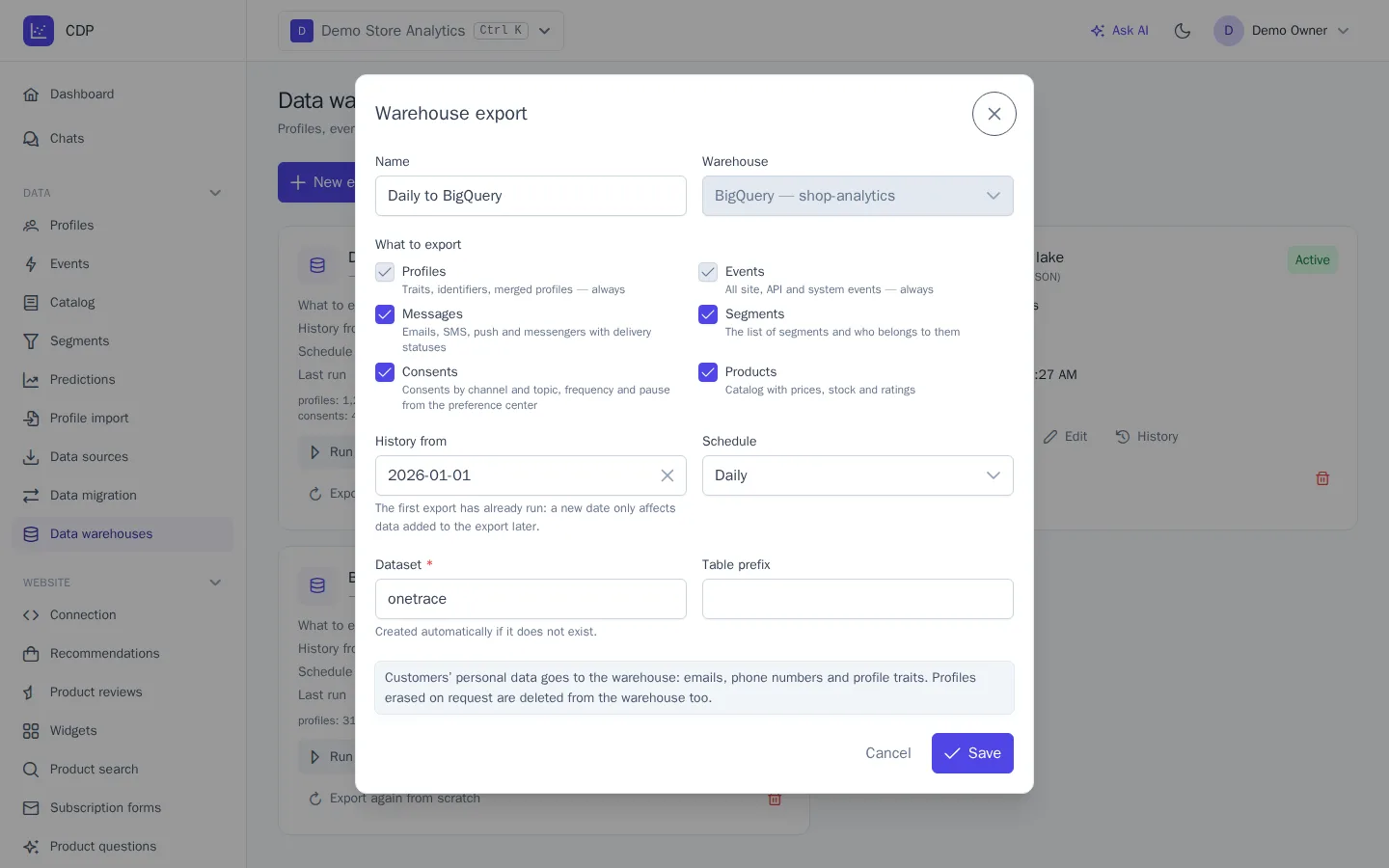
- Enter a name and choose the Warehouse. You can't change it after the export is created.
- Select What to export. Profiles and events are always exported.
- In the History from field, choose the date from which events and messages are exported the first time, or leave the field empty to export the entire history. Profiles, segments, consents, and products are exported in full.
- Choose the Schedule: hourly, every 3, 6, or 12 hours, or daily.
- Fill in the warehouse settings: the folder in the bucket, the BigQuery dataset, the Snowflake database and schema, the ClickHouse database, or the PostgreSQL schema. The dataset, database, and schema are created automatically if they don't exist. A table prefix is needed if several exports write to the same database.
- Click Save. The first export starts within a minute.
The first export of a long history runs in parts and can take several hours. Until it finishes, the card shows the First export label. Later runs send only what has changed since the previous one.
What is exported
| Data | Tables | What they contain |
|---|---|---|
| Profiles | profiles |
traits, identifiers (email, phone, user_id …), first and last visit, merging (merged_into_id), and deletion |
| Events | events |
all website, API, and system events ($message_*, $segment_*, and others), with properties and context |
| Messages | messages |
channel, subject, template, campaign and variant, journey, status and the time of each status, recipient |
| Segments | segments, segment_members |
the list of segments; who is in a segment now, when they entered and left |
| Consents | consents, preferences |
consents by channel and topic; frequency and pause from the preference center |
| Products | products |
the catalog with prices, stock, categories, attributes, and ratings |
The events table is append-only. The other tables are updated by key: a changed profile, message, or product replaces the previous row. Traits, properties, and event context are JSON. Times are in UTC.
Tables are created automatically; if a new version of OneTrace.pro adds a column to a table, it's added in your warehouse too.
Warehouse specifics:
- S3 and Google Cloud Storage: files are stored in the
events/dt=2026-10-29/folder. In updatable tables, the current row for a key is the latest one byupdated_at. Table schemas are in the_schemafolder. - BigQuery: events are partitioned by event day and clustered by event name and profile, so queries for a period read less data.
- ClickHouse: read updatable tables with
FINAL; JSON is stored as a string, so extract values with theJSONExtract…functions.
Erased profiles
When a profile is erased at the customer's request (see Profiles), the next export run also deletes its rows from the warehouse: from profiles, events, messages, segment membership, and consents. In S3 and Google Cloud Storage, files that have already been written don't change: the list of erased profiles is placed in the _erasures folder, and you need to delete their rows on your side.
Runs and errors
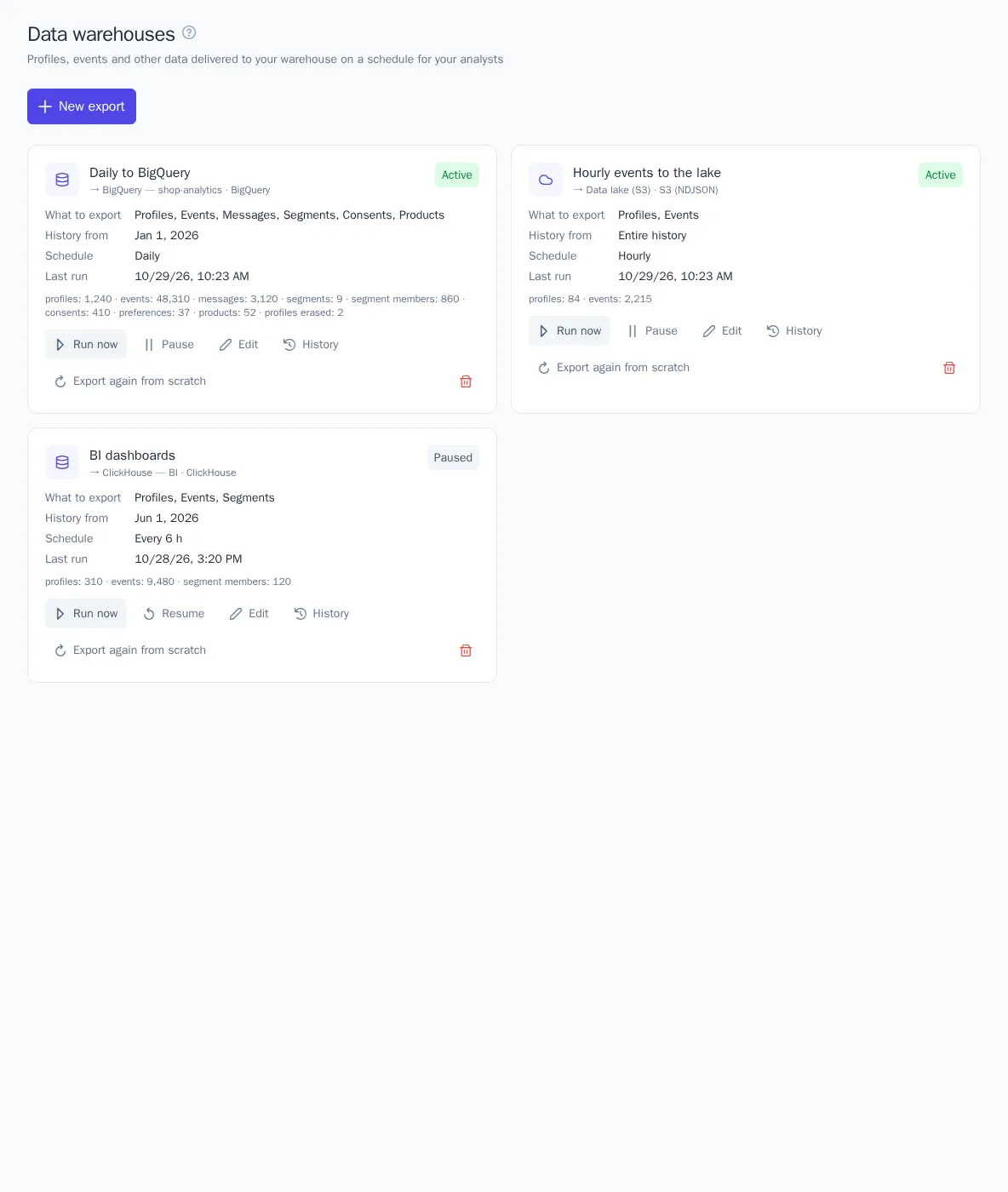
The export card shows the schedule, the last run, and how many rows went to each table. History shows the recent runs.
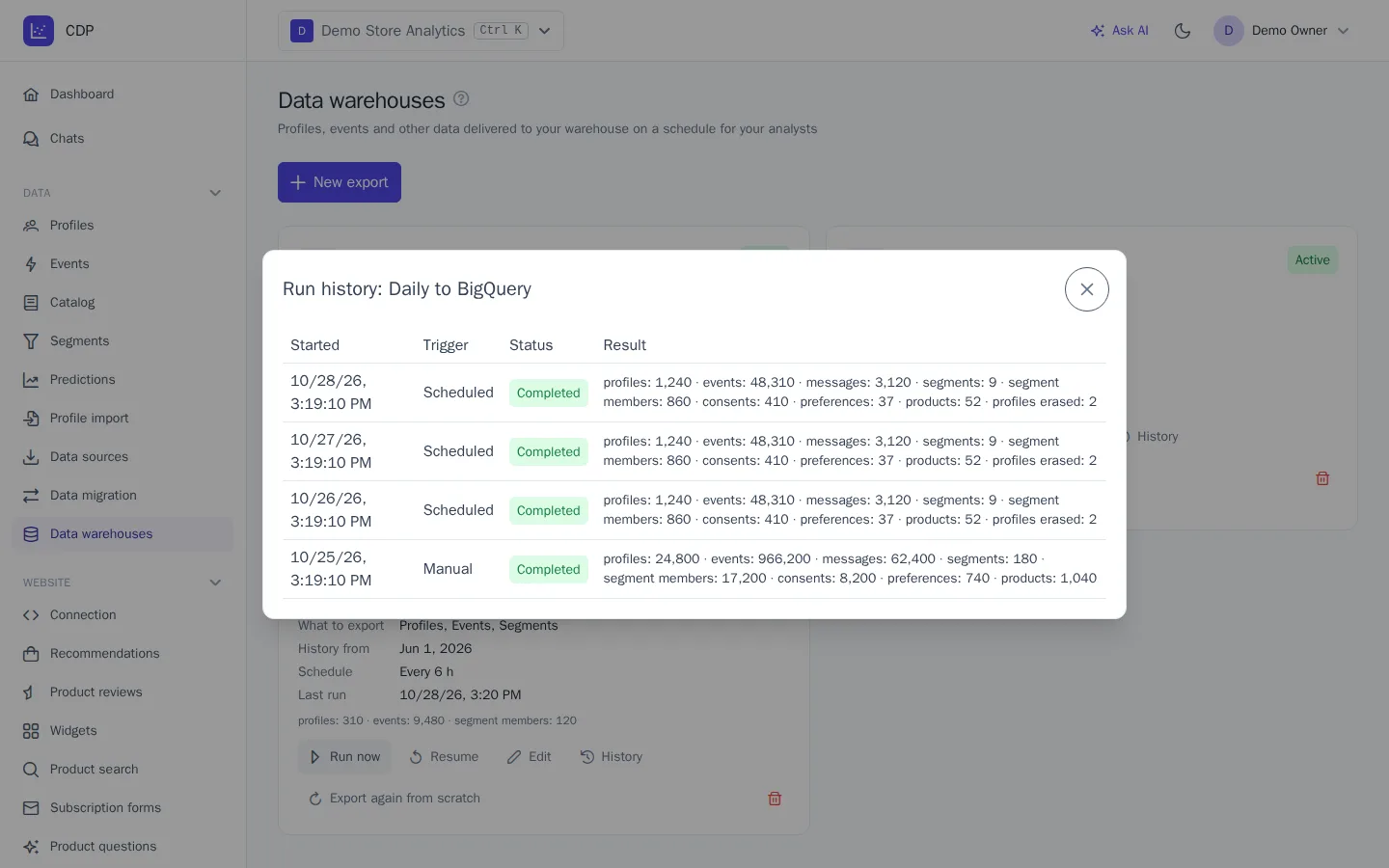
- Run now exports the changes right away without waiting for the schedule.
- Pause stops the export; changes accumulate and are sent after you click Resume.
- Export again from scratch: the next run sends all data, as the first time. If the tables in the warehouse aren't cleared, events in them will be duplicated.
If the warehouse is temporarily unavailable, the export retries the run after 1, 5, 15, 30, and 60 minutes and continues from where it stopped: parts that were already accepted aren't sent twice. If access is revoked or the database isn't found, the card shows an error. Fix the connection on the Integrations page, and the next run continues the export.
Who can set up exports
Exports send customers' personal data to the warehouse. That's why the section is visible to roles with the permission to export profiles, and only members who also have the permissions to manage integrations and to see unmasked personal data can create, change, and run exports. Among the system roles, that's Owner and Administrator. For details, see Members and roles.