Shoppers’ AI assistants
More and more shoppers choose products in ChatGPT, Claude, Perplexity, and other AI assistants. OneTrace.pro gives the assistant your shop's catalog over MCP (Model Context Protocol): the assistant searches for products, shows product cards with price and stock, suggests similar and related products, and answers questions about a product on behalf of the shop. The shopper can buy on the website via a link, through a cart the assistant puts together, or right in the conversation — you choose.
This MCP is for shoppers. There is a different one for your team, AI assistants (MCP): through it, an assistant works with the project on your behalf. And the online chat bot gets order data through the store MCP for the bot.
The section opens from Website → AI assistants and is available on the Growth plan. See Plans. Owner, Administrator, and Manager can change the settings; other members can see them but can't save changes.
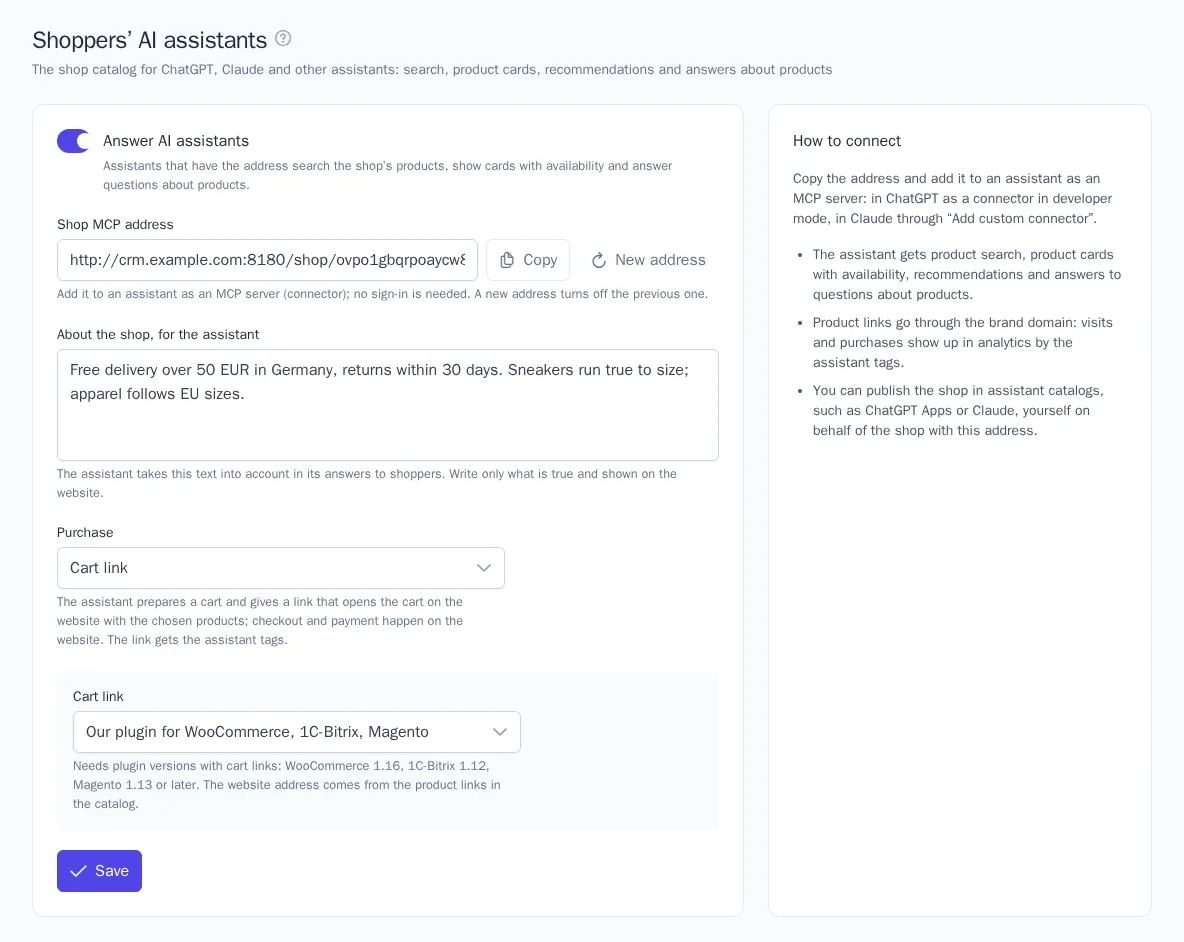
Turning it on and the address
- Upload the product catalog: the assistant searches and shows only catalog products.
- Open Website → AI assistants, turn on Answer AI assistants, and click Save.
- The Shop MCP address appears:
https://{brand domain}/shop/{token}/mcp. Click Copy and add the address to the assistant. See Connecting in ChatGPT and Claude.
The address doesn't require signing in: the shop catalog is public, like the website's storefront. The assistant gets no personal data of shoppers. The New address button issues a different address, and the previous one stops working right away for every assistant it was given to. Turning the switch off closes the address until you turn it on again.
About the shop, for the assistant
In the About the shop, for the assistant field, write what the assistant should know when answering: delivery and return terms, size charts, warranty, the specifics of your range. The assistant takes this text into account in every answer about the shop. Write only what is true and stated on the website, up to 2,000 characters.
What the assistant can do
| Tool | What it does |
|---|---|
| Product search | Smart search in the catalog: fixes typos and understands price, brand, and the meaning of the query. Shows only products in stock. Each search counts toward the plan's search request limit |
| Product card | Name, price, description, and attributes in the shopper's language, availability, and stock if the shop passes stock levels |
| Recommendations | Similar products, "frequently bought together", "also viewed", popular and trending products — without the shopper's data |
| Product question | An AI answer based on the product description and attributes and the shop's knowledge base — the same way and at the same cost from the balance as product questions on the website |
OneTrace.pro gives the assistant a rule: suggest only products, prices, and availability from the tool answers, and never make them up.
Purchase
The Purchase setting determines how the shopper gets from choosing to ordering.
| Mode | What happens |
|---|---|
| Go to the product page | The assistant gives a link to the product, and the shopper places the order on the website |
| Cart link | The assistant puts together a cart, up to 20 products with quantities, and gives a link: it opens the cart on the website with the chosen products, and checkout and payment happen on the website |
| Order via the store MCP | The assistant places the order right in the conversation and gives a link to pay on the website |
All links go through the brand domain and get the tags utm_source with the assistant's name and utm_medium=ai_assistant: clicks, visits, and purchases show up in the AI assistants report and in traffic sources.
Cart link
The Cart link depends on the website's platform:
- Our plugin for WooCommerce, 1C-Bitrix, Magento — the OneTrace.pro plugin version 1.16, 1.12, and 1.13 respectively, or later. The plugin adds the products to the visitor's cart from a
?onetrace_cart=link and opens the cart. The website address is taken from the product links in the catalog. - Shopify — Shopify's native cart link. Product IDs in the catalog must be Shopify variant IDs.
- Custom template — for a website that can add products to the cart from a link: an https address with the
{items}placeholder, which is replaced with the products asid:quantityseparated by commas, for examplehttps://shop.example.com/cart/add?items={items}.
Order via the store MCP
In this mode, the shop itself creates the order through its MCP server — the same one connected to the online chat bot, but version 2. What you need:
- A OneTrace.pro plugin with ordering from the assistant: WooCommerce 1.17, 1C-Bitrix 1.13, Magento 1.14, or later. Any other shop server must follow version 2 of the store MCP contract.
- The store MCP is connected in Chats (the Bot tab → Store (MCP)). See Connecting.
- The Order quote and Placing an order tools are allowed in the plugin settings. They are off by default.
The AI assistants page shows which server accepts orders. If there is no suitable server, the assistant puts together a cart link instead, so set that up too.
How an order goes:
- The shopper gives an email or phone number, and the shop sends them a code. A shop account isn't needed: without one, it becomes a guest order.
- The shopper tells the assistant the code.
- The assistant calculates the order: prices, delivery methods available for the address, the total, and payment methods, and shows them to the shopper.
- Only after the shopper explicitly agrees does the assistant place the order. The shopper gets the order number and a link to pay on the shop's website.
The assistant never sees the shopper's access key: OneTrace.pro passes it to the shop itself. Repeating the same order doesn't create a second one. If the price or availability changed after the quote, the shop asks to calculate the order again. The order arrives in OneTrace.pro with the assistant's tag and appears in the report.
Platform specifics:
- WooCommerce — an unpaid order waits for payment on the "Pay for order" page. A shopper with an account signs in to the website to pay.
- 1C-Bitrix — the payment page is set in the plugin settings. For a guest to pay from the link, allow guests to view orders in the online store settings.
- Magento — Magento can't take online payment for an order that has already been created, so the assistant offers only the payment methods from the plugin setting: bank transfer, cash on delivery, and others that don't need the shopper on the website. The link leads to the order page with payment instructions.
Connecting in ChatGPT and Claude
The shop MCP address is added to the assistant as a connector:
- ChatGPT — in the Apps & Connectors settings, turn on developer mode and create a connector: a name, the shop MCP address, no authentication.
- Claude — Settings → Connectors → Add custom connector: a name and the shop MCP address.
This way, the shop is connected by you and by the shoppers you've given the address to. For every user of the assistant to find the shop, publish it in the assistant's app directory, for example ChatGPT Apps or Claude's connector directory. The shop submits the application under its own name with the same address.
Limits
- No more than 120 requests per minute from one address and 1,200 per minute per shop. Beyond that, the assistant gets a "try again in a minute" response.
- The assistant is identified by the header of its requests. Unknown MCP clients appear in the report as "Other".
- The address works only on the project's brand domain.