Surveys and NPS
Surveys help you find out whether customers are happy: how likely they are to recommend your store (NPS), how they rate the delivery, and what is worth improving. A survey opens from a personal link in an email, SMS, or messenger message, a score can be given right in the email, and on the website the survey is shown as a form. Answers go into the customer profile, and a low or high score can start a journey.
Surveys and NPS are available on all plans.
Create a survey
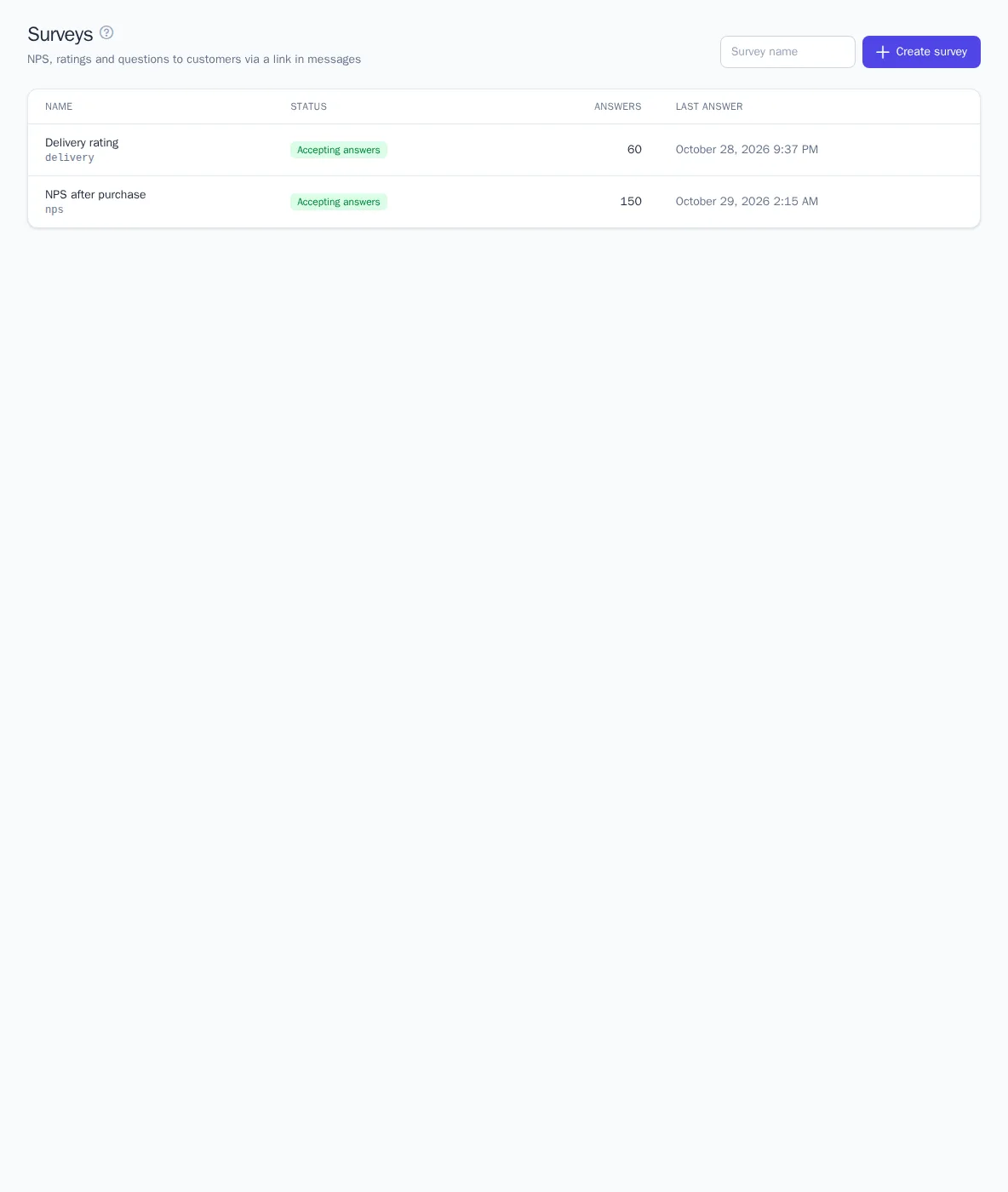
Open Engagement → Surveys, enter a name, and click Create survey. A new survey already contains two questions: an NPS score and "What should we improve?". You can change or remove them.
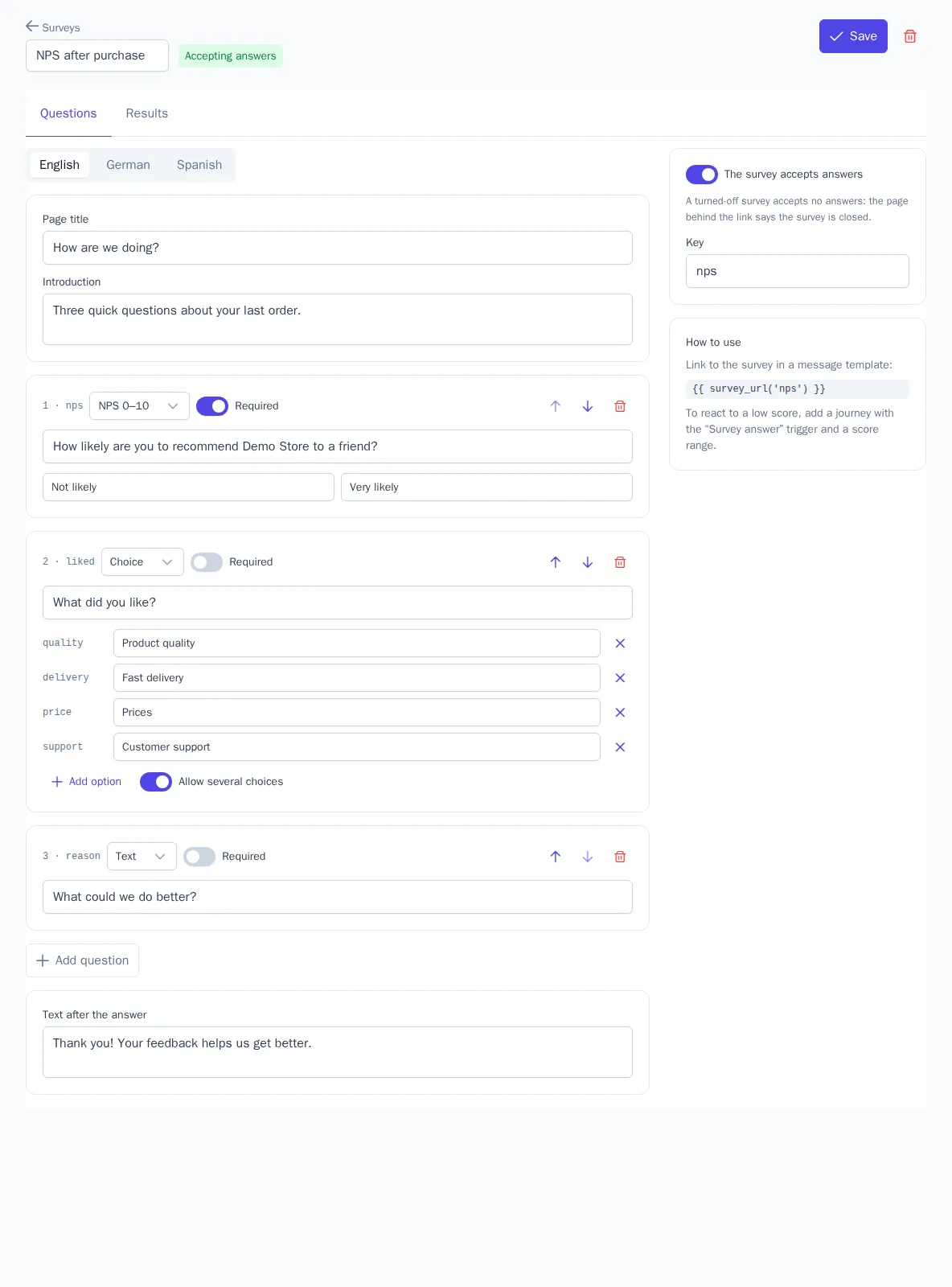
A survey can have up to 10 questions of four types:
| Type | How the customer answers |
|---|---|
| NPS 0–10 | chooses a score from 0 to 10; the ends of the scale have labels, for example "Not at all" and "Definitely" |
| Rating 1–5 | gives one to five stars |
| Choice | chooses one option, or several if Allow several choices is on; from 2 to 10 options |
| Text | writes an answer in their own words, up to 2,000 characters |
Mark required questions with the Required switch, and change the order with the arrows. The first scale question — NPS or rating — is the main score of the survey: the results, the email block, and journey conditions are based on it.
Texts are set for each project language on its own tab: Page title, Introduction, the questions with scale labels and options, and Text after the answer. The text of each question in the main language is required; if there are no texts in the customer's language, they see the main language.
Key is the Latin name of the survey used in links, for example nps. The The survey accepts answers switch closes the survey: the customer following the link sees that the survey has ended.
Survey link
Insert the survey_url function with the survey key into a message template:
How was your purchase? Please answer a couple of questions: {{ survey_url('nps') }}
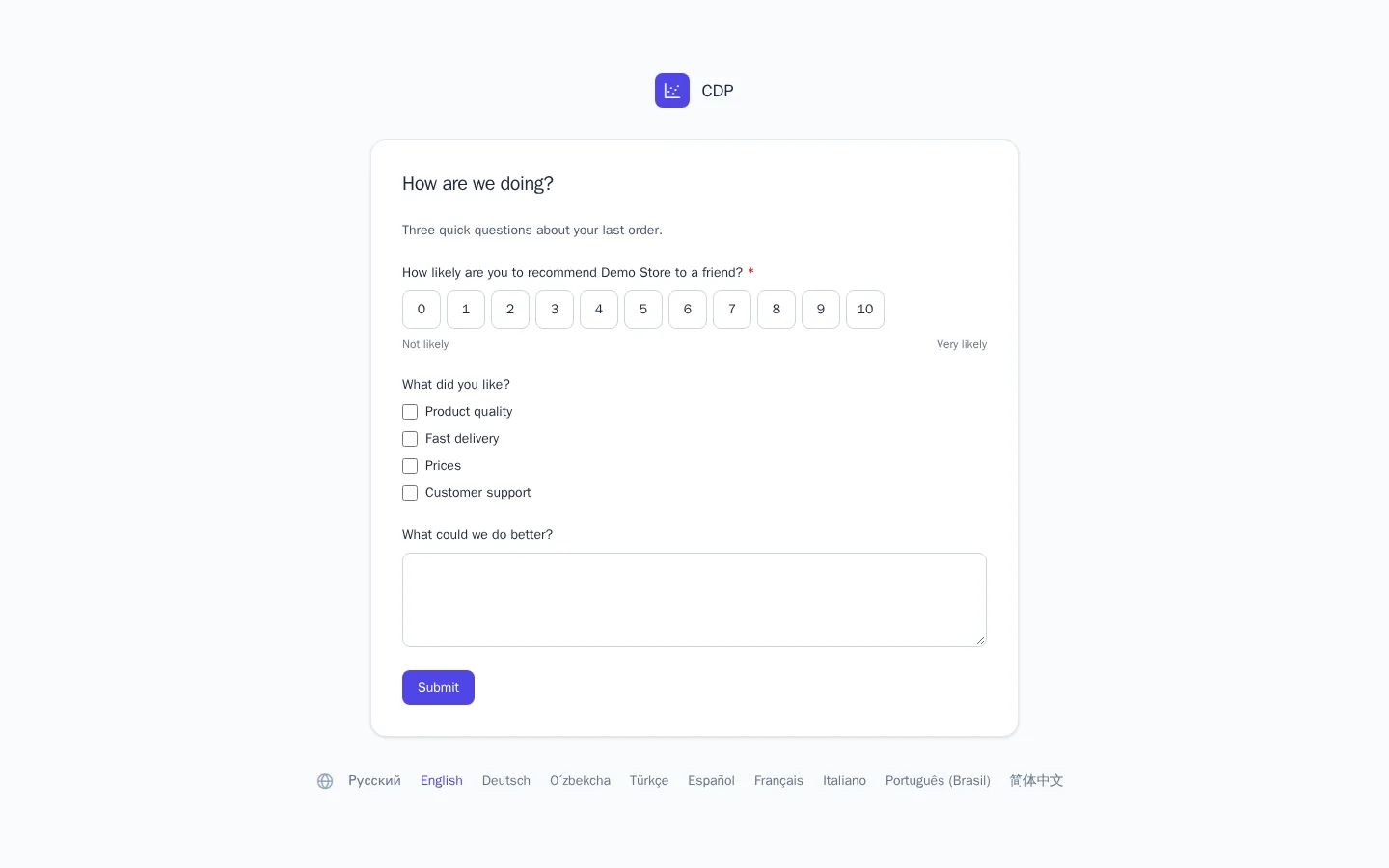
The link is personal: the survey page knows who the message was sent to, so the answer goes into that customer's profile. A link can't be forged for another customer. The page opens on the brand domain, in the language of the message. If the customer opens the link again, they see their answers and can change them.
You can pass a score in the link — {{ survey_url('nps', 9) }}: the page opens with the score already selected and saves it right away, and the customer answers the remaining questions. The score is saved only when the page is opened in a browser: mail antivirus scanners that check every link in an email don't leave an answer.
Survey in an email
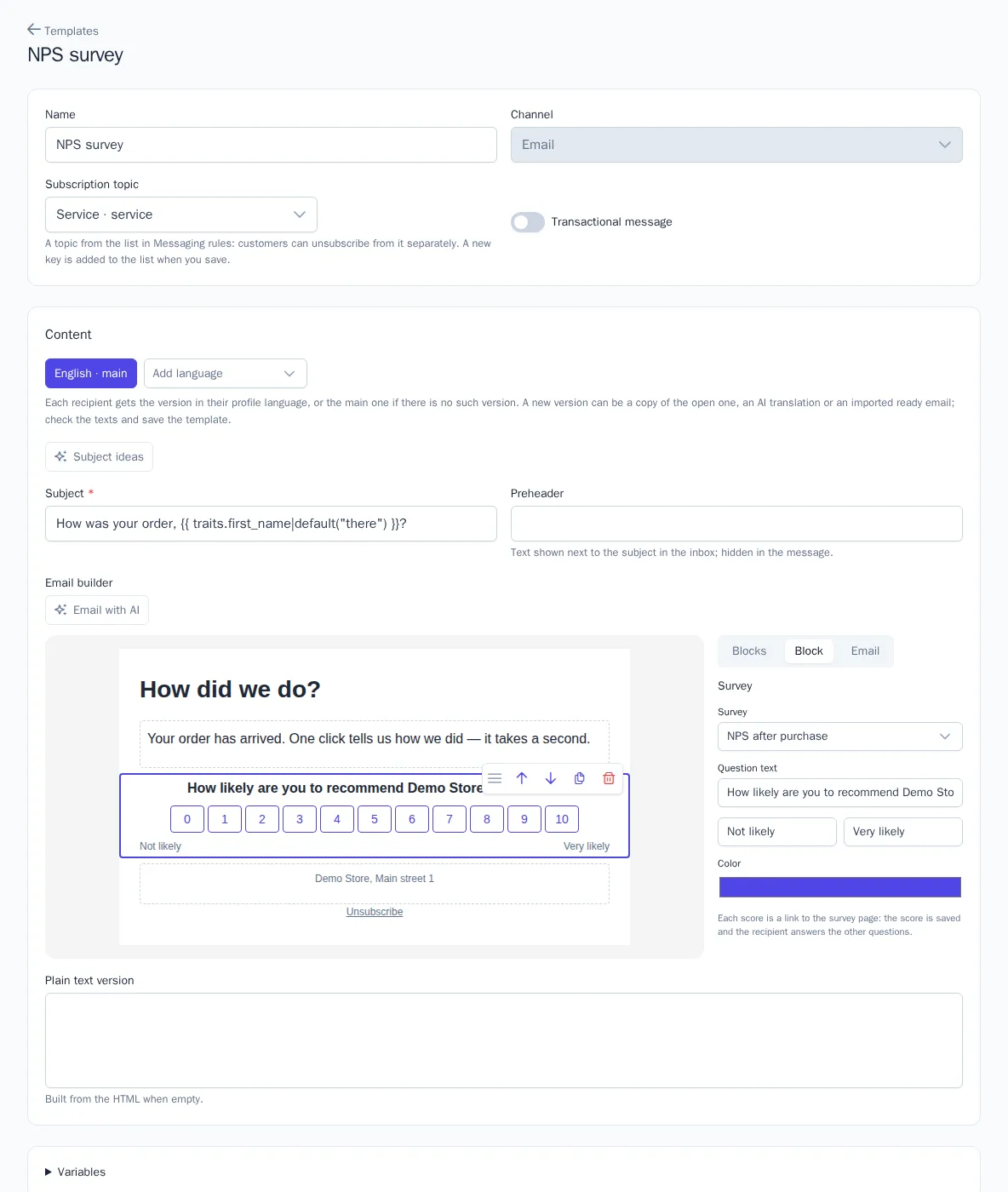
In the email builder, open Blocks and add Survey. In the block settings, choose a survey: the block shows its main question — 11 buttons from 0 to 10 for NPS or five stars for a rating — with the question text and labels at the ends. You can change the text, labels, and color.
Each button is a link with a score: the customer clicks a score right in the email, and the survey page saves it and offers to answer the remaining questions. The block texts are translated together with the email with the Draft translation button.
Survey on the website
A survey can be shown on the website as a form. In Website → Subscription forms, create a form, and in the Content field choose Survey and the survey itself: instead of subscription fields, the form shows its questions. Appearance, display rules, segments, and the A/B test are set up the same way as for a subscription form, see Signup forms.
An answer from the website goes into the visitor's profile even if they haven't left any contact details yet. A visitor who has answered doesn't see the form again. A survey answer isn't a subscription: it doesn't create marketing consent.
Results
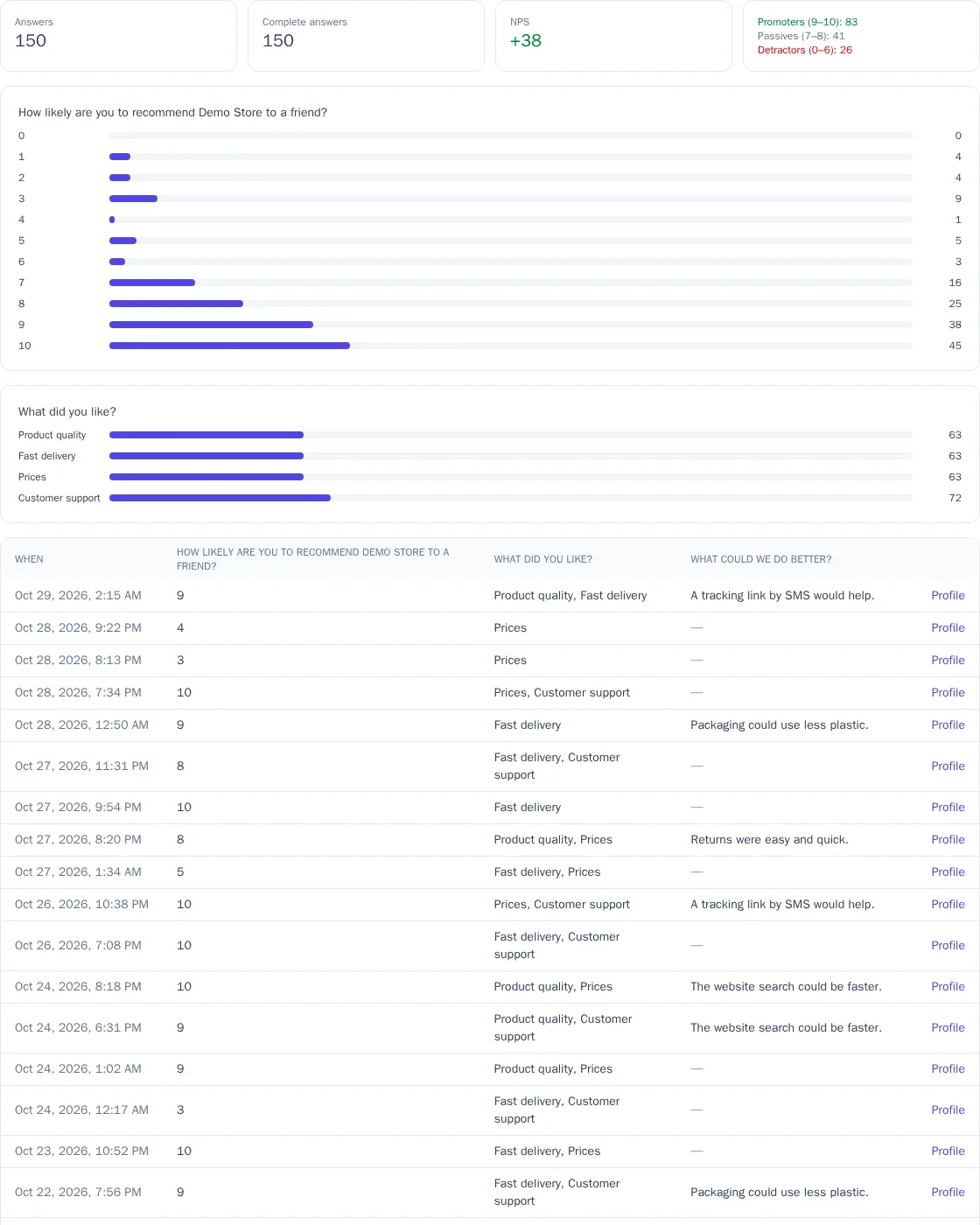
The Results tab shows a summary of the answers:
- Answers and Complete answers — how many customers answered and how many answered all required questions;
- NPS — the share of promoters minus the share of detractors, from −100 to +100. Promoters gave 9–10, passives 7–8, and detractors 0–6;
- the distribution of scores for each scale question and how many times each option was chosen;
- the latest answers with a link to the customer profile.
Profile, segments, and journeys
Each answer is recorded in the profile as a $survey_answered event with the properties survey (the survey key), score (the score), completed, source (message — from a message link, site — from the website), and, for NPS, nps_category. The event is recorded again if the customer changes the score.
An answer to the NPS question updates the profile traits:
| Trait | Value |
|---|---|
nps_score |
the latest score, 0–10 |
nps_category |
promoter (9–10), passive (7–8), or detractor (0–6) |
last_nps_at |
when the customer answered |
You can build segments on the traits and the event — for example, detractors from the last quarter. To react to an answer right away, create a journey with the Survey answer trigger: choose the survey and the score range. For example, a score of 0–6 gets an apology email and a task for a manager, and 9–10 gets a request to leave a product review.