Message feed
The message feed is a persistent feed of personal cards on the website and in the mobile app: a promo code, a news item, a reminder, progress in the loyalty program. Unlike push notifications and in-app messages, a card does not disappear after it is shown: it stays in the feed until it expires or the customer dismisses it. Unread cards are shown as a counter on the feed icon, and no notification permission is needed.
The feed is a regular channel: cards are sent from journeys and campaigns, with the same consents, frequency limits, and quiet hours as other channels. The channel is available from the Growth plan, see Plans.
Connecting
Open Engagement → Integrations → Add integration and choose Message feed. The settings define how the feed looks on the website:
- Show on the website — turn it off if you only need the feed in the app;
- Where on the website:
- Button — a bell icon with a counter in the corner of the page; if the website has a chat button, the bell sits above it;
- Website element — an icon with a counter in every website element with the
data-cdp-feedattribute, for example in the header next to the cart; - Chat tab — an “Updates” tab in the chat window; while the chat is off, the feed is shown as a button;
- Button side — right or left;
- Feed title — empty means “Updates” in the visitor’s language;
- Color — of the header, buttons, and the unread mark.
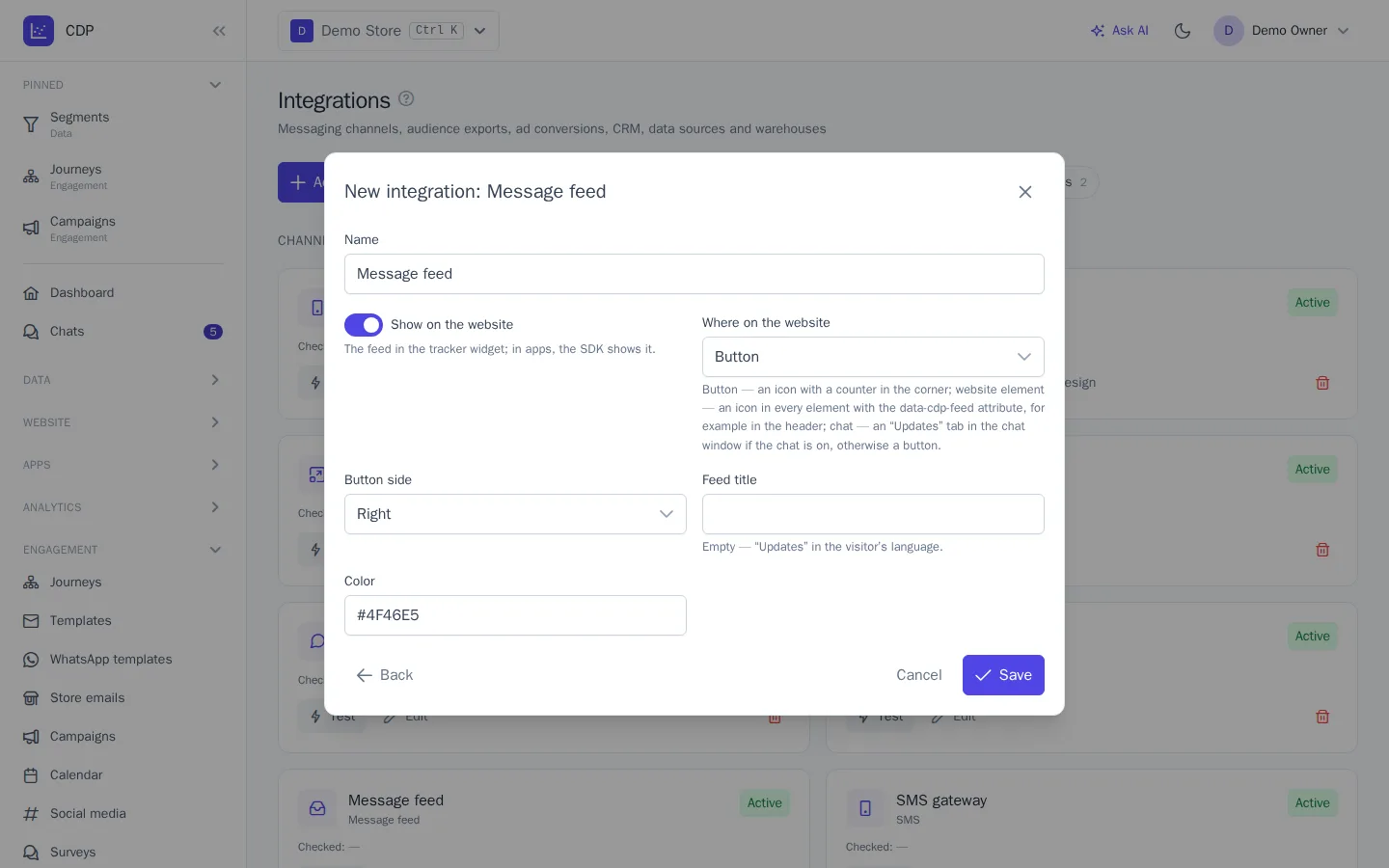
The first connection with website display turned on is the one that applies.
Card
Create a template for the Message feed channel:
- Card layout — Image on the left, Image on top, or Banner (image only);
- Title, Text, Image — the title and text can use profile data, as in other templates;
- Button text and Link — a website page address or a link into the app; without button text, the whole card becomes the link;
- Pin to the top — a pinned card stays at the top of the feed until it expires;
- Keep for, days — how long the card stays in the feed, from 1 to 90 days, 14 by default.
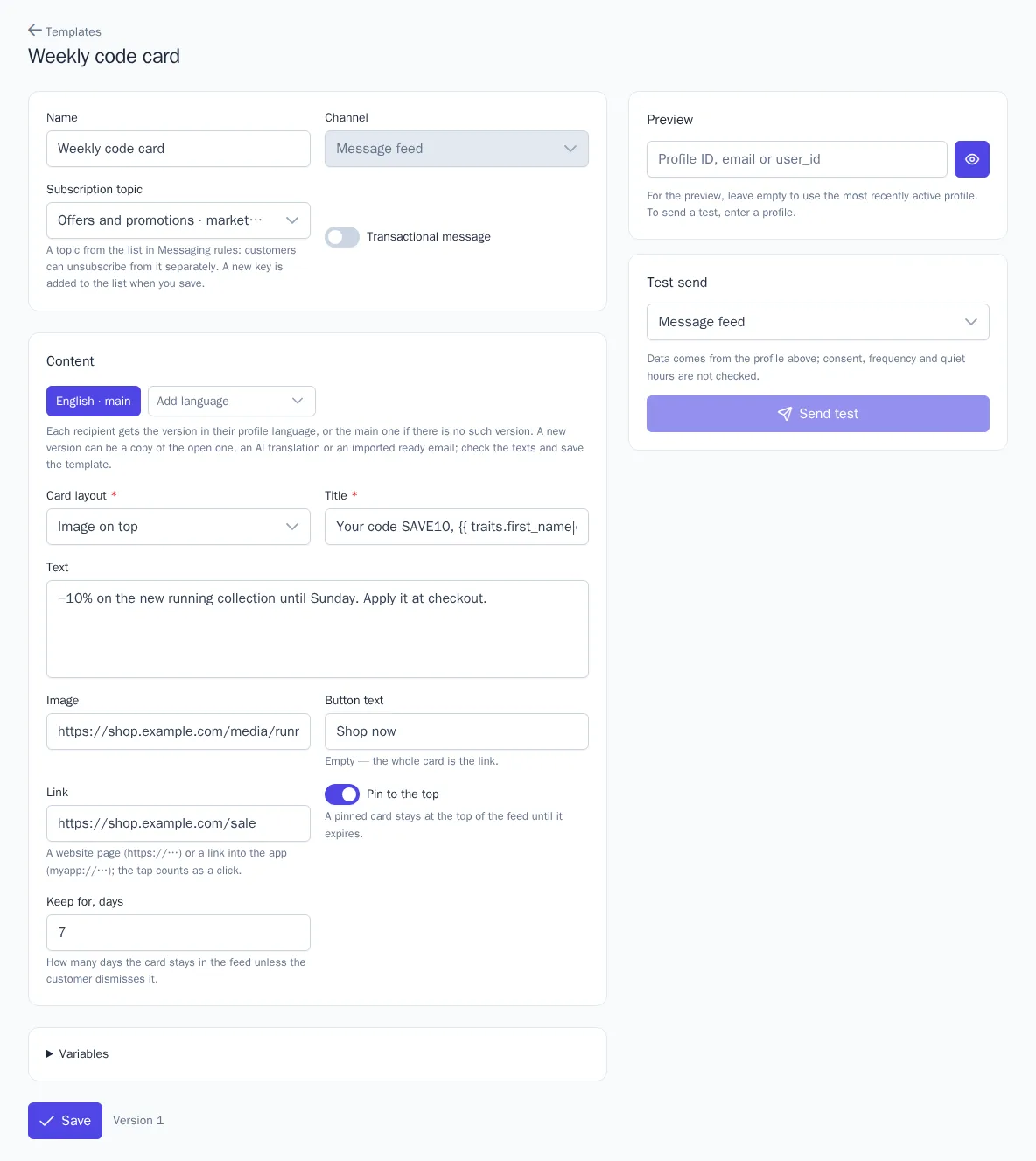
A card needs no recipient address: it waits for the customer until it expires wherever they show up — on the website or in the app. The message counts as delivered and opened when the card is first shown in the open feed, and a tap on the button or the card counts as a click.
Feed on the website
No extra code is needed: the tracker loads the feed itself if it is turned on in the connection. For the Website element option, add an element with the attribute to the website, for example:
<span data-cdp-feed></span>
Your own button or menu item opens the feed by calling cdp.openFeed(). To show the unread count in your own icon, listen for the cdp:feed event on window: event.detail.unread holds the number of unread cards.
Feed in the app
The libraries for Android, iOS, Flutter, and React Native version 1.2.0 and later show the feed as a ready-made screen with a single call that opens the feed, and provide the unread count for a badge in the app. If you need your own design, the app gets the cards as a list and reports views, taps, and dismissals itself. Code examples are in the library documentation, see Mobile apps.
How the feed works
- Pinned cards come first, then the newest; the feed holds up to 50 cards.
- A card becomes read when at least half of it is visible in the open feed.
- The customer can dismiss a card with the cross, and it is no longer shown on the website or in the app.
- If the project’s plan no longer includes the feed, the feed is not shown, and the cards remain until they expire.