Ad conversions
Ad platforms learn from conversions: the more purchases they see, the better they target ads at people who will buy. A website pixel doesn't see everything: browsers and extensions block it, and it never sees in-store or phone purchases at all. A conversion export sends purchases and selected events to the ad platform from the OneTrace.pro server: online orders, offline receipts from stores, and events such as sign-ups.
Open the section from the menu: Engagement → Ad conversions.
Where you can send conversions
| Platform | How it recognizes the customer | Days accepted |
|---|---|---|
| Meta Conversions API | the _fbc and _fbp pixel cookies, email and phone number, hashed (SHA-256) |
7 |
| Yandex Metrica: offline conversions | the Metrica ClientID (the _ym_uid cookie) or the yclid click ID |
21 |
| Google Ads: offline conversions | the gclid, gbraid, wbraid click IDs, email and phone number, hashed (SHA-256) |
90 |
| VK Ads: offline events | the rb_clickid click ID |
90 |
The platform rejects conversions older than that, so the export doesn't send them.
Where click IDs come from
When a customer arrives from an ad, the platform adds a click ID to the page URL: gclid for Google, yclid for Yandex Direct, fbclid for Meta, rb_clickid for VK Ads. The website tracker remembers the latest click ID from each platform for 90 days and sends it with events, along with the Meta and Metrica pixel cookies. This way OneTrace.pro knows which click led to the purchase, even if the order comes a month later or in a store.
If your server sends the website events, pass the click IDs yourself in the event's context.ads field. See the API reference.
A customer without click IDs or cookies can still reach Meta and Google through the profile's email or phone number. Metrica and VK Ads don't receive conversions without click IDs.
Connect an ad platform
- Open Integrations and choose a platform in the Ad conversions group.
- Fill in the fields:
- Meta: the pixel ID and a Conversions API access token: Events Manager → your pixel → Settings → Generate access token. The test event code is only needed to check events in the Test events tab;
- Yandex Metrica: the counter ID and an OAuth token with permission to edit the counter;
- Google Ads: the same access as for Customer Match: Google Ads account ID, OAuth client ID and client secret, refresh token. With Validate only turned on, Google checks the events but doesn't upload them. Turn it off once you're sure there are no errors;
- VK Ads: the ID of the Top.Mail.ru pixel installed on your website.
- Click Test, then Save.
Until a platform is connected, the section shows a hint with an Open integrations link.
Create an export
- Click New conversion export.
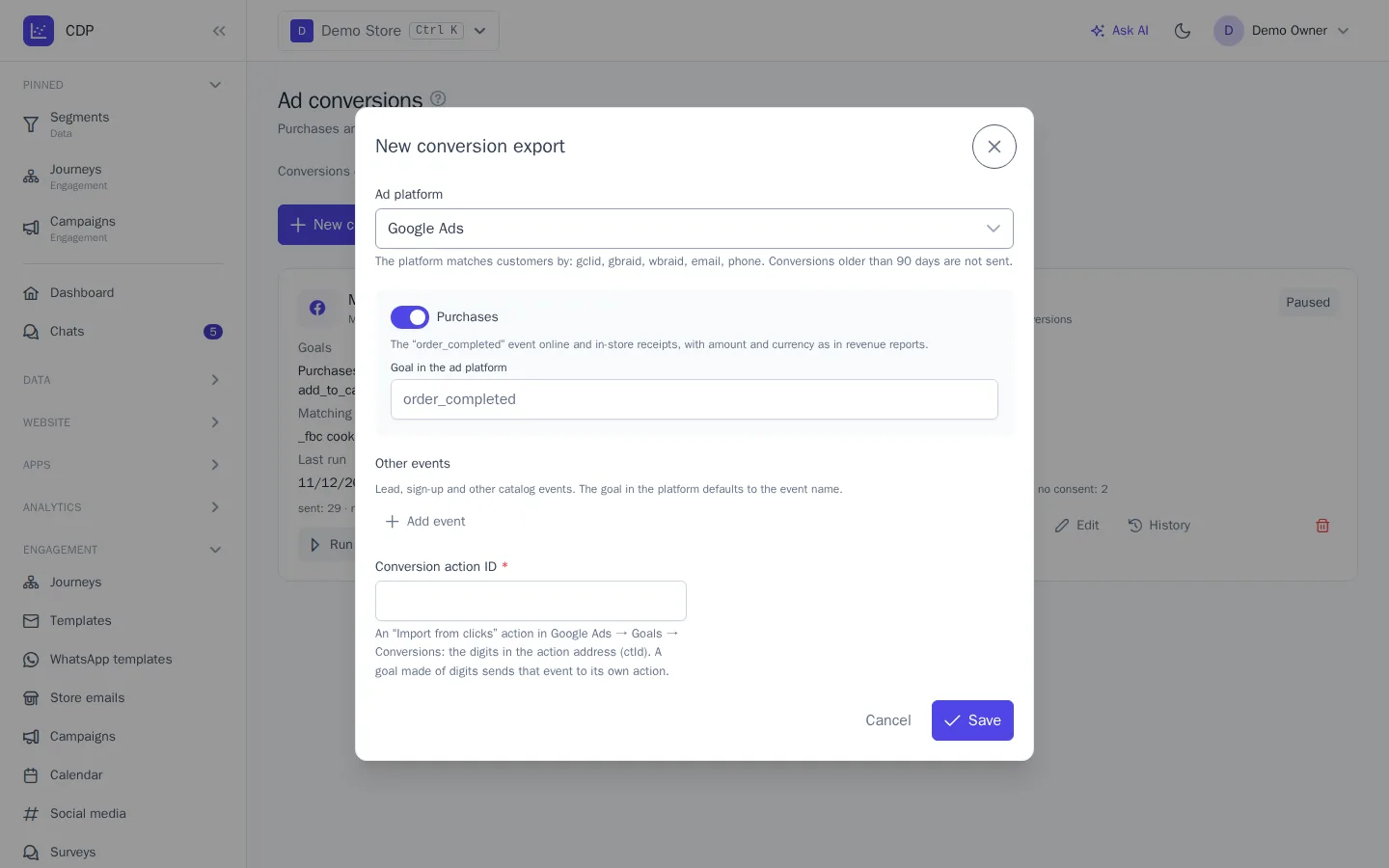
- Choose the Ad platform. Below the field you'll see which click IDs and contacts the platform uses to recognize the customer.
- Select Purchases to send website orders and offline receipts with amount and currency, as in the revenue report. The purchase event comes from the Predictions settings; if it isn't set, the dialog shows a link to the setting.
- In the Goal in the ad platform field, enter the goal name if it differs from the default:
- Meta: the standard
Purchaseevent, so you can leave the field empty; - Yandex Metrica: the ID of a "JavaScript event" goal from the counter settings;
- Google Ads: empty, or the ID of another conversion action. A goal made of digits goes to that action, anything else to the action from the Conversion action ID field;
- VK Ads: the goal name you'll later choose in the campaign.
- Meta: the standard
- In the Other events block, you can add up to 10 catalog events, such as a lead or a sign-up. By default, the goal in the ad platform is the event name.
- For Google Ads, enter the Conversion action ID at the bottom of the dialog: an "Import from clicks" action from Goals → Conversions. It's the digits in the action URL (ctId).
- Click Save.
The first export starts within a minute and covers the last 7 days of events. After that, new events are sent every 15 minutes. Each connection can have one export.
Advertising consent
Before sending, the export checks the customer's "Advertising" consent. By default, data can be shared for everyone except those who denied it:
- in the preference center: the Personalized ads checkbox appears once an ad platform is connected in the project;
- through the consent API or in identify: the
adschannel. See the API reference.
If your policies require explicit consent, turn on Send data to ad platforms only with explicit consent on the Messaging rules page. Then only customers who allowed it themselves are sent to the ad platform, and Google also receives a consent flag with the conversion.
"Advertising" consent also applies to audience exports to ad platforms. Unsubscribing from messages doesn't affect it.
Export card
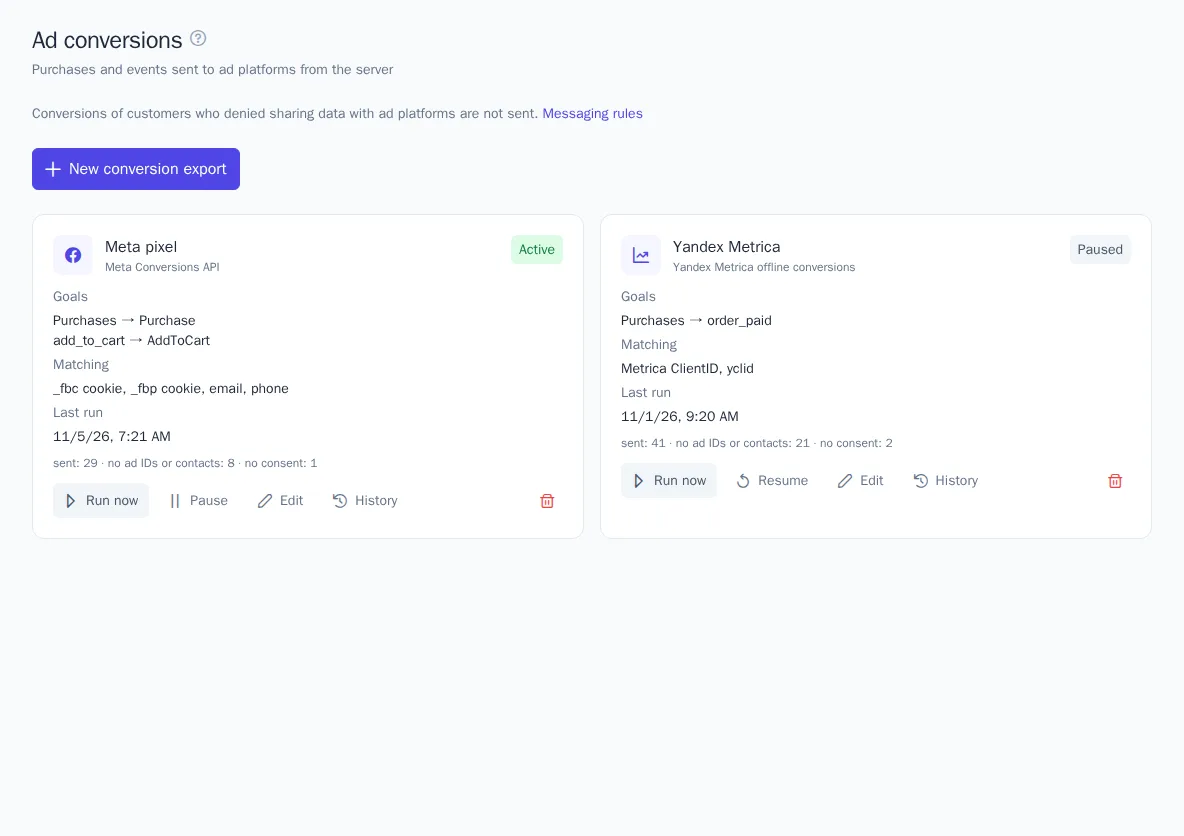
The card shows the platform, status, Goals, Matching (what the platform uses to recognize the customer), and Last run. Below that is the result of the last run:
| Metric | What it means |
|---|---|
| sent | conversions passed to the ad platform |
| no ad IDs or contacts | the customer had no click ID, no cookie, and no required contact |
| no consent | the customer denied sharing data with ad platforms |
| too old | the event is older than the platform accepts |
All project members can view exports, while the Run now, Pause, and Edit buttons are available to those who have both the permission to edit segments and the permission to see personal data, as with audience exports.
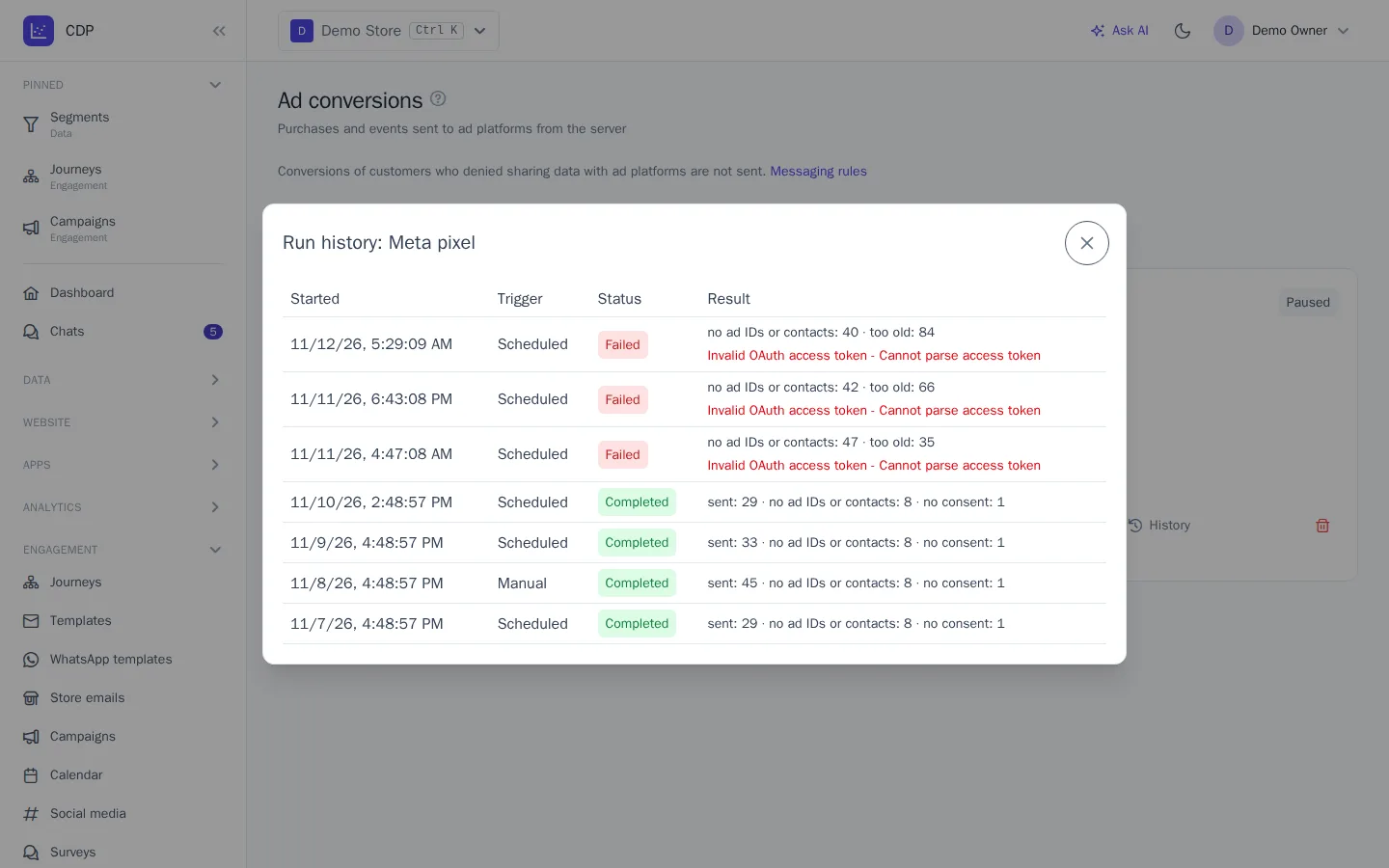
Export statuses are the same as for audience exports: Active, Paused, and Failed. The export retries temporary platform issues on its own. If it fails, for example because the token has expired, fix the connection in Integrations and click Run now: the export picks up where it left off.
Run history
The History button shows the runs: time, how it was triggered (Scheduled or Manual), status, and result.
Good to know
- Retries don't duplicate conversions. Each conversion is sent with the event ID or order number, and the platform discards a duplicate if a run had to be repeated.
- VK Ads doesn't report whether it accepted an event. You can only check in the campaign statistics. Turn on offline conversion tracking in the campaign settings.
- Metrica links a conversion to a visit no more than 21 days old. The export turns on extended tracking for the counter by itself.
- Changing an export doesn't resend past events: the new rules apply to events after the last run.
- Deleting an export doesn't delete conversions in the ad platform.